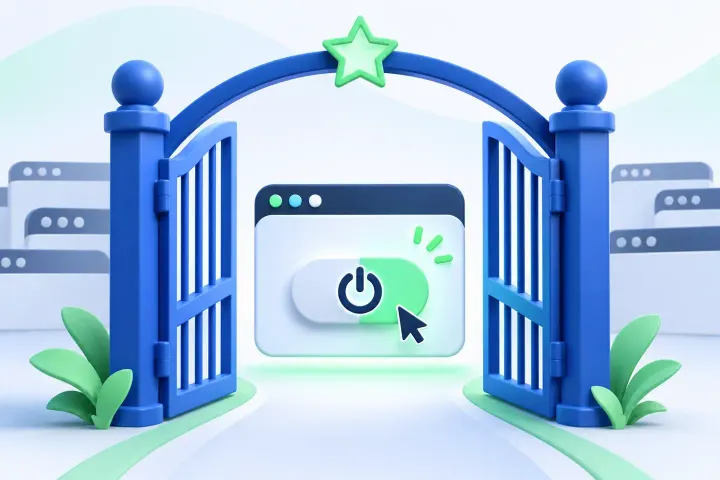
How to add a website exception in uBlock Origin Lite
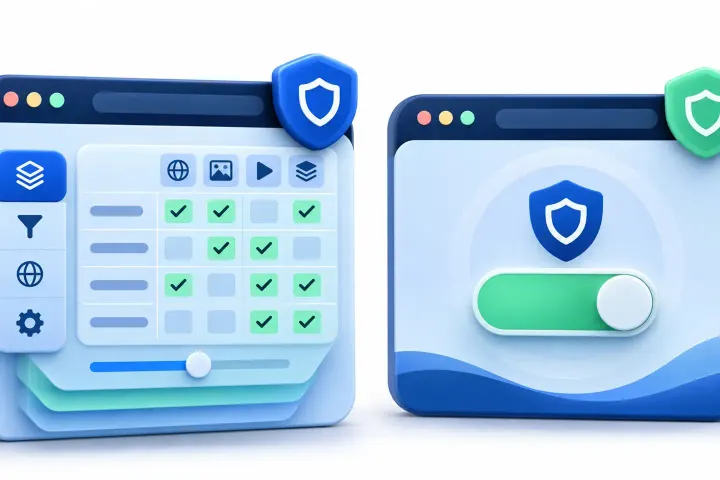
Change the filtering mode for the current site, then check the site again.

A short checklist for choosing an extension and knowing what you're giving it access to.
Name the problem first: too many tabs, saved links you can't find, or text that's hard to read. Look for a tool that solves that problem.
Check the developer and the requested access on the official store listing. A tool that changes a webpage may need permission to read it.
Understand Chrome extension permissionsAdd one extension at a time. If a page starts behaving differently, disable the new extension and check again. Remove tools you no longer use.
Change the filtering mode for the current site, then check the site again.
Allow one website with the original uBlock Origin power button, check the hostname scope and restore filtering when the exception is no longer needed.
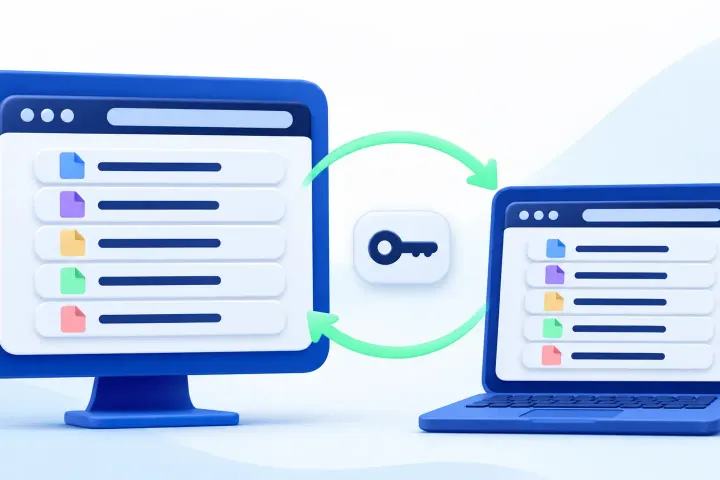
Use encrypted sync or a manual export according to the browser and the data that must move.
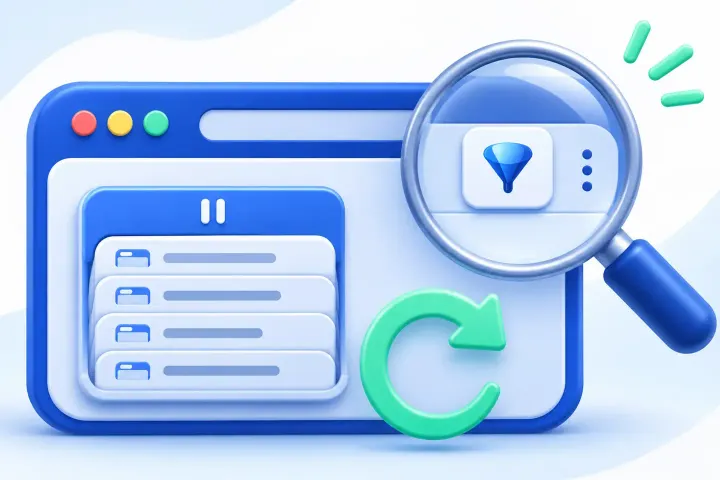
Choose the matching symptom and preserve accessible saved links before changing the extension.
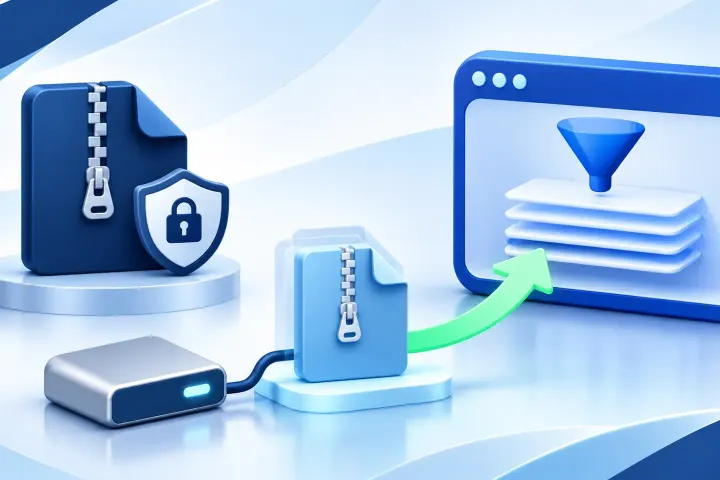
Preserve the surviving data and identify the backup format before attempting restoration.
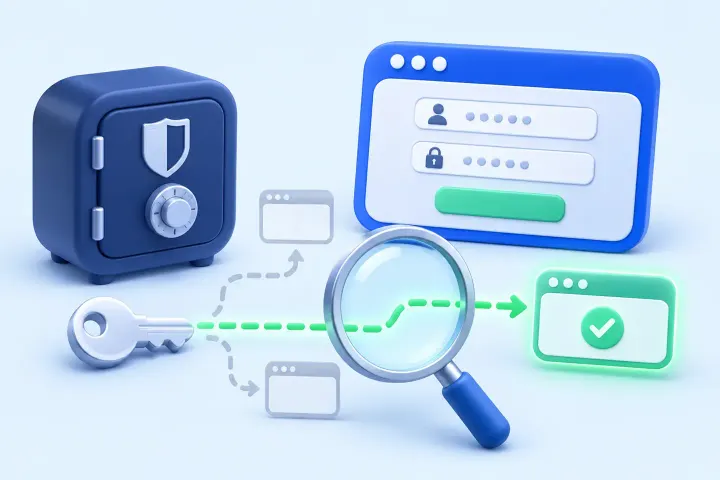
Separate an absent extension, locked vault and failed autofill before changing stored data.
Separate Dark Reader's user fee, Safari purchase and Plus features, then check the offer for your browser before paying.
Choose the supported product for the browser, then compare the controls you need.