
Does OneTab sync across devices? Plans, limits and setup
Use encrypted sync or a manual export according to the browser and the data that must move.
Get extension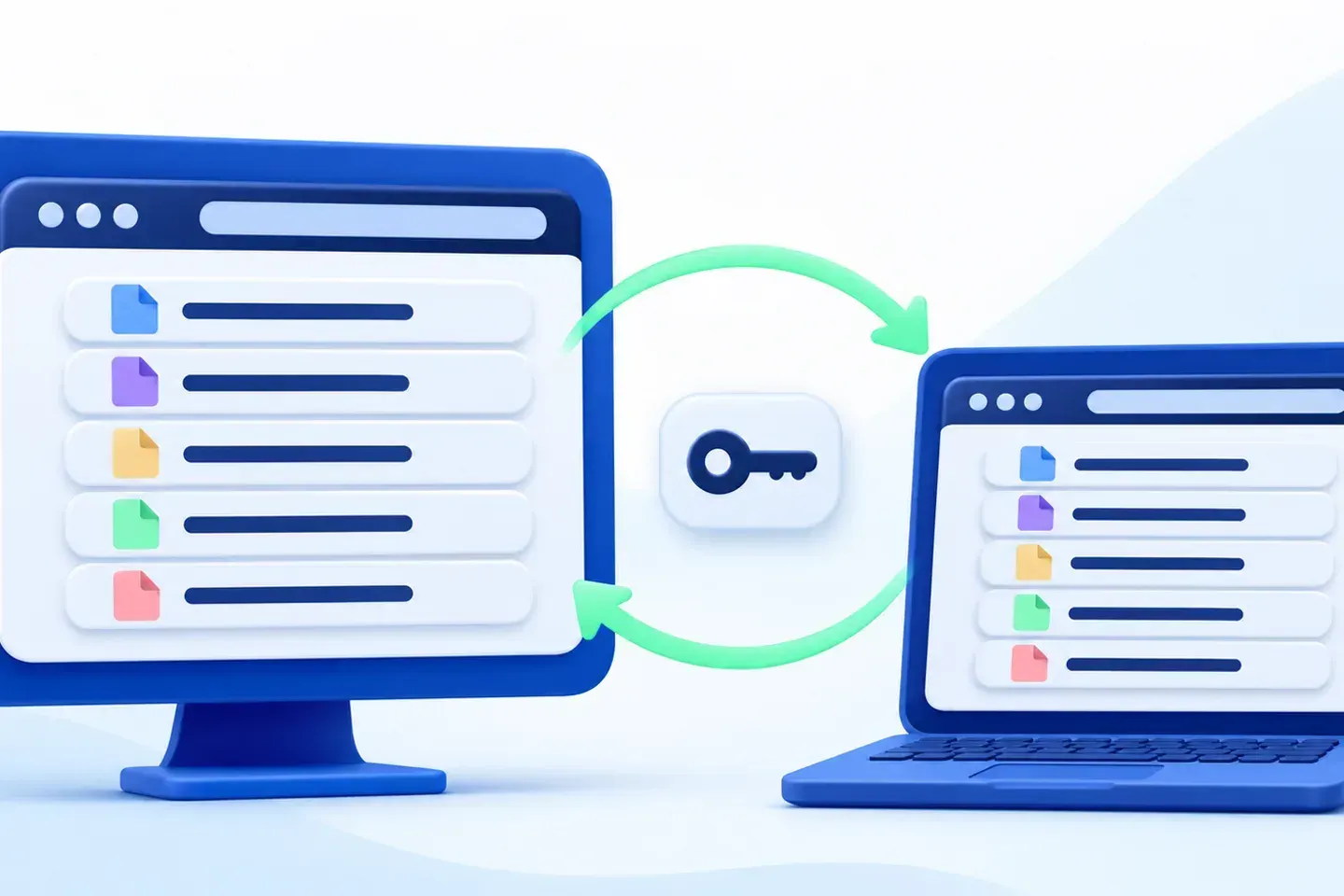
OneTab can sync saved tabs across devices through its paid Backup & Sync service. You connect each browser or profile yourself; installing the free extension in two browsers doesn't link their lists. I'd choose sync for a list that changes on several computers, and a separate export for a one-time move or an extra recovery copy.
The distinction matters: OneTab synchronizes its saved tabs and settings, not your open browser tabs or browsing history. The newer version with encrypted sync is available for Chrome, Edge and Firefox; Safari follows a different feature set, according to OneTab's browser compatibility guidance.
Choose ongoing sync or a one-time transfer
If you want edits to appear in another connected browser, use OneTab Backup & Sync. The developer describes the service as an encrypted cloud copy that distributes changes between connected browsers. You need a subscription and the account's recovery information.
For a one-time move, export the saved links and keep the exported file somewhere separate from the browser profile. Importing or copying a list is a transfer: later changes won't automatically follow it. A shared web page is a different choice again, intended for sending links to someone else. I wouldn't use a share link as the private backup of a sensitive research list.
| Need | Starting point | What to check |
|---|---|---|
| The same changing collection on several computers | Backup & Sync | Supported browser edition, subscription and encryption-key recovery |
| A one-time move | Export and import | Keep the original copy and inspect the imported links |
| Links for another person | Group sharing | Whether those links should be published as a web page |
Connect the browser profiles you intend to use
Start in the browser profile that holds your current OneTab list. Check that the saved groups are there before connecting an empty profile. Each browser profile has separate extension data; opening a work profile instead of a personal one can look like a missing list.
- Open OneTab in the profile containing your saved links. Keep a separate export before making a substantial change.
- Review the price and terms for your country before paying for Backup & Sync. After subscribing, open OneTab, click Backup & Sync, choose I already have a license key and enter the license key emailed to you.
- Keep the license and encryption information using the recovery method you choose.
- Add the second supported browser or profile to that sync account. Installation alone doesn't connect it.
- Check that the intended saved groups are available in both places before removing anything from the original browser.
OneTab says each newly connected browser initially receives its own folder, so existing collections don't have to become one undifferentiated list. Its service page also states that one license covers one user's computers and profiles, up to the published browser/profile limit. Check that limit in the current order summary if you plan an unusually large setup.
Make the encryption choice before you need recovery
The developer says data is encrypted on the device before upload. Its recovery options include keeping the encryption key yourself or choosing server custody for email-based recovery. Those choices change what you'll need when a computer is lost. I'd write down the recovery route while setting up the service, rather than discover it during a failed restore.
Keep a separate export as well. The service describes sync and cloud backup as the same mechanism: changes are stored and sent to the other browsers. That doesn't establish an independent version history for every mistaken deletion. A separate dated copy protects a different part of the workflow.
Know what happens offline or after cancellation
According to the service's FAQ, saved tabs remain available locally while offline, and offline changes synchronize when the browser reconnects. Canceling the subscription stops syncing and cloud backup; the saved tabs already in the browsers remain there. Check the local list before changing devices or ending a subscription.
Uninstalling OneTab deletes its local saved data, so don't try it as the first fix for a missing list. Preserve the working copy and identify the affected browser profile before reconnecting or reinstalling anything. The OneTab review explains what the extension saves and how its saved-page workflow differs from bookmarks and local HTML copies.

About Rasmus Senlogan
I build desktop applications, browser extensions and plugins. I created ExtensionTools to organize the tools I've collected and built, and help others find useful software.