

OneTab review
A practical review of OneTab: clearing tabs, finding saved links, choosing sync and protecting your collection.
Get extensionUse OneTab when you want a crowded browser window out of the way but still need the links. It closes tabs and keeps a list you can reopen, with folders and search in its newer Chrome, Edge and Firefox version. I'd choose it for a research queue or a project you're putting aside; save unfinished work first, and keep an independent copy of links you can't afford to lose.
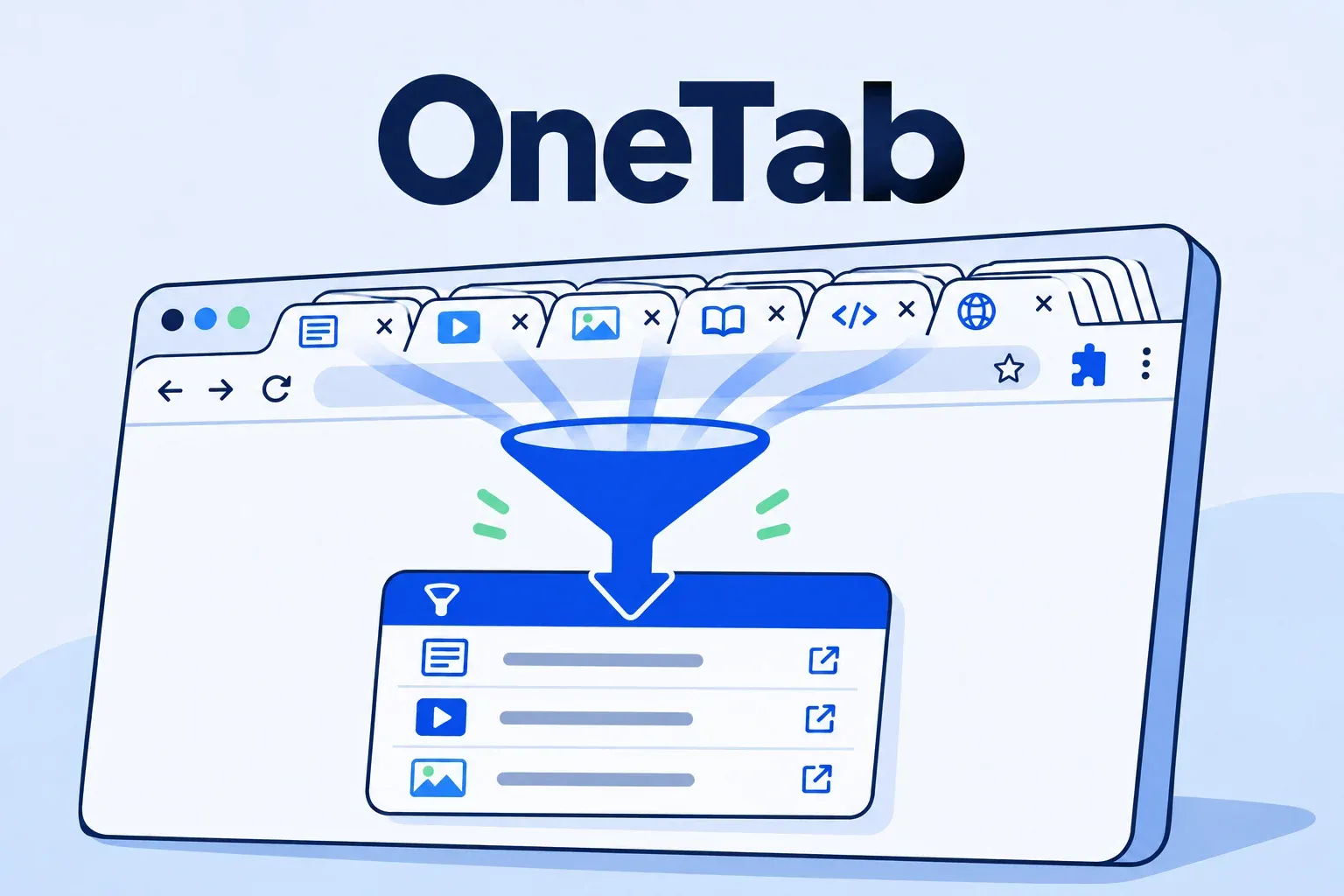
What you gain, and what a saved tab leaves behind
The useful part is the handoff between an open window and a manageable list. Clicking the toolbar icon stores tabs from the current window; later, you can open one saved link or restore a group. You don't have to leave every page running just to remember where you found something.
A saved address takes you back to the website. It doesn't freeze that website, preserve a document you haven't saved, or guarantee that a page will still be available. Finish a message, submit or save a form, and save changes in a web app before sending its tab away. Reopening the same URL is a different job from recovering the complete working state of a tab.
That distinction determines my choice. For a temporary reading queue, OneTab fits. For a separate HTML copy of a page, look at saving a page with SingleFile. A durable collection of tagged bookmarks is closer to Raindrop.io's bookmark-library workflow. Don't choose between them by counting features: decide whether you need a link, a page copy or a long-term library.
What the published memory result tells you
OneTab reduces the number of open pages rather than making those pages cheaper to run. Its developer advertises up to 95% memory savings. That is a maximum claim, not a promise for your mix of sites.
In a 2013 aNewDomain review, Paul Bonner reported a 40-tab example on a freshly booted laptop. After those pages loaded, his system monitor showed Chrome using 3.1 GB of RAM and 1 GB of swap. Sending the tabs to OneTab reduced the reported figures to 477 MB of RAM and 313 MB of swap within two seconds.
| Resource | Before storing tabs | After storing tabs |
|---|---|---|
| RAM | 3.1 GB | 477 MB |
| Swap | 1 GB | 313 MB |
The review doesn't identify the hardware, operating system, Chrome build or OneTab version. Those figures explain the mechanism, but they don't establish how OneTab v2 compares with a current browser's memory management. Restoring a large group also opens pages again, so the resource savings belong to the period when those pages are closed. I'd use the tool to reduce an active workload, rather than buy into a fixed percentage.
Choose the right browser edition
Start from the developer's browser download links for Chrome, Firefox, Edge and Safari. Check the publisher and requested permissions in the matching store before installing. An extension file from a download mirror adds an unnecessary trust decision.
The editions don't have identical features. The developer's Safari guidance says the newer version with folders, search and encrypted cloud backup/sync is available for Chrome, Edge and Firefox; Safari retains the older version because of platform limitations. The controls below follow the newer desktop interface. Don't spend time looking for its folder tree in an older Safari edition.
Store the right tabs, then restore only what you need
- Save any work in the pages you're about to close. Start with ordinary reading pages if you want to learn the workflow without risking a draft.
- Pin OneTab to the browser toolbar so you can find it. The official help shows the browser's extensions menu as the starting point.
- Click the OneTab icon to store tabs from the current window. Check that the expected links appear on the OneTab page.
- Click a saved link to return to that page. Use Restore all when the entire group belongs in your current task.
You don't have to collect a whole window. Select the browser tabs you want first, using the Command, Ctrl or Shift modifiers listed in OneTab's help, then use the OneTab right-click menu to send the selected tabs. That is the better starting point when one window mixes research with a document you're still editing.
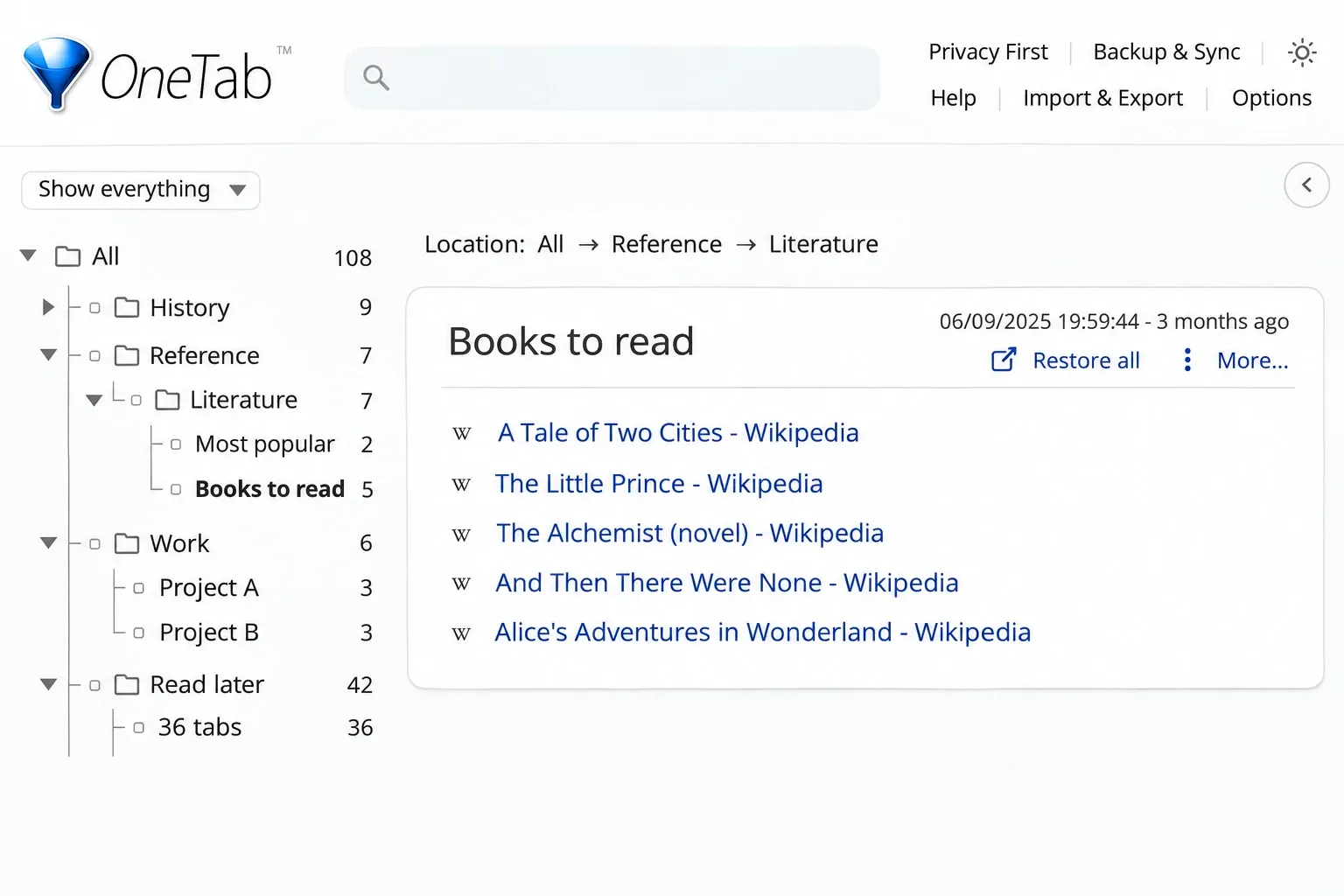
My default is to reopen individual links until I know I need the whole group. It keeps a saved research queue from immediately turning back into the same crowded window. After restoring, check the page itself: an expired login, changed article or missing attachment can't be repaired by the saved address.
Organize and find the list instead of rebuilding the clutter
Use folders for projects with an ongoing purpose, and groups for the set of pages you stored together. The current help documents dragging tabs and groups to reorder them, dropping tabs in blank space to create a group, and dropping one group into another to merge them. Name things for the task you'll recognize later, rather than leaving every research session indistinguishable.
Search is often quicker than expanding a folder tree. Press / on the OneTab page to focus its search bar. From another tab, the documented address-bar route is 1, 1, then Space, followed by your search term. This is a search of your saved OneTab collection, not a browser-history search.
The help also documents stars for important items, tasks you can mark complete and a quick-list column. I wouldn't organize every saved link immediately. Use those controls when they help you return to a recurring task; a short-lived reading queue doesn't need a filing system.
Export, sharing and sync solve different problems
For an independent copy of important links, use Import & Export and keep the exported list outside the browser profile. The developer describes exporting and importing tab lists. Check that the saved copy contains the addresses you expect before you remove the extension or switch profiles; don't assume a list of links is a complete backup of every folder, note and browser state.
Share as a web page publishes the selected group for other people to open. It is convenient for a reading list, but review the actual URLs first. Private-document addresses, internal dashboards and search terms can disclose information even when the destination requires a login. Exporting a list for your own safekeeping doesn't require making it a shared page.
Backup & Sync is the separate paid service for your saved collection across browsers and profiles. Each browser or profile must be connected deliberately; signing up doesn't silently connect every browser on your computer. Initially, each connected browser gets its own folder, which you can reorganize.
What paid sync includes, and what happens if you cancel
The official US offer is $39.99 per license per year, covering up to 100 browsers or profiles. It syncs saved OneTab tabs and settings, not your browsing history or the tabs currently open in the tab bar. One license is for a user, rather than a separate charge for each of that user's browsers.
I'd pay for sync when the same saved research collection needs to follow me between browsers or computers. If you only park a disposable queue in one profile, regular independent exports may be enough. The decision is about the collection you need to recover and access, rather than paying for basic tab closing.
The service encrypts data on the device before upload, according to the developer. Its recovery FAQ describes using your license key and encryption key on a replacement machine, and also offers optional server custody of the encryption key for email-based recovery. Choose that recovery arrangement deliberately: keeping the key yourself and asking the service to hold it are different trust decisions.
Your saved collection remains available locally when the computer is offline or the sync server is unreachable. The service says changes made offline sync when the connection returns. That keeps access to the list separate from access to its destinations: a saved link doesn't make the linked website available offline.
After cancellation, the saved tabs stay in each browser and sync and backup stop. The privacy policy says encrypted synced tabs are deleted after the license ends, so don't rely on an expired subscription as an ongoing cloud archive.
If OneTab won't load, protect the collection first
Don't start with uninstalling and reinstalling. The developer explicitly warns that uninstalling causes the browser to delete the stored tabs. A loading failure and an empty collection are reasons to preserve what exists before attempting a destructive repair.
- Confirm that you're in the expected browser profile. Profiles are independent, so a different profile can show a different OneTab collection.
- If you can open the collection, make an independent export before restarting or removing anything.
- Save unfinished work in other tabs, then use the browser's Quit command and restart it. Merely closing every window isn't the same check.
- If it still fails or data appears missing, follow the relevant branch of the official troubleshooting page. Avoid pasting recovery commands from an unrelated version or deleting profile files as an experiment.
OneTab's newer storage changed with version 2, which the developer says reached all users around March 2026. That matters when you find older migration advice: a remedy for a specific migration problem isn't a general fix for every blank page.
Where I'd use OneTab
OneTab makes sense when the next useful action is to close a batch of pages and find their links later. Use the selected-tab route for mixed work windows, search the saved list before opening a whole group, and keep valuable collections recoverable outside a single profile. If your requirement is a preserved page, a full working session or an archival library, choose for that requirement before committing your research to a tab list.
