
Raindrop.io review
A practical Raindrop.io review: saving and finding pages, deciding on Pro, and keeping a recoverable bookmark library.
Get extensionRaindrop.io is a good fit when you want one searchable bookmark library across browsers and devices, with collections, tags and visual previews of saved pages. I'd start with Free: it includes unlimited bookmarks, collections, highlights and devices, plus import and export. Choose Pro when finding a phrase inside a saved article or keeping an archived page matters more than simply keeping its address.

Choose a bookmark library or a page archive
The extension is the capture point; your Raindrop account holds the library. You can save in one browser and open the collection through the web app or another supported app. That is useful when a project crosses a work browser, a personal laptop and a phone. It also means the collection lives with a cloud service, rather than being only a local browser-bookmarks file.
There are three different things to keep straight. A bookmark records an address and its organizing information. A preview makes an article easier to read inside the library. A web archive copy, available with Pro, preserves page content in Raindrop's cloud. A saved address alone won't preserve a page that disappears.
For a temporary batch of tabs you want out of sight, OneTab's saved groups offer a different workflow. For a local HTML page file, see SingleFile. I'd choose Raindrop for a library I expect to search and reorganize over time.
Save a page somewhere you can find it
Use the developer's download page to reach the Chrome, Firefox, Edge or Safari extension. Create or sign in to your Raindrop account, and use that same account on the devices that should share the library. On mobile, use Raindrop's mobile app and its sharing workflow; don't assume a desktop browser-extension route is available in a phone browser.
I'd keep passwords, recovery codes and confidential account links out of a general bookmark library. For a workplace collection containing sensitive material, get the service approved through your organization's security process before uploading it.
- Open the page you want to keep and click the Raindrop.io toolbar icon.
- Choose a collection. Add tags that will help you recognize the subject later.
- Check the title and address, then click Save.
- Open that collection in the library and confirm that the bookmark appears. Open the item to check that it leads to the intended page.
The documented save workflow extracts the title, description and thumbnail automatically. You can edit them later. If you don't choose a collection, the bookmark lands in Unsorted; that makes a useful inbox, provided you return to it.
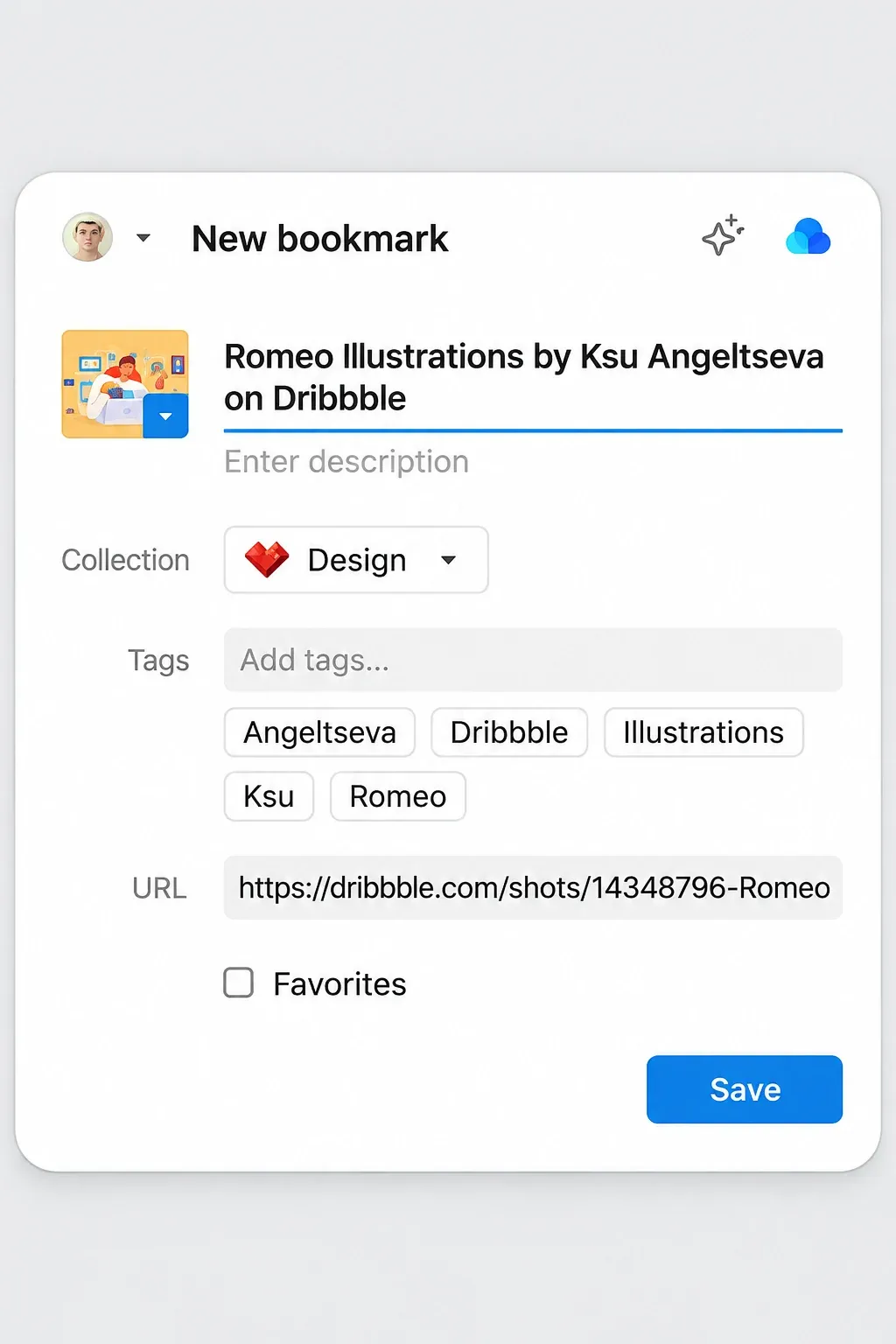
My default would be a collection for the project and tags for subjects shared across projects. A collection named “Home renovation” might contain pages tagged “lighting” or “budget.” Those labels answer different questions: where the item belongs and how you might search for it.
Organize without making duplicate bookmarks
Each bookmark belongs to one collection. Use tags when an item needs to appear under several subjects; making another copy for every topic creates more cleanup work. Collections can be nested, and each can have its own view. A visual grid suits reference images, while a list makes long article titles easier to scan.
On web and desktop, drag a bookmark onto a collection in the sidebar to move it. To handle a batch, select the item checkboxes and use Move or Add tags. Check the selection before choosing Delete: that action applies to the selected group.
Deleted bookmarks go to Trash, where you can drag them back out. They don't appear in ordinary search results or filters. If a familiar item seems to have vanished, check the account, the collection you're searching and Trash before importing another copy of the whole library.
Find a title, tag or phrase inside a page
Free search covers bookmark titles, descriptions, URLs, tags and notes. With Pro, search also looks inside archived web pages, PDFs, EPUBs and YouTube transcripts. That difference matters when you remember a sentence but not the article title.
Start in the main search field for a library-wide search. To narrow the search, open a collection and choose In current collection from the search dropdown. If a phrase returns nothing, check the scope first. Then check whether the phrase is in the bookmark's own metadata or inside page content that requires Pro. For text from a saved web page, confirm that the bookmark has a web archive copy before expecting a match.
New page content takes a few minutes to index. Text inside images isn't searchable because search has no OCR. A scanned page and a text-based PDF therefore have different search expectations, even when they look similar on screen.
Decide whether Pro solves your problem
The current plan comparison puts unlimited bookmarks, collections, highlights and devices, sharing, collaboration, import and export in Free. It includes 100 MB of file uploads per month. You don't need a subscription just to organize a cross-device bookmark library.
Pro adds full-text search, web archives, reminders, annotations, duplicate and broken-link tools, daily backups and a larger upload allowance of 10 GB per month, along with AI features. Monthly and yearly billing are available. Check the price, currency, tax and renewal interval displayed for your location before subscribing; a price quoted for another country isn't your checkout total.
I'd pay for Pro for content search and preservation, rather than for a larger bookmark count. Before committing a large collection to the archive, check several important pages individually. Pages behind a login and sites that block automated access can't be archived. Embedded video, audio and iframes aren't captured, and files larger than 70 MB are skipped.
On web and desktop, right-click a bookmark and choose Open web archive. Open the saved copy and inspect the content you need; the existence of a bookmark doesn't prove an archive succeeded. You can use Download there to keep a local copy.
Cancellation leaves Pro active until the billing period ends. After it expires, archive copies become inaccessible and are permanently deleted after about a month; the bookmarks themselves remain. Download important copies while you still have access. A subscription archive and an independent local backup serve different purposes.
What published reviews show
In Mihir Patkar's MakeUseOf review, the useful result was retrieval: collections and combined search filters helped him work with a collection of 4,637 bookmarks accumulated over 11 years. That is a dated account of using a large library, not a timed search benchmark. Its Chrome-only platform advice belongs to 2014; Raindrop now publishes extensions for Firefox, Safari and Edge too.
Tooltivity's newer review similarly emphasizes organization and content search, but its own page contains conflicting export and plan claims. The current official pricing and export instructions are the better basis for deciding what Free includes. I wouldn't turn its editorial performance score into a claim about seconds saved or memory use.
In Dorothea Salo's May 2022 comparison with Pinboard, combining a tag with a non-tag search term worked in Raindrop, but refining a query sometimes returned no links until she changed the collection being searched. Her library contained 21,000 public bookmarks and more than 900 tags; those figures describe library context, not search success. This was a metadata-search comparison from 2022, so it does not measure current Pro full-text performance. The useful recovery check is to widen the search scope before deciding a bookmark is missing.
The consistent reason to choose Raindrop is the combination of collections, tags and retrieval. That makes the next useful check simple: save a handful of representative pages, then try to find each by the clue you expect to remember. Judge the library on that task before moving everything into it.
Keep cloud storage and public sharing deliberate
Raindrop says collections are private by default, data is hosted in Frankfurt, Germany, connections use HTTPS and two-factor authentication is available. Private-by-default sharing and encrypted transport don't mean a local-only or end-to-end encrypted vault.
The published CVE-2026-31192 record describes insufficient extension-identifier validation in Raindrop.io Bookmark Manager Web App 5.6.76.0. That record doesn't establish the status of today's hosted service.
Nested collections are included automatically, so review the whole tree first. To publish a collection, open it, choose Share and enable Public Page. Other collections stay private. Turning Public Page off stops the public link working; sharing is a separate choice from syncing your own library.
Export before moving or deleting a library
For a whole-account backup, open Settings → Backups, choose Create new, wait for the email notification, then download the files from the same page. The backup includes bookmarks, collections, tags, highlights and notes; uploaded files, including PDFs and images, are excluded and need a separate download. The export documentation recommends HTML for compatibility with browsers and other bookmark managers; CSV and TXT are also available. Keep the uploaded files too if you need a complete move.
For a single collection on web or desktop, open it and choose Export, then the format. Keep the file, import it into the destination and inspect representative items before removing the source. Don't assume the destination will reproduce every note, tag, highlight and collection exactly just because it accepts a bookmark file.
In an August 28, 2025 import-preview comparison, uploading a Firefox export as bookmarks.html detected 32,789 bookmarks, 1,921 folders and 8 tags. Renaming it googlebookmarks.html changed the preview to 1,329 bookmarks, 1 folder and 14 tags. The maintainer clarified that this special filename invokes support for the discontinued Google Bookmarks service; it does not convert Firefox folders into tags. Both screenshots still show Start import; those are detection results, not counts confirmed imported or lost.
When importing into Raindrop, review its summary of detected bookmarks, folders, tags and highlights before choosing Start import. Keep the tab open until upload finishes. Thumbnails and archive processing continue in the background, so check the actual items rather than treating an unfinished preview as missing data.
Start with Free, organize one real project and try finding its pages again a few days later. Upgrade when the missing capability is inside-page search or an inspected archive copy. Keep an export outside the service for the library you intend to rely on.
