
SingleFile review
A practical SingleFile review: making portable page copies, checking what survived, and choosing safe capture settings.
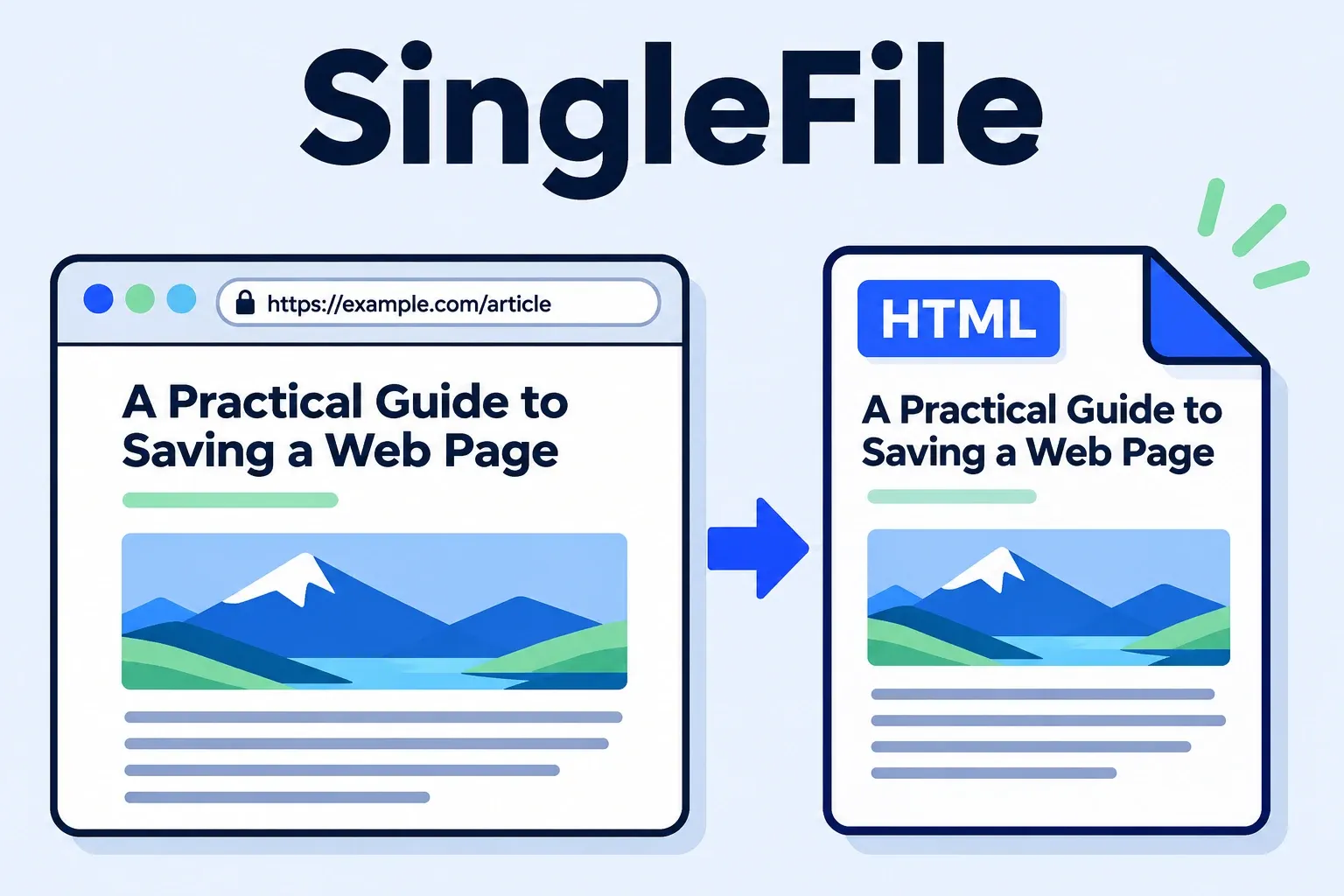
Get extensionUse SingleFile when you need a local copy of a web page that opens as one HTML file, with its text, images and styling together. I'd choose it for an article, tutorial or reference page I want to keep independently of a website or subscription. Save the page after loading the content you need, then open the downloaded file offline and inspect it: a readable snapshot isn't the same as a working copy of an entire website.
Save one page, then check the actual file
The official SingleFile download page links to Chrome, Edge, Firefox and Safari versions, including Firefox for Android and Safari for iOS. The project is free and open source. Use the store link for your browser rather than an unrelated extension with a similar name.
Before capturing an account page, check what personal or confidential content is visible. The resulting local copy can retain that content; choose its storage and sharing accordingly.
- Open the page and wait for the text and images you need to load. Expand the sections you want visible in the copy. Scroll through a long page so deferred content has a chance to appear, then wait for it to settle before capture.
- Click the SingleFile toolbar button. A second click while processing cancels the action.
- Find the downloaded HTML file. The default destination is the download folder configured in the browser, although browser download settings and destination options can change the route.
- Open that file from disk. Check the title, several images, the beginning and end of the text, and any tables or expanded sections that matter.
- Disconnect from the network and reopen the local file to check the parts you intend to use offline.
The developer's getting-started instructions describe the one-click capture and cancellation. Opening an ordinary saved HTML page doesn't require SingleFile to remain installed. Keep the file somewhere you back up, rather than treating the browser's download list as the archive.
Pick the right save action
Right-click the toolbar button or the web page to reach SingleFile's context menu. You can save the current page, selected content or a selected frame. The tab-saving commands can process selected tabs, unpinned tabs or all tabs. Start with the current page until you've checked that your chosen settings preserve the content you need.
For keyboard capture, the customizable Ctrl+Shift+Y shortcut saves the current tab or selected tabs. If content is selected on the page, it saves only that selection. In Chrome, open chrome://extensions/shortcuts and assign a shortcut to “Save the selected tabs (entire pages)” if you always want whole pages; that command has no default shortcut. The developer's shortcut instructions describe both actions.
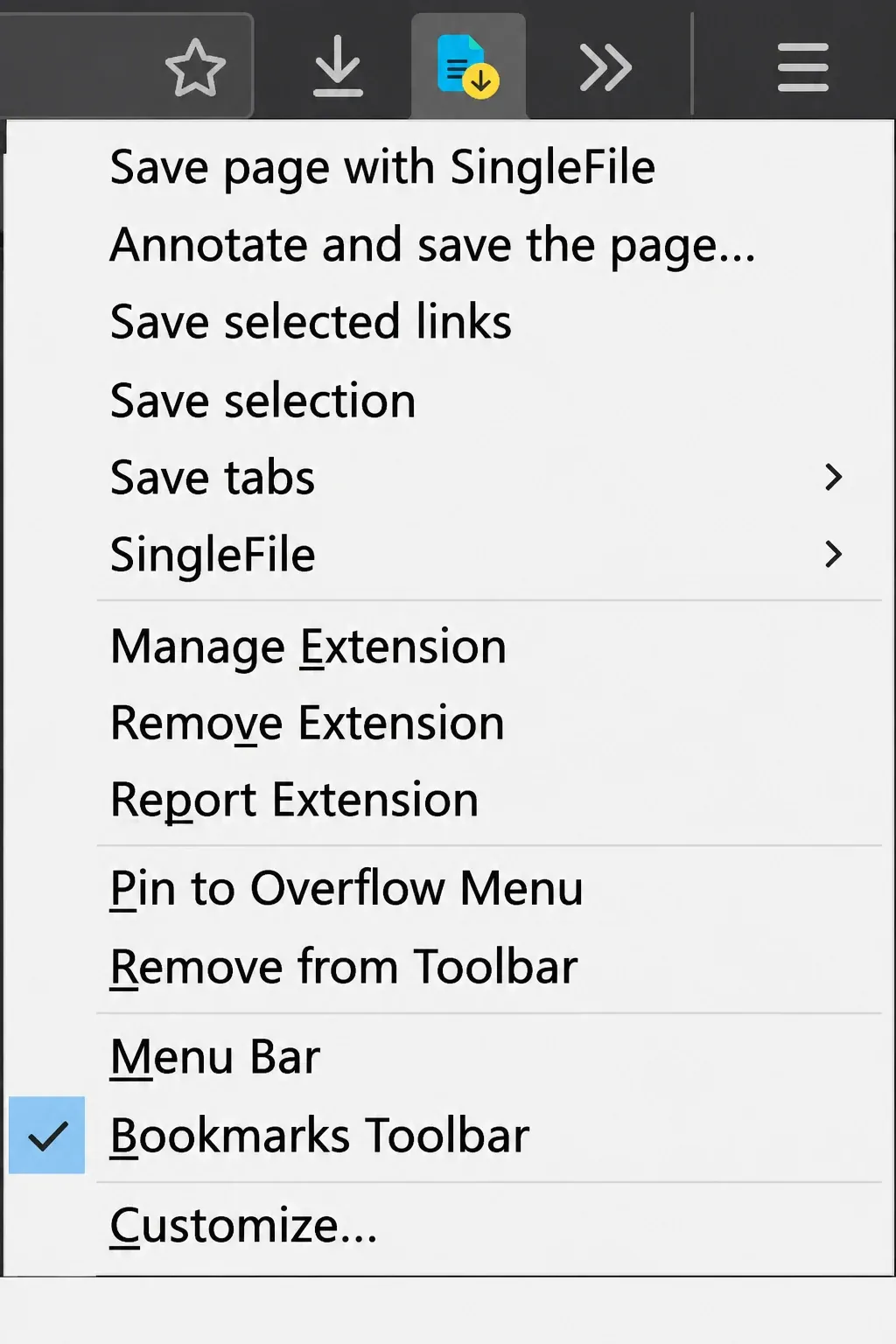
Annotate and save the page... opens the workflow for highlighting, adding notes and removing unwanted content before saving. Those changes belong to the saved copy; they don't edit the original website. Keep an unedited copy too if the distinction between the original page and your notes matters.
Auto-save is a separate choice in the context menu. It can save the current, unpinned or all tabs after pages load, or before they unload when they haven't been saved. I'd use a deliberate page-by-page workflow for sensitive material: automatically saving every tab can leave local copies you didn't mean to retain.
Choose plain HTML or a compressed file
Plain HTML embeds resources such as images and fonts into the file. That is my default for a small reference collection because the result opens in a browser without an extension or JavaScript being needed to reconstruct the page.
SingleFile can also create a self-extracting ZIP: an HTML file carrying compressed page resources. The format comparison distinguishes the universal self-extracting format from ordinary HTML. The compressed format needs JavaScript to unpack itself in a browser; a ZIP tool can extract its page and resources as separate files.
The developer's published Wikipedia examples provide two versions of the same “data URI scheme” article: a 350 KB HTML file and a 189 KB self-extracting ZIP. Opened from disk with networking disabled in Chrome 158, both displayed the article text, its graph, the two red-dot examples and the styled page layout. The contents link to Syntax jumped to that section in each file.
The difference appeared when JavaScript was disabled. The ordinary HTML sample still displayed the article; the compressed sample did not display the article. That makes ordinary HTML my choice for files I want to read with scripts blocked. These two outputs demonstrate the format choice for one static article. Image-heavy pages and interactive content still need their own capture checks, and the sample sizes don't predict your collection's compression rate.
SingleFile's HTML also differs from MHTML and Safari Webarchive. The project's comparison lists MHTML viewing in Chromium browsers and Webarchive viewing in Safari, while plain HTML is the more portable choice. A PDF can suit a fixed print layout; an HTML copy is useful when the page's text, links and browser layout are what you want to retain.
Expect a snapshot, not a live application
By default, SingleFile removes scripts because they can alter rendering and may not work offline. Folding sections, carousels, maps and multi-step applications can therefore lose their behavior. Expand relevant content before capture and check whether the saved file contains the text itself, rather than only the first visible step.
Keeping a link doesn't download the page it points to. Saving a tutorial's first page won't automatically save its next chapter, every linked document or a whole website. If several pages are essential, save and check each of them. Treat videos and interactive services as separate requirements; a still image of a player isn't a playable video archive.
The known-issues list also notes restrictions on canvas images, video snapshots and sandboxed frames. Browser security blocks extensions on some privileged pages, including extension-store pages. A blocked symbol there can be an expected restriction rather than a broken installation.
For professional web archiving, the developer's FAQ points to tools based on WARC instead. I'd keep SingleFile for portable page reading and reference snapshots, and choose an archival workflow explicitly when preserving network responses and provenance is part of the requirement.
What published use and failure reports tell us
In the 2022 Hacker News discussion, users described retaining article styling for offline reading and keeping local copies of tutorials. One described a collection of hundreds of saved pages whose links remained clickable. That supports the practical use case: keeping a page readable and navigable in a browser.
More recent Firefox reviews show the other side. A reviewer using version 1.31.5 reported that a multi-step page retained only its first step. Another, on version 1.27.0 with default settings, reported problems with large files and JavaScript-heavy pages. These are individual reports with different page conditions, not a measured failure rate or a claim that every current version behaves the same way.
The useful conclusion is to verify the saved content you care about. Long static text and an interactive application impose different demands; a high store rating can't tell you whether your particular table, image or expanded panel survived. I'd check a representative complex page before collecting dozens of similar pages with the same settings.
If images or sections are missing
First compare the original page with the saved file. If the content hadn't loaded in the original, wait for it, reveal it and save again under a different filename. Keep the earlier copy until the replacement is checked. The extension has deferred-image loading options, but lazy-loaded content still deserves inspection.
Some sites require a Referer header to deliver images. The FAQ identifies Network → pass "Referer" header after a cross-origin request error as a relevant option for that specific failure. It is off by default for privacy reasons. Use it when the symptom and source fit, rather than changing network settings for every incomplete capture.
When an interactive control is missing, prefer capturing its expanded visible state. The FAQ documents script and raw-page options for advanced cases, but enabling scripts doesn't guarantee a working offline application. A server-backed search box or account action still needs its service.
If saving is slow, the FAQ explains that defaults favor smaller output. Disabling hidden-element or unused-style removal can reduce processing work, with different output-size tradeoffs. Change one relevant option, save another copy and compare it; don't sacrifice frames or deferred images without checking what disappears.
If a Chromium download receives a random identifier instead of the expected page filename, the known-issues guide recommends disabling Misc → save pages in background; another download extension can also be involved. Save another copy and inspect the resulting name and destination. That is a narrower first check than reinstalling the browser.
Keep local files and cloud destinations distinct
SingleFile's privacy policy says processing and storage are local by default. Capturing can still download page resources that weren't cached, so local processing doesn't mean that saving creates no network requests.
Optional destinations change where your files go. Google Drive, Dropbox, GitHub and a configured WebDAV, S3 or API destination transmit data to the selected provider or server. Synchronizing options sends settings to the browser vendor. Check those choices before saving a private page, and review the saved content before sharing its file.
Chrome requires Allow access to file URLs if SingleFile needs to process or annotate an existing local file or display its infobar there. The FAQ also documents a local-file permission for Firefox 153 and later. Those permissions concern the extension's access to files; they aren't required merely to read a plain HTML copy in a browser.
Choose Raindrop.io when the primary problem is a shared bookmark library and content retrieval across devices. Choose OneTab when it is putting aside a batch of open links. For an independent page file, keep SingleFile's ordinary HTML workflow simple: load, save, open offline, inspect and back up.
