
How to add a website exception in uBlock Origin Lite
Change the filtering mode for the current site, then check the site again.
Get extension
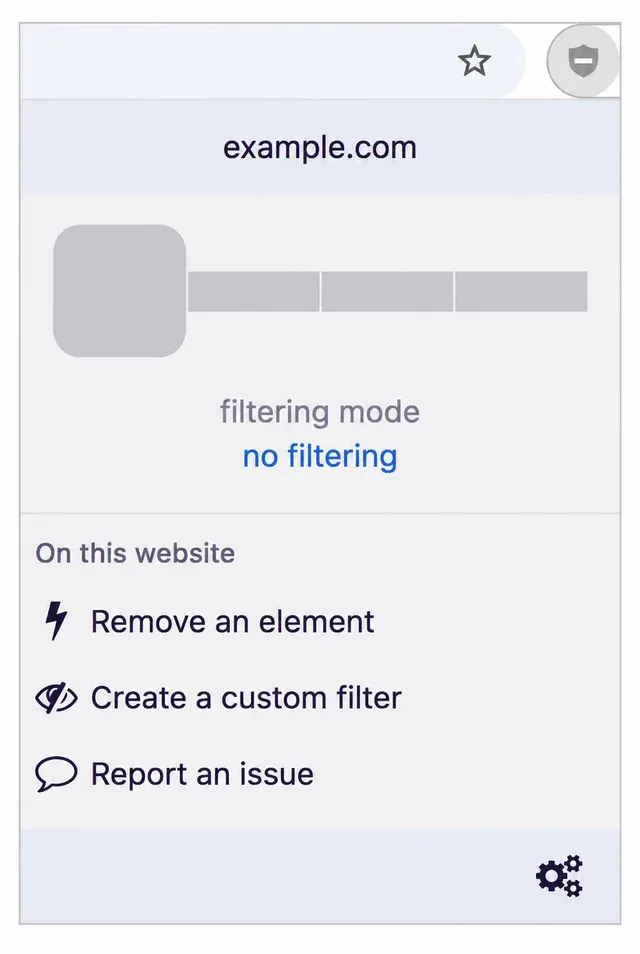
To allow a website in uBlock Origin Lite, open that website, open the extension popup and move its filtering-mode slider completely to the left. This disables uBOL filtering for that site. Save unfinished work before reloading. If a payment or form submission stalled, check its status before trying it again; use a harmless, read-only action to compare filtering states.
Use the slider in Lite itself. Instructions about the original uBlock Origin's large power button or Trusted sites pane describe a different extension. I'd make one site exception first and keep filtering enabled elsewhere.
Check that the installed extension is Lite
Open the browser's extension menu and read the full name. The maintainer's uBOL quick guide shows the per-site filtering slider and explicitly tells users to move it all the way left to disable filtering on the current website.
A mode change and a custom filter solve different tasks. A site exception allows the whole site through uBOL's filtering; a cosmetic filter changes which page elements are hidden. Adding a website name to a custom-filter editor isn't a substitute for choosing the site's filtering mode.
Allow the site and check the result
- Open the exact page that is failing. Check the address so you know which website you're allowing.
- Open uBlock Origin Lite from the browser toolbar or extension menu.
- Move the filtering-mode slider completely left, as shown in the official quick guide.
- Reload the page, then check the affected feature with a harmless, read-only action.
- Reopen the popup on that website and confirm the mode you intended is selected.
The useful result is concrete: the video plays, the form responds or the missing page component appears. If nothing changes, the exception hasn't established that uBOL caused the problem. Return the site to its previous filtering mode before investigating an unrelated cause.
Try a smaller change when you still want filtering
Before leaving a permanent exception, consider whether a different filtering mode solves the problem. The uBOL FAQ recommends changing the filtering mode when troubleshooting filter issues. Modes differ in the filtering they can apply and the permissions involved; turning filtering off entirely is the broadest site-level choice.
I'd keep the least permissive change that restores the feature I need. Change one control, reload, and check the same action. Moving several controls at once makes it harder to tell which change mattered.
Turn filtering back on
Return to the website, open uBOL and choose the filtering mode you want to restore. Reload and check the page again. Keep a note of the original mode if you're diagnosing a site you depend on for work.
An exception changes uBOL's behavior. It doesn't override another extension, the browser's tracking protection, a network filter or the website's account restrictions. If a page remains broken with uBOL disabled for that site, test those layers separately rather than widening the exception.
Separate filtering conflicts from missing browser access
The maintainer advises checking other extensions when changing the filtering mode doesn't resolve a filter issue, then opening the affected website in a new tab. Temporarily disable a suspected conflicting extension through the browser's controls; don't uninstall it or erase its data just to perform that check.
For controls in the original extension, use the uBlock Origin entry to identify the product and browser first. A trusted-site rule from original uBO and a Lite filtering-mode choice shouldn't be copied between products without checking their meaning.

About Rasmus Senlogan
I build desktop applications, browser extensions and plugins. I created ExtensionTools to organize the tools I've collected and built, and help others find useful software.