
Bitwarden Chrome extension not working: find the failed step
Separate an absent extension, locked vault and failed autofill before changing stored data.
Get extension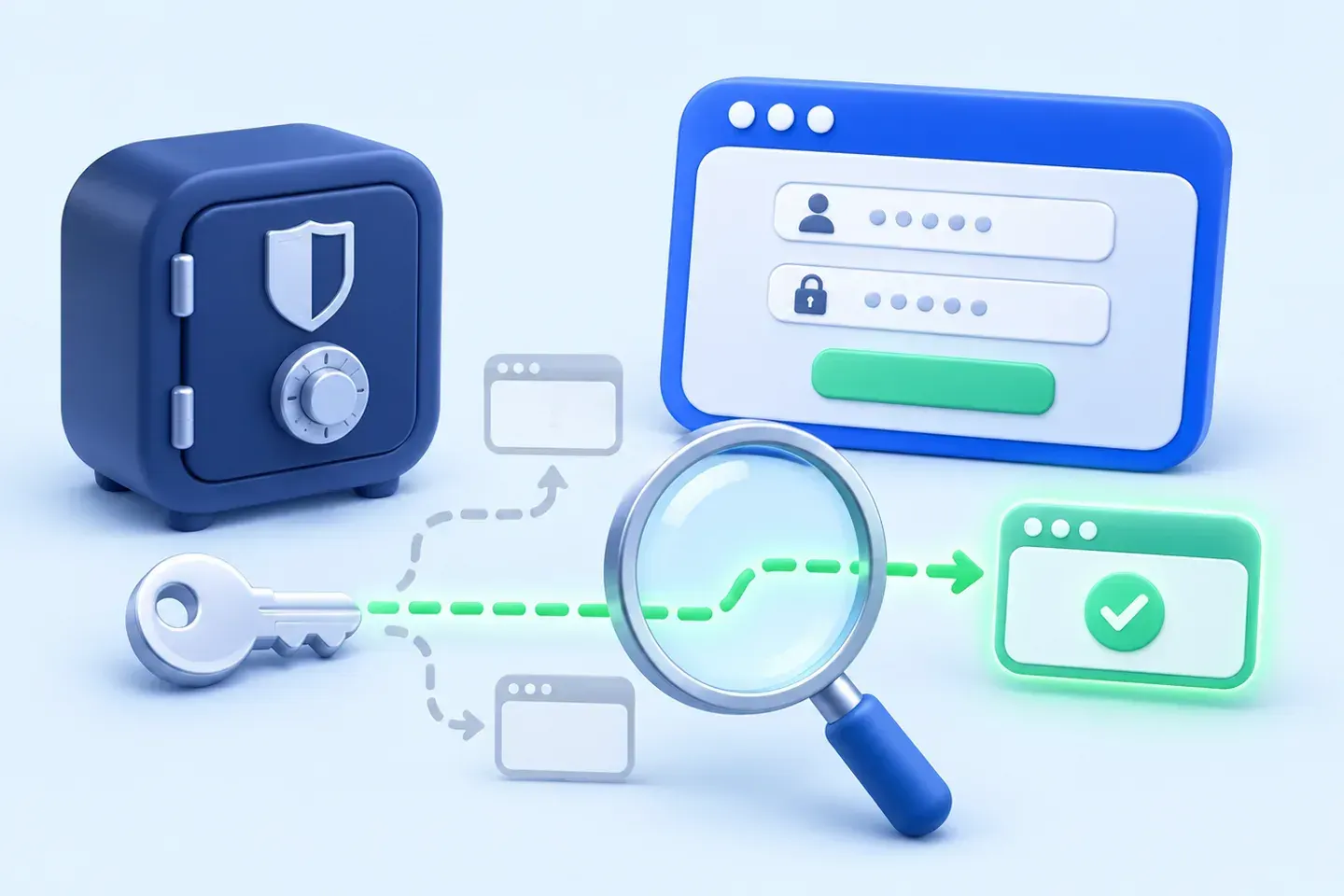
First identify whether Chrome fails to open Bitwarden, sign in, sync or fill a login. Open Bitwarden in Chrome and check whether the vault is locked, the expected account is selected and the saved login matches the website you're on. If manual autofill works but the shortcut or inline menu doesn't, troubleshoot that method rather than resetting the vault. I'd keep the working login accessible while isolating the failed step.
Never paste a master password, recovery code or vault export into a support form or public issue. A missing autofill suggestion doesn't justify weakening website matching or sending someone your saved credentials.
If the extension button is missing
Open Chrome's Extensions menu and check whether Bitwarden is installed in the current profile. Pin it if it is present but hidden. Bitwarden's browser-extension setup guide shows pinning the extension and switching between signed-in accounts.
Open the extension and read its state. A locked vault needs unlocking; a logged-out account needs sign-in. These are different from an extension that won't start. Check the selected account before concluding that saved items have disappeared.
If you can't sign in
Keep any working vault session open while you check the account location and recovery options.
At the sign-in screen, check Logging in on. Bitwarden's US and EU cloud accounts are separate, so select the region where your account was created. For a self-hosted account, choose Self-hosted and check the verified HTTPS server address using Bitwarden's client-environment instructions.
For cloud accounts, check the official service-status page for an incident affecting your region. For self-hosted accounts, establish whether the server is official Bitwarden or the separate Vaultwarden project. Ask the administrator to check the server version actually running against current client compatibility: use Bitwarden's server-update guide or Vaultwarden's own release notes, as appropriate.
If changes aren't syncing
If an item is present in the web vault but missing from Chrome, check the active account, then open Settings → Vault options → Sync vault now. Bitwarden's sync troubleshooting guide also recommends checking the device's time and time zone. If sync still fails, record the exact error before changing anything else.
If the vault opens but no login is suggested
Open the website's login page and compare its address with the login item's Website (URI) field. Bitwarden uses those saved addresses to select autofill suggestions. Its URI matching documentation explains the default Base domain behavior and narrower alternatives.
- Check the address bar for the expected domain and HTTPS connection.
- Find the intended login inside the vault.
- Inspect its Website (URI) value and any item-specific match setting.
- Correct the saved address only after confirming that this is the genuine website for that account.
- Return to the login page, reopen the extension and check the suggestion.
Don't solve a mismatch by setting every item to match everywhere. Broad patterns can make credentials available on addresses you didn't intend. A domain change or a separate regional login may need another verified URI in the same item, rather than a global matching change.
Use manual autofill to isolate the method
On the login page, open Bitwarden's Vault view and click the appropriate item in Autofill suggestions. This is the basic route in Bitwarden's autofill instructions. If the correct credentials fill, the account, item and form can work together; investigate the shortcut or inline-menu setting next.
If the inline menu is missing, check Settings → Autofill → Show autofill suggestions on form fields. The option to display suggestions only when the icon is selected changes when the menu appears. A closed inline menu isn't evidence that the vault itself failed.
If a shortcut does nothing, inspect Chrome's extension-shortcut settings for a missing assignment or conflict. Bitwarden documents Ctrl/Cmd + Shift + L as the default login shortcut, but the browser's actual assignment is the useful check.
If one website still won't fill
Read any warning instead of dismissing it. Bitwarden can warn when a manual fill targets an untrusted iframe or when the current page uses HTTP but the saved item expects HTTPS. Its documentation says autofill on page load is quietly disabled for untrusted iframes. Those protections can explain why one embedded login behaves differently.
A form with unusual field names may need linked custom fields, which Bitwarden documents as a site-specific troubleshooting route. Use that approach only after checking the genuine page, saved URI and normal manual fill. It shouldn't be your first change for a problem affecting every website.
Check competing password menus
Chrome's password manager can interfere with the inline menu. Bitwarden offers Make Bitwarden your default password manager in Settings → Autofill. Review the browser permission prompt before applying that change, and change one setting at a time.
If biometric unlock fails
Check that the compatible Bitwarden desktop app is running, signed in and set up for biometric unlock. In the Chrome extension, open Settings → Account security → Synchronize unlock with desktop. The current biometric setup guide covers supported desktop installations and any extra Chrome permission needed. A working master-password unlock can keep you moving while you check that desktop connection.
If you need support, record the browser and extension versions, the exact error and whether the same account's web vault is accessible at its verified address.
The Bitwarden review covers lock behavior, recovery and portable exports. Return to those safeguards before changing account security settings to fix an autofill symptom.

About Rasmus Senlogan
I build desktop applications, browser extensions and plugins. I created ExtensionTools to organize the tools I've collected and built, and help others find useful software.