

Redirector: create narrowly scoped URL redirect rules
Choose one host and path, inspect the destination, and keep exclusions and request types under control in the original Firefox Redirector.
Get extensionStart a Redirector rule with one specific host and path, then check the destination in Example result before saving. I'd keep its default page-navigation scope until that rule does what you intend. The original Firefox extension can rewrite matching URLs, but a broad pattern can also move a login or an unrelated page somewhere you didn't mean to send it.
Choose the original before following its controls
This walkthrough covers Redirector by Einar Egilsson, the free, MIT-licensed Firefox extension. Its latest listed release is 3.5.3, from March 2020. The listing also offers Android compatibility; the controls and layout below are the desktop Firefox version.
Several extensions share its name. The Chrome listing associated with extenhub.com acknowledges using some of Einar's code, while rxliuli.com's Redirector is a different project with different rule syntax and controls. The Opera result by easyinplay is another product. Check the publisher before importing instructions or rules from a search result.
The original package uses Manifest V2. Chrome removed support for Manifest V2 in Chrome 139, so an old Chrome installation guide doesn't establish that this original works in current Chrome. I'd evaluate a maintained extension for a new Chrome setup instead of downgrading the browser. A Firefox listing with a long release gap also deserves a maintenance check before you give it everyday traffic.
Redirector requests website access, tabs and navigation permissions so it can inspect and redirect matching requests. Its developer's privacy policy says it collects no analytics. That is a publisher statement, not an independent security audit. Your chosen destination still receives the requests you send there; don't copy account tokens or private query strings into a public rule collection.
Build a rule that changes only the intended path
Open the toolbar popup, choose Edit Redirects, then select Create new redirect. If you already have rules, use Export first to keep a copy before changing their order or content.
These reserved-domain values show how a wildcard rule preserves a path suffix. They explain the mapping; replace them with a source and destination you control before using the rule for browsing.
| Field | Documented example | Purpose |
|---|---|---|
| Description | Move old guide paths | Recognize the rule later. |
| Example URL | https://example.com/old/guide | Supply a URL the rule should match. |
| Include pattern | https://example.com/old/* | Limit matching to this host and path prefix. |
| Redirect to | https://example.com/new/$1 | Insert the suffix captured by the first star. |
| Pattern type | Wildcard | Interpret the star as a capture. |
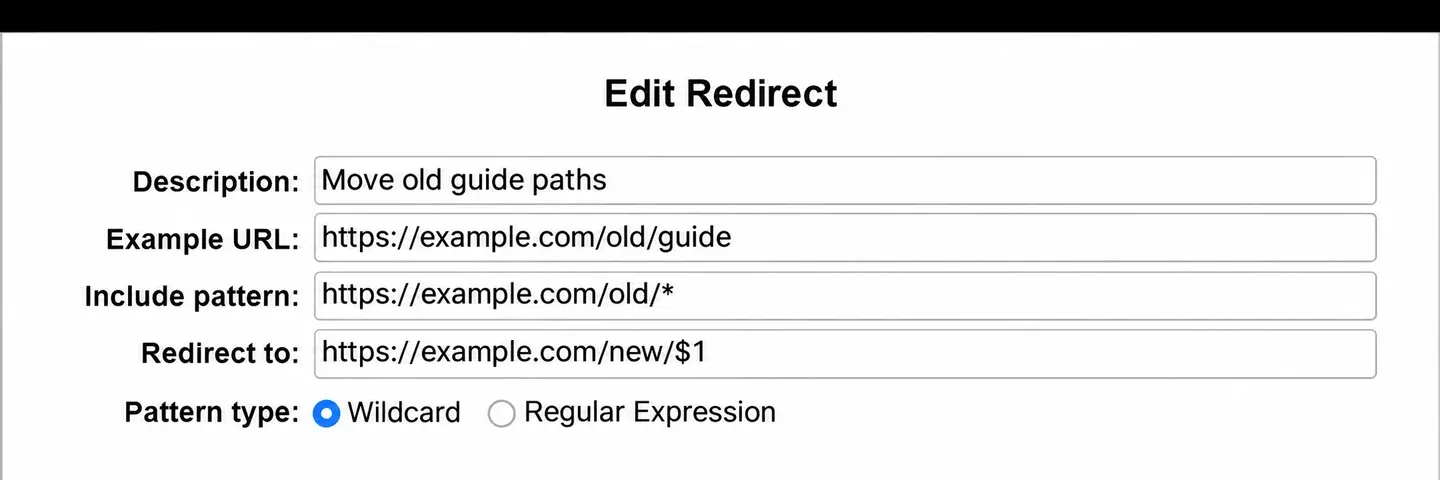
$1 in the destination. Keep the source host explicit.The original rule-field help explains that each star captures zero or more characters. Here, Example result should show https://example.com/new/guide. That preview checks the rule's transformation; it doesn't confirm that a destination page exists, that its certificate is valid or that a real navigation will succeed.
Before choosing Save, compare the scheme, hostname, path and query string with your intended destination. A star can also capture query parameters. If those parameters contain private data, a redirect to another host can carry that data with it. I'd start with a same-host path change and avoid a universal * include pattern.
Check exclusions and rule order
Open Show advanced options... when the rule needs an exception. For the example above, Exclude pattern could be https://example.com/old/private/*. It prevents that branch from matching this rule. Use the same pattern type as the include field. The original 3.5.3 matches include and exclude patterns case-insensitively, so a change of letter case alone won't separate two paths.
Check more than one example: the ordinary guide path should match, the private branch should be excluded, and a different host should fail the include pattern. The editor reports an error when its example is excluded or doesn't match. Put a valid positive example back before saving, then visit harmless real source pages to check the result in the address bar.
Rules are checked in their displayed order. Move a narrow exception rule above a broader rule when they overlap. An excluded URL can still match another enabled rule, so examine the list rather than assuming one rule's exclusion protects it everywhere.
I'd write the final destination directly in one rule. The original has protection against immediately redirecting its own result again; don't build a workflow that depends on several Redirector rules running as a guaranteed chain.
Choose which kind of navigation the rule handles
Apply to initially selects Main window (address bar). It covers the top-level page, while scripts, images, frames and other request types are separate choices. Leave those extras unselected for a simple address change.
A site can change its URL through the History API without loading a new document. If entering an address directly works but an internal site link doesn't, inspect HistoryState under Apply to. Enable it only for the narrowly matched site and check both direct entry and in-site navigation. Selecting every resource type isn't a useful substitute for finding the missing event.
The original 3.5.3 request handler redirects network requests only when their method is GET. It isn't a way to replay a POST form at another server. Keep login, checkout and form submissions out of trial rules; changing a URL doesn't transfer authentication or grant access to the target.
Use Regular Expression when you need its matching logic, rather than pasting regex punctuation into Wildcard mode. Regex capture groups use $1, $2 and so on. In a regex, escape literal punctuation such as a dot in the hostname or a question mark before query parameters, and anchor the intended URL boundary.
Leave Process matches at No Processing for ordinary paths. URL Decode is for captures that contain an encoded URL; it changes what gets inserted into the destination. Inspect that output before saving. Double decoding a value without a reason can change its meaning again.
Disable a mistaken rule and preserve the useful ones
If pages open at the wrong address, use the toolbar popup's Disable Redirector control first. Return to the original address and compare the behavior. If the problem stops, open Edit Redirects, leave the suspect row disabled and re-enable Redirector for the remaining rules. Narrow its include pattern, inspect exclusions and check earlier rules before deleting anything.
Export saves the redirect configuration as JSON. Import adds new rule definitions and skips equivalent ones; it doesn't replace the whole list with an earlier snapshot. Importing an old export won't remove a newer bad rule or restore an existing rule's earlier enabled/disabled state. Disable or delete that specific rule after preserving the current configuration.
Enable Storage Sync is separate from a file backup. Local storage is the default; switching storage moves the rule data between local and sync storage. I'd export first and keep Local for a large or private rule collection unless cross-device sync is needed. A sync quota error calls for checking storage and retaining your export, rather than repeatedly recreating rules.
Use Redirect Path to inspect a redirect chain and its status codes when the question is what the site already does. Redirector changes your browser's routing. For header-editing work involving old ModHeader rules, follow the ModHeader removal and replacement workflow for that separate task. Keep each tool's rules narrowly scoped in your browser privacy and site controls, so you can tell which one changed a request.
