
PrintFriendly extension: clean a page before printing or PDF
Remove unwanted blocks, keep the important diagrams and inspect the PDF before sharing it.
Get extensionUse PrintFriendly when a web page's ads, menus and oversized pictures make a poor printout. Open the page, click the PrintFriendly extension, remove anything the clean view leaves behind, then choose Print or PDF. I'd keep the source address and important diagrams, make one change at a time and inspect the finished file before sharing it. A tidy page is useful only if it still contains the information you need.
Choose the reader's extension, then open your page
The official PrintFriendly Chrome extension is published by Print Friendly LLC. Firefox users can use the PrintFriendly add-on from Print Friendly & PDF. Both provide a clean page view, editing controls, printing and PDF output. Review the browser's permission prompt before installing.
In desktop Chrome, select Add to Chrome, review the requested access, then select Add extension if you approve. To keep the button visible, open Extensions, find PrintFriendly and select Pin. Google's extension installation and toolbar instructions explain both steps. A school or work browser may restrict installation.
The steps below follow the desktop browser workflow. Apple users can start with the PrintFriendly app listing for iPhone, iPad and Mac; its mobile app uses a Print & PDF route and a Library, so don't expect every desktop control in the same place.
On the page you want to keep, click PrintFriendly's toolbar button. The developer's printing guide describes a clean copy with ads and navigation removed, ready for further editing. Open the full article under your normal access first: the extension works on pages you're signed in to, while pasting a URL into a website doesn't carry your signed-in page with it.
Printing and saving a page as a PDF are free and don't require a PrintFriendly account. Optional features have separate conditions. In particular, Clean Up needs a free account and sends selected page fragments for AI processing; the manual Delete workflow below lets you choose the blocks yourself.
For a one-off public page, the no-install printing option is to paste its address into the box on PrintFriendly's home page. Its policy for submitted web addresses says the service fetches the page and automatically checks its text and images against its Acceptable Use Policy with third-party AI providers. Keep confidential material out of that route. Use the extension when you need to work from the page you're already signed in to.
If you're setting up a button for visitors to your own website, that's a different job from installing the browser extension for reading other people's pages. Start with the extension for your own printouts.
Remove clutter without losing the useful parts
- Read through the clean view once. Check the title, opening paragraph, ending and any tables or diagrams before deleting anything.
- Use Delete, hover over an unwanted paragraph, image or list item and click to remove it. Watch which whole block is highlighted before you click.
- If you remove the wrong block, choose Undo immediately and check that it returns.
- Use Edit only for changes you intend to keep in this copy, such as adding your own note. Keep an unaltered copy when accurate quotation matters.
- Use Highlight to emphasize a passage without rewriting it. Review the surrounding paragraph so the highlighted extract retains its context.
The click-to-delete and Undo instructions cover paragraphs, pictures and list items. Delete is the right starting point when only a few promotional blocks remain. Don't remove a figure just because it is large if the instructions refer to it later.
These changes prepare your copy for printing or saving. They aren't corrections to the publisher's original article. I'd leave the original author and source address visible and label any note I add, especially in material that will be passed to someone else.
Set readable text and useful image sizes
Open Style to adjust text and pictures. The image-size controls offer 75%, 50% and 25% to shrink every picture, or 0% to omit them all. If only one image is unnecessary, delete that image instead of removing every diagram in the document.
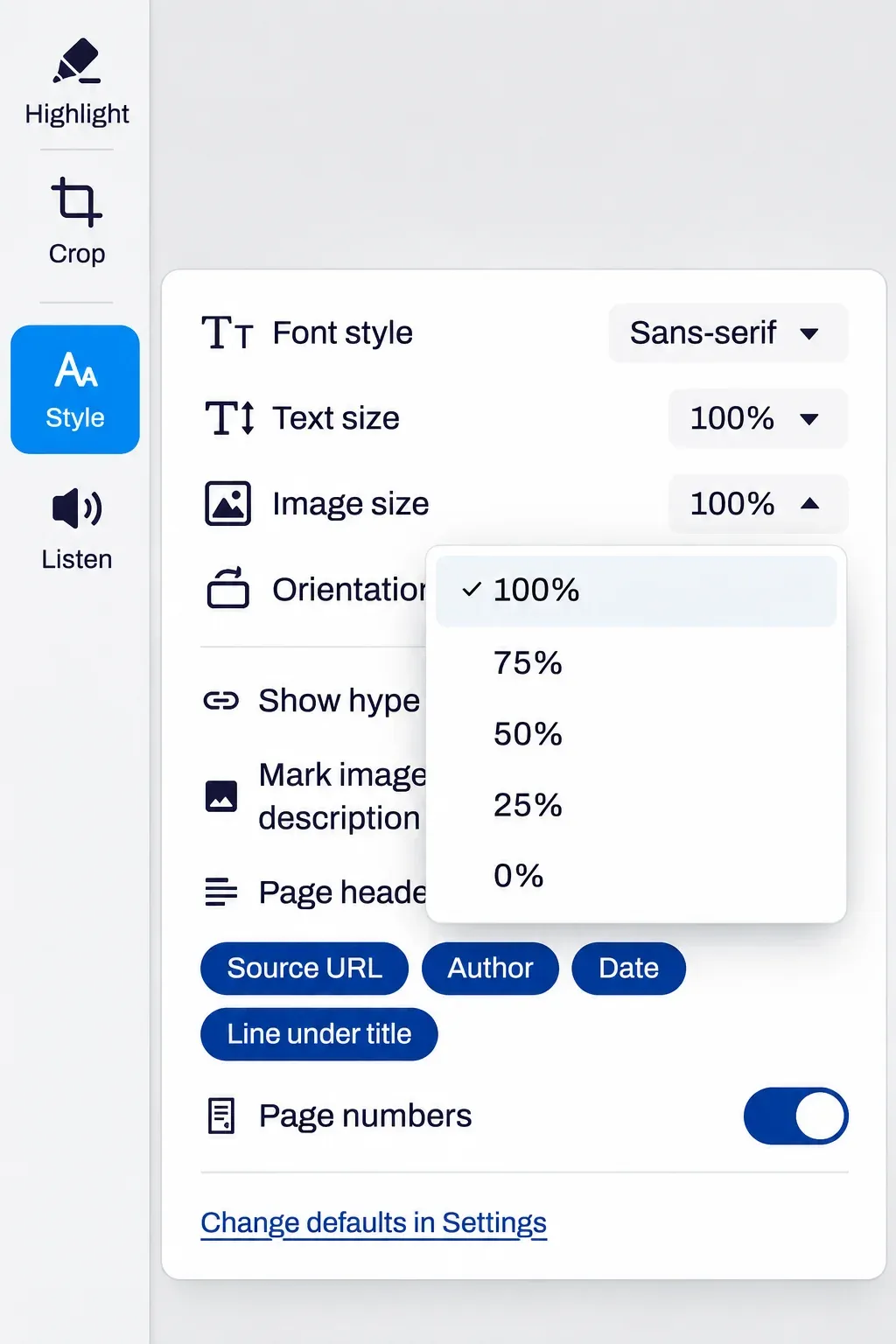
The menu above has 100% selected. Choosing a smaller percentage reduces all pictures; it doesn't distinguish an advertisement from an essential chart. Increase text size for comfortable reading before deciding how many pages you want to save.
Keep the source address and author in the page header when attribution matters. The Style view also shows page-header controls and page numbers, so check those before exporting a handout. A shortened or edited copy should remain traceable to its original.
Choose paper or PDF, then inspect the result
Choose Print to open printing, or the PDF control to save a document. The current print and PDF guide distinguishes these routes and shows an arrow beside PDF for other formats and destinations. You don't need a cloud-drive connection to use the basic PDF route.
Before printing, match the paper size to the paper you will use: Letter for a typical US office printer, or A4 when that is what the printer holds. Check margins and the preview rather than forcing text smaller just to reduce the page count. PrintFriendly's Firefox feature description confirms A4 and Letter support, text changes and Undo.
After saving a PDF, open the actual downloaded file. Check the last page, page breaks, table columns, diagrams, links and any footnotes your task depends on. Select and copy an important sentence if you need usable text, and compare it with the source. An export button completing is a reason to inspect the file, not proof that every part survived.
If the preview drops a necessary section, return to the original and try the browser's normal print preview. Keep whichever output preserves the required content and readability. Repeatedly deleting more from a broken extraction won't recover text that was never included.
Check what Clean Up sends before using it
Delete and Clean Up are separate choices. The current privacy policy says Clean Up runs only when you choose it and requires sign-in. It sends short page fragments to a third-party AI provider, including headings, links, captions, image descriptions and addresses, and the page title and website name. The policy says longer article paragraphs aren't sent for that feature.
The provider identifies clutter to remove. The policy says the service doesn't use page content to train AI models and may retain the removal result, rather than the page text, for up to 30 days using coded fingerprints. The optional Summarize feature has a different scope: it sends the page's text to an AI provider. Don't treat a summary button as another way to perform manual deletion.
The Firefox store disclosure lists browsing activity and website content as required data collection, with personally identifying information and technical and interaction data listed as optional. Chrome's listing discloses website content. Those disclosures and the policy are a better basis for a decision than assuming a browser extension processes everything locally.
For confidential documents, I'd start with the browser's own print preview and avoid optional AI, email or cloud destinations unless the document's rules allow them. PrintFriendly's policy describes server processing for some features and says uploaded PDF-tool files and their generated files are deleted within 48 hours. That retention rule doesn't mean the material was never uploaded.
When ordinary printing or an HTML copy fits better
Try the browser first if its normal print layout is already readable. In Chrome, press Ctrl+P on Windows or Linux, or Command+P on Mac, then choose the destination and preview settings. Google's printing instructions include saving as PDF. This avoids adding an extension for a page that already prints well.
A Privacy Guides discussion about PrintFriendly alternatives raises this exact choice: ordinary print-to-PDF can be enough, but a reader may want automatic layout cleanup as well. I'd choose PrintFriendly for that editing step, rather than install it merely because the final file ends in PDF.
For a saved web page you can reopen as HTML, SingleFile serves a different purpose: its project description identifies a complete page saved into one HTML file. PrintFriendly's cleaned PDF is a document for reading, printing or sharing; it doesn't preserve a live website's interactive behavior. Use the productivity extension hub to choose the format around what you need to keep.
