

LastPass: set up browser autofill and protect recovery
Check the plan, choose the right login and preserve recovery options before changing browser data.
Get extensionUse the LastPass browser extension to save a login, then select the matching account on the website's sign-in form. I'd check the plan and recovery options before relying on it: LastPass Free covers one device type, and clearing browser data can remove a local recovery secret. For a new vault, weigh the 2022 backup theft described below before choosing the service.
Install the official extension and sign in
Use a computer and browser profile you trust. Open LastPass's browser download selector there and choose your browser's download. Chrome users should reach LastPass: Free Password Manager, offered by LastPass, with developer Lastpass US LP. Check that identity before approving installation; a similar name isn't enough.
Create or use your LastPass account, open the extension from the toolbar and sign in. The official extension setup sequence requires a first login after installation. Pin the extension if its button is hidden. The web vault alone lets you reach saved items, but it doesn't provide autofill into other sites without the extension.
Safari uses a separate LastPass for Safari Mac app listing, which requires macOS 13 or later. Don't use a Chrome download to troubleshoot Safari. An employer-managed account may also have policies that control authentication or prevent changes; use your organization's account instructions.
Check the Free device-type limit before depending on sync
LastPass Free and Premium have different device access. Free includes unlimited password storage and saving/autofill on one device type. “Computer” includes browsers on desktops and laptops; “mobile” includes phones, tablets and smartwatches. This is broader than a single computer, but it doesn't cover both types together.
Premium includes access across device types. A new personal account can include a 30-day Premium trial, so successful phone-and-laptop access during that trial doesn't establish what Free will allow afterward. If you continue with Free, LastPass says saved data remains in the vault while paid features become unavailable. Check the annual billing total and renewal terms before buying. Before relying on a saved item on another device, open the vault there and confirm that the item is present.
For a new personal setup that needs free access on both phone and computer, I'd compare Bitwarden's browser saving and autofill workflow first. Bitwarden's Free plan includes unlimited passwords and devices. Switching managers is a separate migration decision; it won't repair a missing suggestion in an existing LastPass account.
Save a login and inspect the account before filling
Keep automatic logins off while checking saved items. LastPass offers automatic login as a separate feature that can fill credentials and sign you in when you visit a site; that would remove the pause for inspecting the form in the sequence below.
- Open the intended website's sign-in page and check its address. Enter the website username and password, then sign in.
- Approve the LastPass offer to remember the credentials. Open the vault and check that the expected login was saved.
- On a later visit, select the relevant credential in the LastPass field popup. Check the offered username, especially when work and personal accounts use the same site.
- Inspect the filled form before submitting it. Saving a password and signing in to the website are separate actions.
The LastPass getting-started instructions describe approving the save prompt, generating new passwords and importing existing passwords separately. Installation doesn't transfer the passwords already stored in your browser. Keep access to the old store until the items you need are present and usable in the new one.
If Chrome's own password popup competes with LastPass, LastPass's Chrome autofill guidance recommends turning off the browser's competing password-saving and automatic sign-in controls. I'd do that after confirming the needed LastPass items. Turning off those prompts isn't an instruction to delete existing browser passwords.
For a new account or password change, use the generator to choose a unique password that fits the website's rules. Complete the website's save or change action, then confirm the vault has the accepted credential. Editing a stored password by itself doesn't change the password at the website.
Control autofill for a particular site
To review browser preferences, open the toolbar extension, then Account → Extension Settings. LastPass's preferences walkthrough explains that these settings are stored locally in each browser. Check logout and autofill preferences again when setting up another browser; don't assume one browser's choices apply everywhere.
For a site-specific exception, open the vault and select Advanced options → Autofill settings → Never URLs → Add new. Enter the intended URL and choose the action. The Never URL controls distinguish these effects:
| Choice | Documented effect | Check before saving |
|---|---|---|
| Never autofill | Prevents password autofill on the site | Launching the site from the vault or extension can ignore this restriction |
| Never show infield icons | Hides icons inside form fields | Hiding an icon doesn't mean all LastPass actions are disabled |
| Never do anything | Disables LastPass on the website entirely | Choose the intended site or domain scope |
The scope matters. An All pages entry without a subdomain matches paths on that domain and its subdomains. This URL targets selected sites within a domain. I'd use the narrowest scope that meets the need, then revisit the page to check the result. Select Save after setting the action.
Never URLs can't be edited directly. In the Never URLs tab, remove the incorrect row and confirm Delete, then create the intended entry. Keep the target site closed during replacement, while the restriction is absent. Business administrators can impose global restrictions that users can't remove; ask the administrator about a policy message rather than trying to work around it.
Set up MFA and decide whether offline access is acceptable
Open the vault, then Account settings → Multifactor Options. Select the pencil in the Action column for the authenticator you intend to configure. In its settings, set Enabled to Yes and follow the method's setup. LastPass's MFA instructions also require a decision about Permit Offline Access.
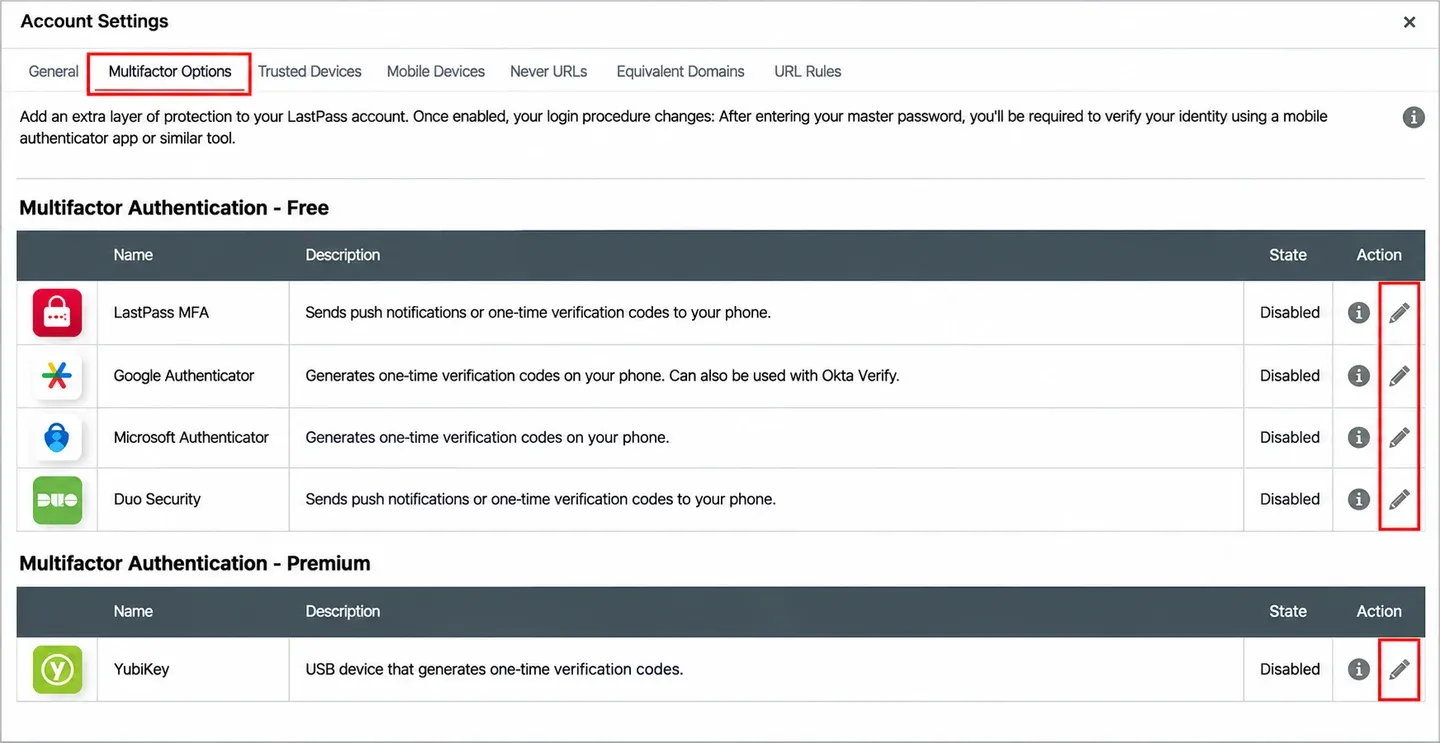
Allow stores an encrypted vault locally and permits offline login without the MFA step when connectivity fails. Disallow requires connectivity and MFA, so an internet outage or unavailable LastPass service can leave you unable to open the vault. I'd choose this with the device's trust level and recovery plan in mind, rather than change it only after losing connectivity.
Free includes MFA through supported apps; hardware options such as YubiKey are paid-plan features. Keep an available backup authentication option, ideally on another trusted device, as the MFA guidance recommends. Organization policies may limit these settings.
Account for the vault-theft history and browser risks
LastPass's March 2023 incident update says attackers stole backups of customer vault data in the 2022 incidents. Sensitive vault fields were encrypted, while URLs and some other data were outside that protection. The earlier December 2022 notice explicitly described the risk of attackers guessing master passwords against stolen vault copies. Encryption isn't a reason to dismiss the theft.
A new master password or MFA setting cannot remotely revoke an attacker-held backup. For an account affected by that incident, assess the credentials and other secrets that were in the stolen copy, use the relevant incident guidance and change affected website credentials at those websites. Business users should coordinate with their administrator. A browser reinstall doesn't address that exposure.
Browser interaction has its own risks. In his August 22, 2025 demo update, security researcher Marek Tóth lists LastPass 4.146.3 among the versions for which his login-clickjacking demonstration works. It was built for Chromium-based browsers and used a fixed-position overlay to hide the in-page autofill controls. His research describes the conditions for credential theft: the password manager generally has to be unlocked, credentials must be saved for a matching domain, and the attacker must be able to run JavaScript there or on a subdomain accepted for autofill.
This is historical evidence about that version and setup; it doesn't establish whether the current LastPass release is vulnerable. Keep the extension updated and stop interacting with a suspicious overlay rather than repeatedly clicking through it.
Resolve missing access without erasing recovery options
If the vault opens but another site's form stays empty, check the saved item, the extension's login state and the site's Never URL entry first. If autofill works on one browser but not another, compare local extension preferences. Keep a missing suggestion separate from an account login failure.
If the master password is forgotten, start from LastPass's account recovery flow using a device and browser combination previously used for that account. Verification goes to the configured email or phone route, and LastPass checks whether automatic recovery is available. A verification code alone doesn't guarantee that the local recovery requirement is satisfied.
Don't clear LastPass or browser data as an initial recovery fix on your trusted device. The recovery-options instructions explain that a secure secret is stored locally, and clearing the relevant cache can remove it. This isn't a reason to leave data on a public or untrusted computer: that guidance says to clear its browser cache before leaving if you accessed the web vault there. Previously configured mobile biometrics or a one-time password may provide another recovery route. LastPass Support doesn't know your master password and can't simply reset a forgotten one.
An account reset to an empty state loses the existing vault contents. Exhaust the applicable recovery options first; for a managed account, contact the administrator before attempting recovery. Once access is restored, review automatic logout and active sessions, then confirm one saved login on its intended website before changing more settings.
