

KeePassXC-Browser: connect your database and fill logins
Connect a local password database, choose which entries a site can use and fix access without deleting the vault.
Get extensionUse KeePassXC-Browser when you want website logins filled from a KeePassXC database you control. Open the desktop app, unlock the database, enable Browser Integration and connect the extension to that database. I'd choose this setup for a local password file when managing its backups and synchronization is an acceptable part of the job.
Start with the desktop app and your existing database
The extension connects your browser to KeePassXC on Windows, macOS or Linux. It needs the desktop app running and an unlocked database before it can retrieve credentials. KeePassXC stores entries in an encrypted KDBX file; the getting-started guide explains the file and database controls. Keep your existing file and its working unlock method. Adding the extension doesn't import another manager's passwords or create a replacement database.
Use the official KeePassXC-Browser Chrome listing or the Firefox add-on from KeePassXC Team. The project's download selector also offers the desktop app and browser-extension routes, including Edge. The supported desktop-browser list includes Chrome, Chromium, Vivaldi, Brave, Firefox, Tor Browser and Edge. A browser extension and a KeePassXC desktop release have different version numbers.
Check Linux packaging before spending time reconnecting. The current guide says Flatpak- and Snap-packaged browsers are generally unsupported, with Ubuntu's Firefox Snap as an exception. This condition concerns the browser package. It doesn't mean every desktop KeePassXC package uses the same integration path.
Expect broad website access for recognizing and filling forms, plus native-messaging permission to communicate with the desktop app. The repository explains the requested permissions. Approve that access only for the official extension in a browser profile you trust. Browser permission to work on websites and KeePassXC permission to release a selected entry are separate controls.
Connect this browser to the intended database
Give each connection a unique name. Reusing a name already stored in the database overwrites the previous browser connection and prevents that browser from accessing it. A neutral label such as firefox-laptop identifies the connection; it isn't a new password-manager account.
- Open KeePassXC and unlock the database you intend to use.
- Go to Tools → Settings → Browser Integration. Check Enable browser integration, select your browser and click OK.
- Open or restart that browser, then open the KeePassXC-Browser toolbar popup.
- Click Connect. Enter the unique connection name and select Save and allow access.
The official connection sequence pairs a browser with a database. The toolbar icon then distinguishes a disconnected app, an unassociated database, a locked database and a ready connection. A number on the icon shows how many credentials were found for the current site. Check the state before changing a saved login.
Approve an entry, then fill the website login
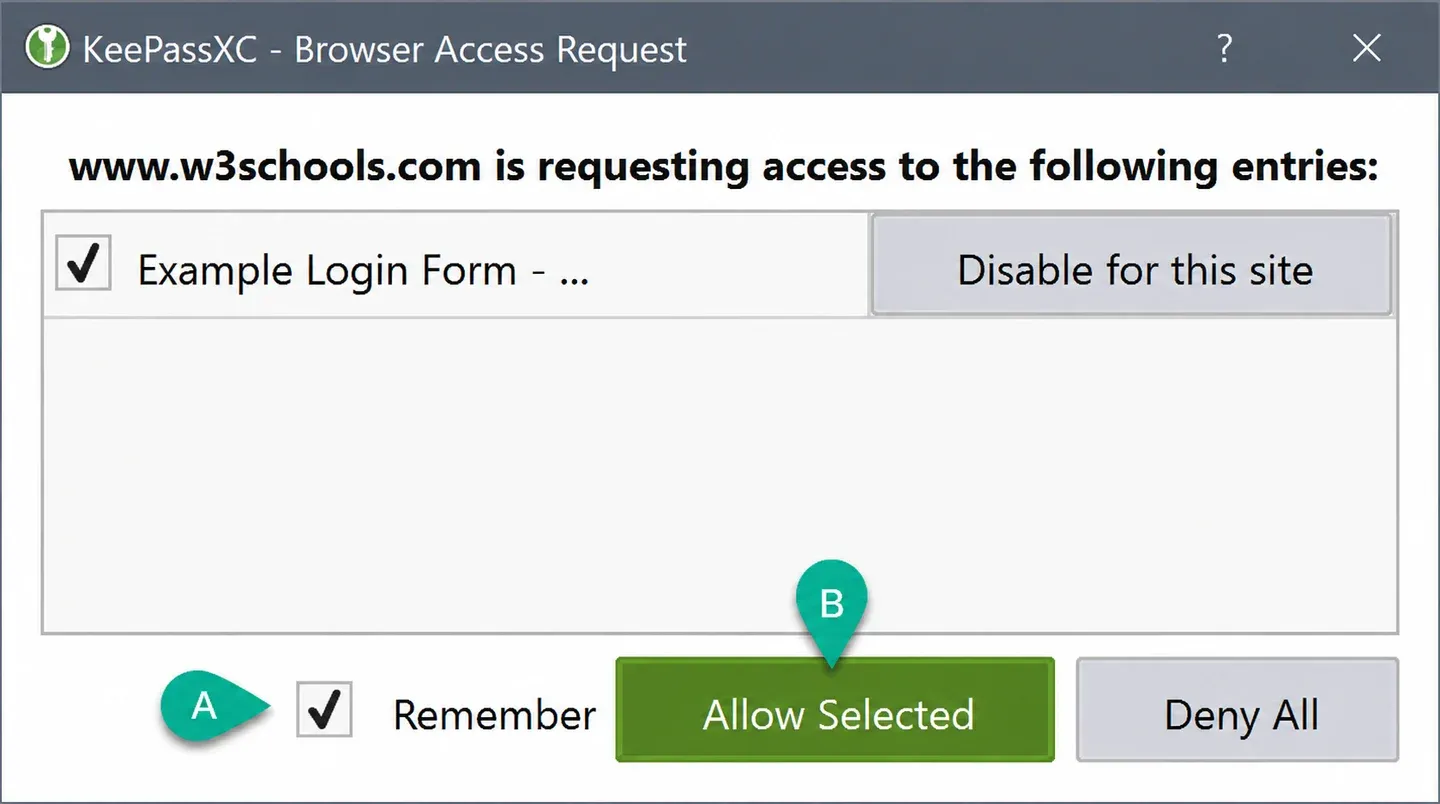
Open the intended website's login page and inspect its address. If KeePassXC displays a Browser Access Request, check that the requesting site and the selected entries are the ones you intend to use. Leave unrelated entries unchecked. Remember stores the site's allow/deny rule on the entry; leave it clear for a one-time approval. Select Allow Selected to permit the selected credentials.
Click the KeePassXC icon in the login form's username field to fill the stored credentials. If several logins match, choose the intended account from the dropdown and check the username before submitting. The documented first-fill workflow separates permission to retrieve an entry from filling the form. Connecting a database doesn't mean every website should receive every entry.
A missing suggestion calls for an entry check: is the login in the unlocked database, does its URL describe this site, and is browser access allowed? For a legitimate second login address, edit the entry and open its Browser Integration section to add an additional URL. I'd use the specific address needed for that account before considering a wildcard covering many subdomains.
Generate and save the password the website accepts
With the database unlocked and connected, right-click a password field and choose KeePassXC → Show Password Generator. Configure the generator for the site's requirements and click Apply Password. The generated password fills the selected field. Complete the website's registration or password-change submission successfully. Before confirming the extension's save prompt, check the target entry's username and website address so you don't overwrite another account. Then update the intended entry or add a new one.
This generate-and-save sequence matters when changing an account password: editing a password only inside the database doesn't change what the website accepts. Before leaving the page, confirm that the accepted credential was saved to the intended entry. Keep a working session open until you have checked the new login.
Fix the state you have before resetting anything
I'd start with the toolbar state and the open database. Reinstalling or deleting a file is a poor first response when the app is simply locked or the browser hasn't been associated.
| What you see | Check and next action |
|---|---|
| KeePassXC isn't running or is disconnected | Open the desktop app. Check Browser Integration is enabled for this browser, then use Reload in the extension popup to reconnect. |
| The app runs, but the current database isn't connected | Open the intended database and complete its Connect association with a unique name. |
| The connection exists, but the database is locked | Unlock that database using its configured credentials. Creating another database won't restore these entries. |
| Ready, but the desired login isn't offered | Inspect the entry URL, additional URLs, remembered permission and any entry or group setting that hides it from browser access. |
For an accidental remembered deny, inspect Database → Database reports… → Browser Statistics. The report shows allowed and denied URLs and custom browser settings. Right-click the affected entry and select Delete plugin data from entry to clear its remembered site settings. Then return to the intended site and review the next permission request. The Browser Statistics instructions provide this narrower reset.
Save a backup before broader permission cleanup. Under Database → Database Settings → Browser Integration, Forget all site-specific settings on entries clears remembered allow/deny settings across the database. Once the database is saved, that action can't be undone through the setting. Don't use a database-wide reset for one denied login, and don't delete the KDBX file to repair a connection.
If the app and database states are correct but transport still fails, the platform-specific troubleshooting guide checks native messaging, the browser's manifest location and keepassxc-proxy. The proxy comes with the desktop app; there is no separate proxy installation in the normal setup. Brave and Arc can use Chrome's native-messaging storage and may need the Chrome checkbox in KeePassXC. Custom paths depend on the browser and operating system.
On newer macOS releases, check the browser's Local Network permission if the connection remains blocked. A managed Edge installation can require administrator-deployed native-messaging configuration; take that branch to your administrator. Before sharing diagnostics with support, remove passwords, database contents and other private values from logs.
Choose browser passkeys or desktop Auto-Type deliberately
KeePassXC passkeys require the browser extension and a properly connected database. Check Enable Passkeys in the extension settings, then start registration from the website's own passkey controls. The passkey workflow shows the desktop confirmation and a new database entry. Creating a new passkey and updating an existing one are different actions: updating overrides the existing entry, so select it only when that is your intention.
Keep a working way back into the website while changing its sign-in methods. A passkey export uses an unencrypted .passkey JSON file; protect that file as a credential if you export it. Exporting a passkey is separate from backing up the encrypted database.
Desktop Auto-Type is a separate feature and works without the extension. It simulates keystrokes into the focused window; entry-level Auto-Type can send credentials into the wrong window if focus is mistaken. For a website already matched by URL, I'd use the browser's account chooser and inspect the chosen login before submitting.
What the published database timings tell you
Database-unlock work and browser connection work are separate checks. In Fabian Budde and Nyx's published KeePassXC CLI experiment, three databases used the same password and were each opened three times. The setup was an Alpine Linux container, KeePassXC CLI 2.7.12 and an AMD EPYC server; the exact processor model wasn't specified.
| Database creation setting in that test | Reported AES-KDF rounds | Mean open time |
|---|---|---|
| CLI creation without a target-time option | 1,000,000 | 44 ms |
| 1-second target | 53,571,428 | 1,028 ms |
| 3-second target | 160,714,272 | 3,057 ms |
These are one publisher's means for a CLI 2.7.12 AES-KDF configuration. They measure database opening, not browser autofill latency, current desktop GUI defaults or an attacker's GPU performance. The useful decision is to inspect the existing database's protection and recovery requirements separately from fixing its browser connection. Pressing Reload doesn't strengthen the database password or recover a lost key file.
Keep the database, backup and unlock factors under control
KeePassXC is free and open source. The local-file model leaves storage and backup choices with you. The file can live in a user-chosen cloud folder, and desktop 2.8 supports remote synchronization through external tools. That isn't a managed password-vault synchronization service. KeePassXC also has no official mobile app; the mobile FAQ names separate compatible apps.
Keep a recoverable copy of the encrypted database and preserve every configured unlock factor. If you use a key file, the key-file guidance recommends keeping it separate from the synced KDBX file and retaining a safe backup. Losing the key file can mean losing access to the database. Local storage doesn't protect a login after it is sent to an untrusted page or a compromised computer; the unlocked application must hold decrypted data in memory to use it.
For a managed synchronized vault, compare the Bitwarden browser login and website-matching workflow. If email aliases alongside new registrations are the deciding feature, Proton Pass's alias and login workflow addresses that different task. Keep KeePassXC-Browser when the file-based workflow fits, and use the privacy extension hub to choose tools for other browser-access tasks.
