

Ghostery: pause sites, manage trackers and reject consent
Use a timed site pause, keep tracker exceptions narrow and check what Never-Consent is set to do.
Get extensionUse Ghostery if you want ad blocking, tracker controls and automatic cookie-banner rejection in one browser extension. I'd keep its default protections on; save unfinished input and check the status of a stalled transaction before using Pause on this site for a temporary problem with one website. A timed pause is easier to recover from than a permanent exception, and it leaves other sites protected.
Choose the official extension and enable it
The current Chrome listing is Ghostery AdBlocker for Privacy, offered by Ghostery GmbH. Choose Add to Chrome, review the requested access and confirm Add extension. Then open Chrome's puzzle-piece Extensions menu and pin Ghostery so its panel is easy to reach. On Firefox, use Ghostery – Privacy Ad Blocker by Ghostery.
Access to data on websites is central to a blocker: Ghostery needs to inspect page resources and change what loads. Its Chrome permissions include broad website access; Firefox lists access to tabs, navigation activity and data on all websites. That permission is a reason to verify the publisher before installing. A store privacy declaration doesn't reduce the access you grant.
For other browsers, follow the destinations on Ghostery's official download page. Core protection is free, and contributions are optional. The App Store's in-app purchase label doesn't mean you need to pay to turn blocking on.
The current Chrome extension supports Manifest V3; you don't need a legacy extension package for these controls. On Android, the Firefox add-on is available, while Ghostery's download page explains that Chrome for Android doesn't support it. Choose the extension for the browser you use.
Safari needs an extra activation step. On Mac, install the Ghostery app published by Ghostery GmbH, then enable it in Safari > Settings > Extensions and allow the website access Safari requests. On iPhone and iPad, Ghostery's Safari setup instructions use Settings > Apps > Safari > Extensions. This protects browsing in Safari; installing the app isn't a switch that filters every other app.
Know which protection you're changing
Open Ghostery's panel, then its three-line menu and Privacy protection. The three protection components have different jobs.
These steps use the normal Ghostery filtering mode. If your panel instead offers Block ads or Show ads, check My Ghostery > Filtering Mode: Ghostery Zap uses a different, site-by-site blocking workflow. Choose the Ghostery mode for automatic protection and the pause controls described here.
| Control | What it does | What to keep separate |
|---|---|---|
| Ad-Blocking | Uses community-managed filter lists to remove advertising. | A removed ad isn't a measurement of everything a site can learn about you. |
| Anti-Tracking | Combines tracker protection with analysis and modification of identifying information in requests. | A modified request and a blocked request are different outcomes. |
| Never-Consent | Handles recognized consent notices using the configured consent action. | A closed banner doesn't prove that previously stored cookies were deleted. |
In Observed activities, open a tracker to see its identity and details. Ghostery can show URLs blocked and URLs modified, with more information on WhoTracks.Me. I'd use those details to investigate a missing video or widget rather than interpreting the overall count as an anonymity score.
Recover a broken site with a timed pause
Before changing protection on a form or checkout, save what you can and avoid submitting the same transaction twice. Reloading can discard unfinished page input. A site pause stops Ghostery's blocking on that site, while other websites stay protected.
- Open the affected website and select Ghostery in the toolbar.
- Check the duration beside Pause on this site. The panel offers 1 hour, 1 day and Always. I'd start with one hour; Always stays paused until you reverse it.
- Select Pause on this site, then Reload to see changes. Try the specific feature that failed.
- When finished, reopen the panel and select Resume. Reload again so the next page load uses protection.
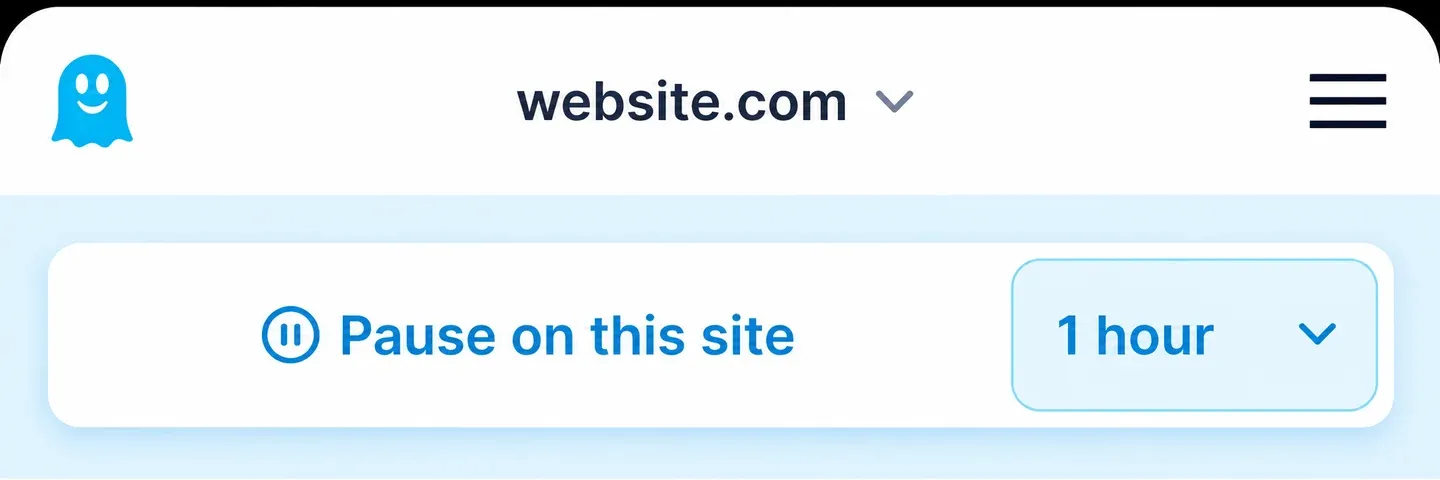
If the same feature still fails while the site is paused, resume Ghostery before trying another explanation. A different blocker, browser setting or the website itself may be involved; a failed payment alone doesn't establish which one. Use Report an issue in Ghostery's menu or contact Ghostery support with the browser, extension version, affected page and steps. Remove personal information from anything you attach.
Keep the scope clear: Privacy protection > Pause Ghostery suspends protection globally for one day. That is broader than the panel's site pause. I wouldn't use the global switch to repair a single page.
If the panel says Paused by Browsing Assistant, Ghostery's assistant has paused protection to prevent a site problem. Review WhoTracks.Me > Browsing Assistant if you want to control that behavior; you can resume the site from its panel. An automatic pause is a separate state from choosing Always yourself.
Allow one tracker on one website
If you've identified a blocked tracker that a necessary feature depends on, a website-specific protection exception can be narrower than leaving the whole site paused. Resume the site first, open its Observed activities, select the tracker and open its protection-status control. Turn on Trust on this website, then reload and check the feature. Keep Trust on all websites off for this repair.
In settings, Websites > the site > Protection exceptions lets you review allowed trackers. Remove an exception with its trash control when it's no longer needed, then reload. By contrast, a tracker's main Protection status in the Trackers settings changes its status for every website. Don't globally trust a tracker just because one site needs it.
If that tracker is already trusted everywhere, its site-only trust control is disabled. Turn off the global trust choice first, then add only the website that needs the exception. Removing a website from the exception list won't cancel a separate global trust setting.
Keep Never-Consent on the consent choice you intend
Never-Consent recognizes supported consent platforms and answers their notices automatically. Its usefulness is the privacy choice it makes, not merely the disappearance of a pop-up.
Open Privacy protection > Never-Consent > Extended settings. In the extended consent controls, keep Automatic Action Type on Opt out if you want automatic refusal. The other choices are Opt in and None; selecting Opt in changes the intended action to consent. The same screen has Global Privacy Control, a signal asking websites not to sell or share personal data for advertising. That signal and the action taken on a banner are separate controls.
A banner Ghostery doesn't recognize may still need your decision. To stop Ghostery handling a banner while you inspect it, pause protection on that site and reload. If the website has already remembered a choice, use its cookie or privacy-preferences link to revisit that choice; pausing Ghostery doesn't undo it. Don't clear cookies as the first repair: that changes saved site state and can sign you out. Neither a closed banner nor GPC proves that all tracking has stopped.
Read the data policy and keep a settings backup
I wouldn't describe Ghostery as sending no data. Its extension privacy policy describes daily non-personal telemetry covering settings, browser, operating system, language and country, with extra telemetry for users who opt in. It also describes block-list updates and WhoTracks.Me reports about observed tracking and non-private search engines. Ghostery says identifying information is detached from shared information; that's its stated handling policy, rather than a claim that no communication occurs.
You don't need a Ghostery account to use protection. For a portable copy of your choices, follow the settings backup route: panel menu > My Ghostery > Settings Backup > Export to file. Keep the file private. Before importing on the destination installation, export its existing settings: the import changes existing settings and tracker exceptions. Then use Import from file. Check Ghostery's import-success message and review the settings you intended to transfer. The export leaves out temporary, Browsing Assistant and administrator-managed pauses.
Choose by the job you need
Ghostery makes sense when you want ad, tracker and consent controls together, with a view of the companies behind page activity. For a tracker-focused alternative, Privacy Badger is worth considering. If changing search and adding page protection is your main task, DuckDuckGo Search & Tracker Protection serves that combination; its desktop extension doesn't supply Ghostery's cookie-banner controls.
I'd choose one primary blocker before adding overlapping extensions, because a broken page is easier to investigate when you know which tool changed it. The privacy extension hub groups these tools by what you want to control.
