

DuckDuckGo extension: search, trackers and site controls
Separate private search from page protection, understand browser differences and recover a broken site with a reversible exception.
Get extensionDuckDuckGo Privacy Essentials is now called DuckDuckGo Search & Tracker Protection in the Chrome and Firefox stores. I'd choose it when you want DuckDuckGo as your default search engine alongside automatic tracker protection in your existing browser. Searching at DuckDuckGo alone doesn't protect the other sites you open; that protection comes from the extension or DuckDuckGo's separate browser.
The useful control is the site exception. Save unfinished work before reloading, and check the status of a stalled payment or form before retrying it. If a login or page stops working, test protection with a harmless, read-only action on that site, then restore it if the exception doesn't help. Clearing cookies or removing the extension is a much broader change.
Find the current extension before changing your browser
Start with DuckDuckGo's official extension destinations. They point to Chrome, Firefox, Edge and Opera. The Chrome listing from Duck Duck Go, Inc. and Firefox listing from DuckDuckGo both use the Search & Tracker Protection name. An old Privacy Essentials title in a guide doesn't mean you need a second extension.
The extension is free. Installing it changes your browser's default search provider to DuckDuckGo, so read the search-setting confirmation as well as the permission prompt. The Firefox listing requests access to tabs, navigation activity and data for all websites. That reach lets a blocker act across websites; it also makes the actual publisher important. A store privacy declaration isn't a guarantee that an extension has no access to page data.
- Open the store through DuckDuckGo's official link for the browser you're using.
- Check the product name and publisher, then review the search change and requested access before confirming installation.
- Open the extension from your browser's extensions menu while viewing a normal website. Inspect the site information in its panel.
- Try an address-bar search and check which provider receives it. Separately check your homepage and new-tab preferences; those are different browser settings.
DuckDuckGo's Chrome setup explanation makes the search-versus-browsing distinction explicit. Setting DuckDuckGo as your search engine without its extension doesn't add tracker blocking to pages elsewhere on the web. You can also use its search site directly without installing anything.
If you decide against the bundle, turn off DuckDuckGo in Chrome's Manage extensions page, then open Settings → Search engine → Change to choose your default search provider. Turning the extension off also stops its page protection. In Firefox, Extensions and themes → Extensions provides the toggle for disabling an add-on without removing it.
To keep DuckDuckGo search while avoiding its AI search features, the extension's No AI in Search option routes searches to its no-AI variant. The setting covers Search Assist, Duck.ai and the default filtering of AI-generated images; it applies to searches from DuckDuckGo and the address bar.
Read the panel as separate protections
The dashboard separates the connection from requests made by the page. Connection Is Encrypted refers to the connection. Requests Blocked from Loading describes requests the extension stopped, while Third-Party Requests Loaded shows that other outside resources can still load. These labels answer different questions.
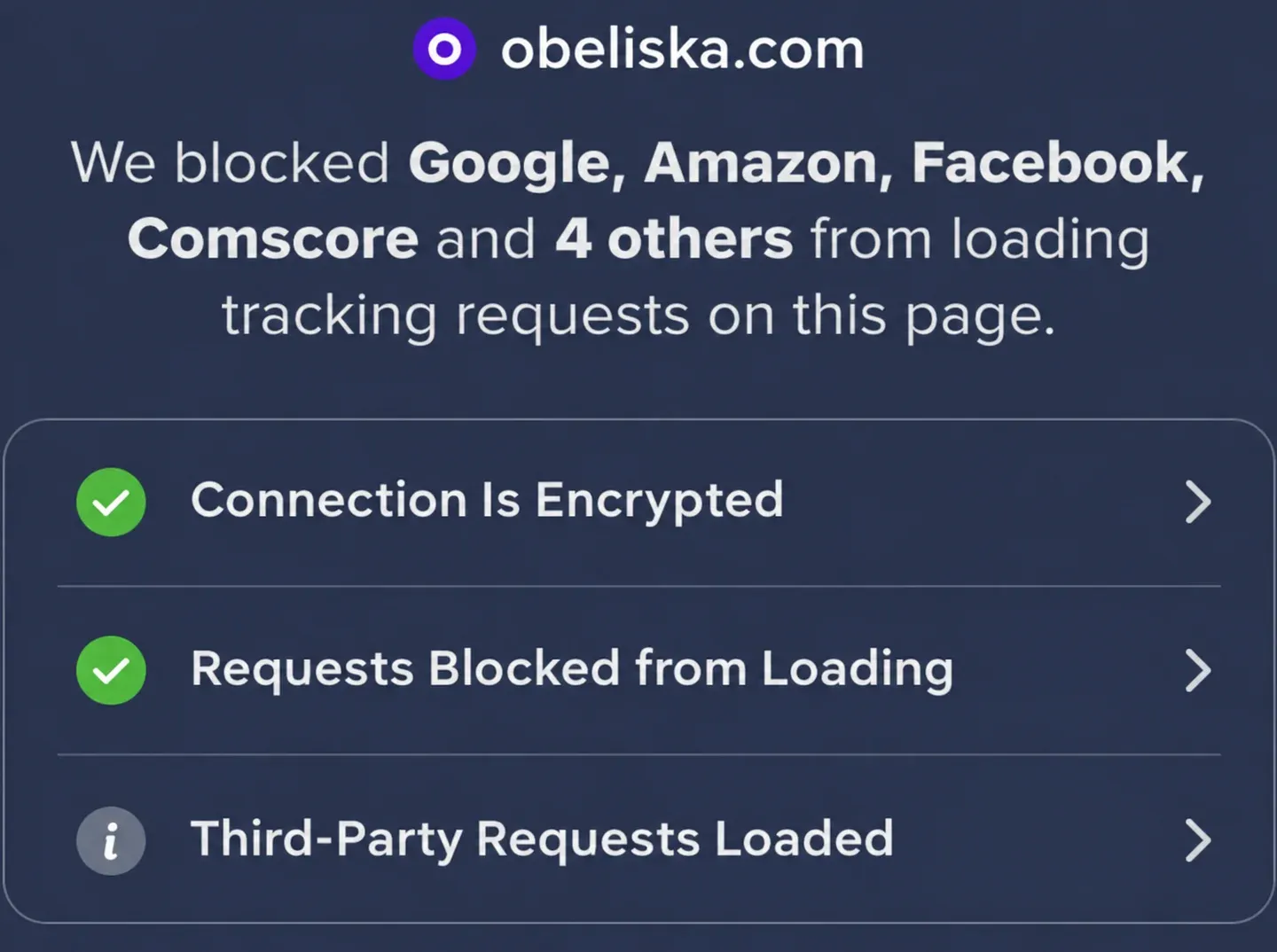
DuckDuckGo's tracker-loading protection uses its known-tracker list. It aims to stop tracking requests before they load, with limited exceptions for things such as signing in. It doesn't try to block every third-party request. An image host or infrastructure service can be needed by the page without every request from it being tracking.
Its overlapping protections also restrict cookies from listed trackers, block listed fingerprinting scripts and override selected browser APIs used for fingerprinting. Link Tracking Protection removes specified tracking parameters from links. These have functionality exceptions; they don't erase every cookie, strip every query parameter or make every browser fingerprint identical.
I'd look at whether your task works and which requests are involved before chasing a higher blocked count. A green connection row doesn't mean a site is trustworthy, and blocking trackers doesn't make a signed-in visit anonymous. HTTPS encrypts a connection; it doesn't hide your IP address from the site receiving it.
Recover a broken page with an exception you can undo
Begin on the affected site. Note the actual host in the address bar, especially if signing in moves you to another domain. Keep the failing action specific: opening a video, reaching the sign-in form or completing a redirect. Don't clear site data while you're still trying to identify the cause. Save unfinished work before reloading. If a payment or form submission stalled, check its status before retrying; use a harmless, read-only action to compare protection states.
In Chrome, right-click the extension's toolbar icon and select Options to reach its settings. You can also open Manage extensions → DuckDuckGo → Details and follow the options link.
- Open DuckDuckGo's panel for that page and use its site-protection control to disable protection for that site.
- Reload the page and repeat the same action. If it still fails, restore protection before trying another cause.
- If the exception helps, keep it only for the site you need. Use the panel's Report Broken Site route to tell DuckDuckGo about the compatibility problem.
- To undo an exception, open the extension's Options, find Unprotected Sites and remove the site's entry with its × button. Reload the site and inspect the panel again.
The extension's exception model stores domains, including subdomains, rather than full page URLs. Adding a checkout URL doesn't make an exception for only that checkout path. Its Unprotected Sites list provides the removal button, so an exception has a clear return route.
Turning protection off can allow requests it previously blocked. If you run another blocker or browser tracking protection, those controls remain a separate possible cause. Change one control, retry, then restore it before changing the next. Otherwise a working page won't tell you which exception mattered.
DuckDuckGo's broken-site reporting instructions point to the extension popup. A successful exception is a reason to report the site, rather than leave protection off across every site.
If you can't find the extension, Chrome's extension-management instructions use More → Extensions → Manage extensions. Find DuckDuckGo there. Its toolbar icon can be pinned from the extensions menu; hiding an icon doesn't turn protection off.
Check the features for your browser
The platform-by-platform protection matrix is more useful here than the feature list on the DuckDuckGo browser homepage. Several features have different extension support.
| Feature | Firefox extension | Chrome, Edge and Opera extensions |
|---|---|---|
| Known third-party tracker loading protection | Supported | Supported; resources loaded by service workers have a documented platform limitation |
| HTTPS upgrades where possible | Supported | Supported |
| Referrer trimming | Supported | Unsupported in Chrome and Edge; supported in Opera |
| Fire Button | Unsupported | Supported, with history and tab-clearing choices |
| Automatic cookie pop-up handling | Unsupported | Unsupported |
| Global Privacy Control | Supported | Supported |
Cookie blocking and cookie-banner handling are different jobs. The extension can restrict tracking cookies without automatically dismissing a site's consent banner. Global Privacy Control sends a preference about selling or sharing your data; what a site must do with it depends on applicable law. It doesn't block every network request by itself.
On Android, DuckDuckGo provides a Firefox mobile add-on route. The same help page's iOS instructions concern changing the search engine, so don't read them as an iOS extension installation path. The separate DuckDuckGo browser is available for iOS and Android, as well as Mac and Windows.
Older search results also lead to a 2019 Safari extension announcement. Its original US App Store destination is unavailable. I wouldn't use its old Safari and macOS requirements as a current installation recommendation; use DuckDuckGo's current product routes for the platform you have.
Check what the Fire Button will erase
The Chrome, Edge and Opera extensions now include a Fire Button according to DuckDuckGo's platform matrix. Firefox's extension doesn't. Before using it, save unfinished work and check the selected site or time range: clearing site storage can sign you out, while closing tabs can discard work in those tabs.
In extension Options, the Fire Button section has Clear History and Close Tabs controls. The settings explanation makes a consequential distinction: browsing history can be cleared for a time range, such as the last hour or all time, rather than only one site. Don't assume that choosing one site's data makes history deletion site-specific.
I'd leave data deletion out of the first troubleshooting attempt. A site exception checks whether protection affects the page; deleting its cookies changes the page's saved state as well.
Choose the protection task you want
Tracker blocking can remove ads that depend on blocked tracking requests, but it doesn't promise an ad-free page or YouTube session. The separate browser's video features aren't a feature list for this extension. Search ads can still appear on DuckDuckGo, too.
There is a specific search-ad exception for Microsoft conversion requests: after a DuckDuckGo ad click, bat.bing.com requests can load on the advertiser's site. DuckDuckGo says cookies set by those requests expire after seven days and the requests are blocked in other contexts. Its other overlapping protections continue to apply. That is narrower than saying all Microsoft trackers are allowed everywhere. You can disable search ads in DuckDuckGo's search settings.
If you want a dedicated tracker blocker without choosing this search bundle, consider Privacy Badger's tracker controls. EFF describes Privacy Badger as a tracker blocker and explains its GPC signal and per-domain controls. For a combined ad, tracker and cookie-pop-up tool, Ghostery's blocking controls address a different mix of tasks; its developer describes those features in the Ghostery extension overview.
I'd choose one blocker around the job you need, then check the sites you rely on. Keep DuckDuckGo when the private-search bundle fits; if your main requirement is a different search provider or detailed ad rules, make that choice before adding more overlapping controls. The privacy extension hub groups the other browser-access and privacy tasks.
