

Decentraleyes: check local replacements and repair a site
Check what Decentraleyes replaces, keep missing-resource blocking under control and recover a broken site without confusing a site exception with disabling the extension.
Get extensionUse Decentraleyes when you want supported CDN libraries delivered from the extension instead of a remote server. I'd keep its missing-resource blocking off at first, check a replacement with the official testing utility, then make a site exception only when a page needs one. It complements a content blocker; it doesn't make every website private or available offline.
Get the current extension from its official store
Choose Decentraleyes by Thomas Rientjes on Firefox Add-ons or the official Decentraleyes Chrome listing. Both offer version 3.0.2. The project is free and open source under MPL 2.0. Its old GitHub repository points to the new repository; the archive banner isn't evidence that development stopped.
The controls below refer to Firefox 3.0.2. That package requires Firefox 115 or later on desktop and Android. Chrome has a separate implementation, so don't use Firefox's request-handling details as a promise about Chrome. Older Opera listings can offer an older package.
Review its access before installing. The Firefox package requests website access, network-request and navigation capabilities, tabs, storage and browser privacy settings. Those permissions let it inspect eligible requests and change how resources load. The developer's no-data-collection policy is a statement about collection, not a limit on those capabilities. If Firefox asks for site access, grant the access needed for the sites where you want replacement to work.
Check a local replacement before changing settings
Decentraleyes matches supported CDN addresses and resource paths to files in its bundle, including libraries such as jQuery and AngularJS. A matching library can be loaded locally; an unsupported resource can still need a remote connection. It doesn't replace every file hosted on a supported network. The rest of the page can contact its own server, analytics services and other third parties.
- Enable Decentraleyes and open the official testing utility in the browser profile where it's installed.
- Let the utility finish and read its status. If it reports a problem, check whether the extension is enabled, has site access and is excluded on that domain before changing advanced controls.
- Open the extension popup on an ordinary page. Its contextual list groups local injections by delivery network and names the resources that were replaced.
- Use your browser's Network panel when you need to inspect the actual requests. Compare the requested library with the popup's replacement details.
The developer's status and network-inspection guidance separates these checks. A successful utility result confirms its test case; it doesn't establish coverage for every library on your usual sites. The large popup counter records local injections since installation. It isn't a count of unique trackers, blocked websites or milliseconds saved.
A quiet popup on one page can simply mean that the page didn't request an eligible bundled resource. Don't enable stricter blocking just to make a counter change. Firefox also partitions storage and network state by top-level site; that limits shared-state tracking, while a local replacement avoids the particular CDN connection. Neither mechanism makes a signed-in account anonymous.
Keep missing-resource blocking separate from replacement
Open the popup's gear control, labeled Options, to inspect these Firefox 3.0.2 settings. Existing saved choices or administrator policies can differ from the shipped defaults.
| Control | Shipped state | Effect |
|---|---|---|
| Display injection counts on icon | On | Shows the current page's injection count on the extension icon. |
| Strip metadata from allowed requests | On | Removes Cookie, Origin and Referer headers from intercepted CDN requests that still go out. |
| Disable link prefetching | On | Turns off browser network prediction to prevent speculative requests to delivery networks. |
| Block requests for missing resources | Off | Lets eligible requests fall back when no suitable local file is available. Turning it on cancels those missing-resource requests. |
| Exclude domains from inspections | Empty | Stores site exceptions. Multiple entries use semicolons. |
I'd leave Block requests for missing resources off unless you're willing to maintain exceptions. Turning it on doesn't download missing libraries; Firefox 3.0.2 also selects the bundle's staging resource set in that mode. The options page warns that this feature breaks websites and provides a Disable control for turning it back off.
Metadata stripping is a separate decision. A site can be excluded from replacement while eligible CDN requests still have headers removed. That distinction matters when a service expects an Origin, Referer or Cookie header.
Use the power button to make a reversible site exception
Save unfinished work first: the popup's power button reloads the active tab when you change protection. If a payment or form submission stalled, check its status before submitting again.
- Open the failing page and then the Decentraleyes popup.
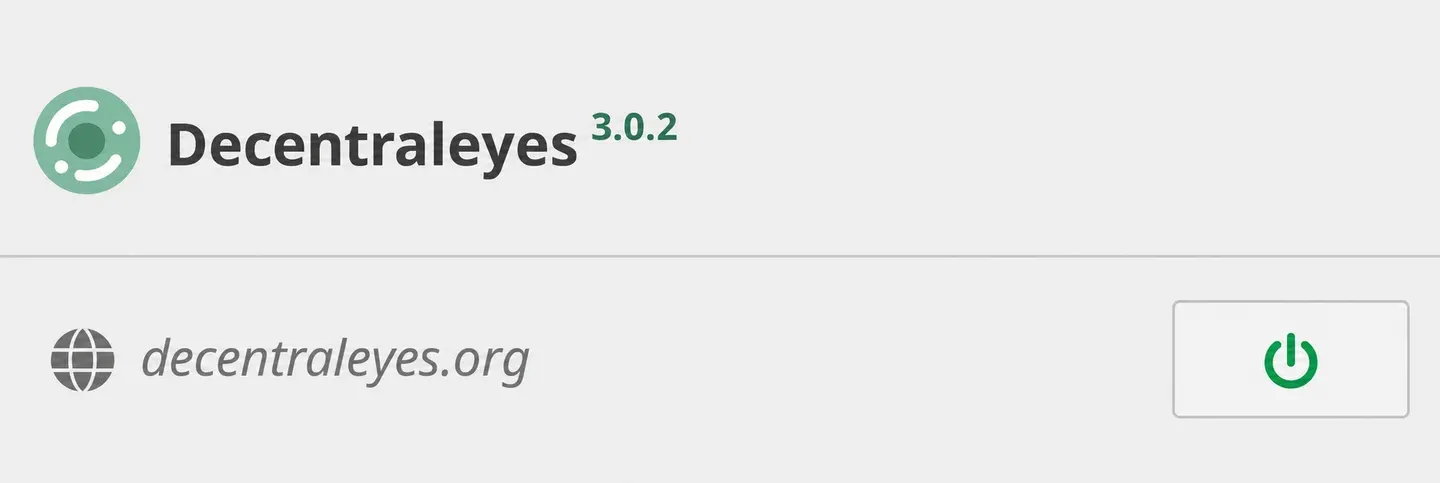
- Read the domain beside the globe icon. Use the power button whose tooltip says Disable protection for this site.
- The tab reloads with that domain on the exception list. Repeat the failed action once. Recovery suggests that Decentraleyes' replacement or missing-resource blocking was involved.
- To reverse the exception, open the popup again and use the same button, now labeled Enable protection. The tab reloads again.
For manual entries, open Options > Exclude domains from inspections. Type hostnames such as shop.example.com;forum.example.net, separated by semicolons, without a scheme, path or wildcard. Typing updates the setting; there's no separate Save button.
Firefox 3.0.2 matches the normalized hostname: it removes a leading www., but it doesn't extend an example.com exception to shop.example.com. Use the domain shown in the popup for each affected subdomain. To remove a manual exception, delete that entry while preserving the semicolons between the remaining domains. Keep any copy of this list private: its entries can reveal the sites you use.
If the site still fails, remember that the power button isn't a complete extension shutdown. The developer's explanation of allowed requests says header stripping can continue on excluded sites. Temporarily disable the whole extension in Firefox's add-on manager, reload and compare. Re-enable it after the check. If only a full disable restores the page, investigate the separate metadata and prefetch settings instead of adding more domain exceptions.
Follow the symptom and change one control at a time
A page loses scripts or styling after strict blocking was enabled. Turn Block requests for missing resources off and reload. If that restores the page, keep the setting off or restore strict blocking with an exception for that particular site. An unavailable local file can't be repaired by increasing the injection count.
A CDN request still fails on an excluded site. Record the current value of Strip metadata from allowed requests, turn it off temporarily and reload. This changes eligible CDN requests across sites, so restore it if the symptom doesn't change. If it does help, weigh that broader relaxation against keeping the extension disabled for the workflow that needs those headers.
A setting won't stay changed on a work-managed browser. Administrator-managed settings take precedence over locally saved values. Ask the administrator about the policy rather than repeatedly resetting the extension; version 3.0.2 includes fixes for managed-setting resolution and enforcement.
The testing utility works, but the ordinary page has no replacements. Check whether the site is excluded and whether its requested library is supported. A content blocker may already have stopped the request. Don't weaken browser security or allow every CDN to make the Decentraleyes counter rise.
Choose one CDN emulator and keep your content blocker
LocalCDN provides another library-replacement workflow, with different coverage and controls. Its current maintainer supports Firefox and has retired Chromium support; Decentraleyes still has a current Chrome package. In Firefox, I'd choose one CDN emulator so there's one replacement layer to investigate when a site fails. Don't copy LocalCDN's parent-domain or one-entry-per-line exception rules into Decentraleyes.
Keep uBlock Origin's content filtering as a separate decision. The Decentraleyes maintainer's explanation of blocker ordering shows why an already blocked request has nothing left to replace. Broadly allowing third parties for a higher injection count would reverse the purpose of the setup.
I'd keep Decentraleyes when its supported replacements are useful on the sites you visit and its exceptions remain manageable. If those sites rarely use its bundled libraries, choose the browser protections you need through the privacy extension hub rather than judge the setup by a lifetime counter.
