

AdGuard extension: filters, site exceptions and repairs
Start with recommended filters, keep exceptions narrow and restore protection after repairing a site.
Get extensionAdGuard Browser Extension is a free choice for blocking ads and trackers in the browser where you install it. Save unfinished work before reloading a form, checkout or editor. Avoid submitting a transaction again simply because its confirmation page failed. I'd start with its recommended filters, then add a language or annoyance filter only when you need it. If a website breaks, switch protection off for that site, check the failed feature and restore protection before changing anything else.
Install the main blocker for your browser
In Chrome, choose AdGuard AdBlocker by Adguard Software Limited, select Add to Chrome, then confirm Add extension. This is the stable Manifest V3 extension. Pin it from Chrome's Extensions menu so you can reach the site switch.
The browser-specific installation instructions also cover Firefox, Edge, Opera and Yandex Browser. Firefox users should choose AdGuard AdBlocker by Adguard Software Ltd; Mozilla also lists it for Firefox on Android. Safari uses the separate AdGuard Mini for Mac application, formerly AdGuard for Safari, with different controls. These Chrome steps don't describe that app.
The browser extension is free and requires no registration. AdGuard's paid desktop and mobile apps are separate products. The extension filters the browser where it's installed; it doesn't provide device-wide protection for other apps.
Expect broad website access. A blocker needs to inspect requests and change page content to remove ads and empty ad containers. Firefox lists access to all websites, tabs, navigation activity and privacy settings. Verify the publisher before granting that access; a store's privacy label doesn't change what the permission permits.
Add filters for the problem you have
Open AdGuard's toolbar panel, then the gear icon and Filters. The recommended filter set is enabled initially. I'd make one change at a time, reload the affected page and keep the change only if it solves the problem without hiding content you need.
| Your task | Where to look | What to check afterward |
|---|---|---|
| Remove ordinary ads | Ad blocking | Start with the recommended lists rather than enabling every overlapping list. |
| Reduce known tracking requests | Privacy | Check that sign-in, embedded media and other necessary features still work. |
| Remove cookie notices or page pop-ups | Annoyances | A hidden notice doesn't establish which consent choice a website saved. |
| Block ads on sites in another language | Language-specific | Enable the relevant language list and revisit the affected site. |
| Filter requests to known malicious sites | Security | Use this category in MV3 rather than searching for the old Phishing & malware protection switch. |
Before adding a custom filter or JavaScript user rule in Chrome 138 or later, open Extensions > Manage extensions > AdGuard > Details and enable Allow user scripts. AdGuard's User Scripts API setup instructions use the extensions page's Developer mode instead on older Chrome versions. This permission enables custom scripts to run on webpages; grant it only for the verified extension and trusted rules.
AdGuard's filter categories and custom-list controls also include Social widgets, Other and Custom. In Custom, choose Add custom filter, enter the list URL or file path and select Next. Add a list only when you trust its maintainer and understand its purpose. A subscription is someone else's maintained set of blocking instructions.
Watch for MV3 limit warnings when adding lists or rules. More enabled filters don't automatically mean more effective protection, and a rule visible in an editor may not be applied if a conversion limit has been reached. Remove unnecessary additions before trying to work around a warning.
Keep MV3 filters current without chasing the old update button
Chrome's current extension uses Manifest V3. In this version, built-in filters update with the extension, after the store's release process. The old Auto-update filters and Check filters update options aren't available in the Filters tab. Keep browser extension updates enabled.
Leave AdGuard Quick Fixes enabled. It uses dynamic rules to address newly appearing ads and broken websites between releases. Custom filters added by URL can update independently of extension updates, so built-in lists and URL subscriptions have different update paths.
MV3 also changes diagnosis. The filtering log reports an assumed triggered rule rather than proving the exact rule Chrome matched. Cookie self-destruction controls from the older extension aren't present in MV3. Don't follow an old settings screenshot expecting those switches to exist.
Repair one website and restore its protection
Start on an ordinary webpage. Browser-internal pages and some protected domains can't be filtered by extensions; AdGuard's protected-page restrictions include Chrome's internal pages and Mozilla's add-on store. A disabled control there isn't evidence that your filter list is broken.
Save unfinished work before reloading a form, checkout or editor. Avoid submitting a transaction again simply because its confirmation page failed. The panel's large main switch controls the current website; the separate pause control affects protection more broadly.
- Open the affected website and select AdGuard in the toolbar.
- Use the main switch for the current website to turn its protection off. Reload and try the specific feature that failed.
- If the feature still fails, turn site protection back on before investigating another blocker, browser setting or the website itself.
- If disabling AdGuard fixes the feature, restore site protection and review your most recent filter or user-rule change. Remove that change and reload to check whether the feature now works with blocking enabled.
- When you finish, confirm that the site's protection is on. If you used the global pause control, select Resume as well.
For a deliberate lasting exception, open Settings > Allowlist. In its normal mode, sites on the allowlist are excluded from filtering. Add the site's domain and select Save. To undo that exception, remove its entry, save and reload the site.
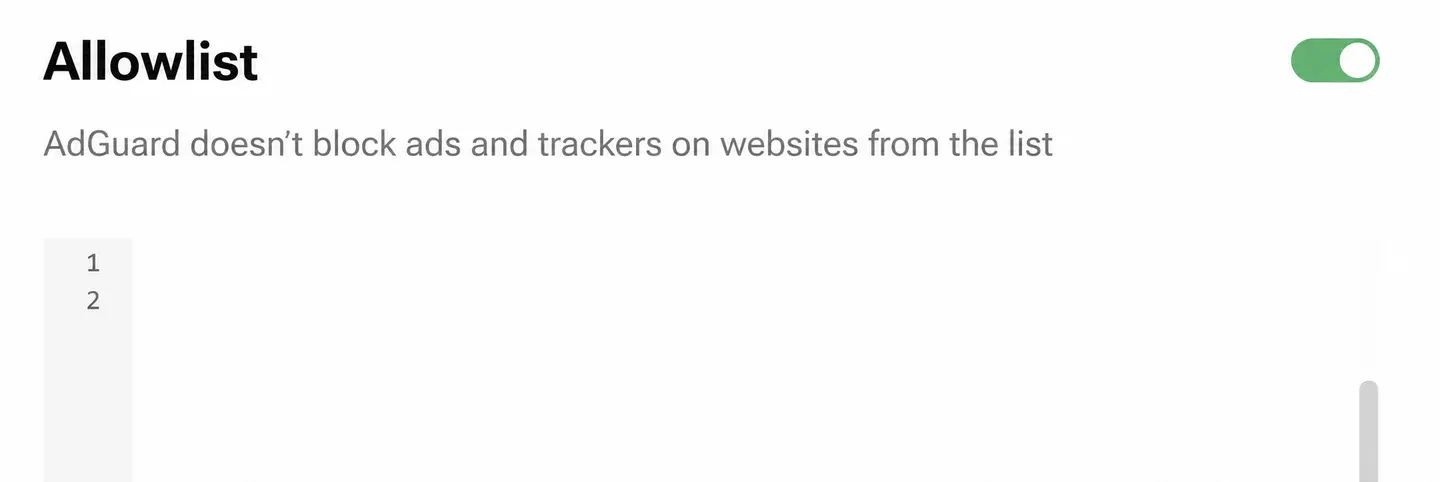
Check Additional settings > Invert allowlist if the result seems reversed. Inverted mode blocks ads and trackers only on listed sites; everywhere else is unblocked. It changes the purpose of the whole list. I wouldn't enable it to fix one broken page.
Remove a manual blocking rule without resetting everything
Block ads manually in the panel opens the element picker. Use it for an unwanted page element that ordinary filters miss. The picker creates a filtering rule; it doesn't remove the element from the website's own files.
Open Settings > User rules to review your additions. If a manual selection hides too much, remove the rule you just created, save and reload. Export your rules before making broad edits so you have a copy to return to. AdGuard supports rule import and export, and allowlists have their own import and export controls.
For a recurring filter problem, use the panel's Report an issue route. The reporting privacy notice explains that the form receives configuration details you can edit or delete. A submitted report becomes public on GitHub. Remove private page details and review attachments before selecting Submit.
What the published MV3 test establishes
Karlo Lukic and Lazaros Papadopoulos compared AdGuard MV2 4.3.53 with MV3 5.0.33 in their browser experiment. The main sample covered 924 popular, ad-supported websites using Prebid, with five measurement runs starting in May 2025. Chrome visits came from a European residential IP, and the experiment accepted cookie notices before collecting data.
In the reported results, both AdGuard versions had a median of approximately 17 blocked trackers per website. The researchers found no statistically significant AdGuard MV2–MV3 difference in blocked ads or trackers. This is evidence about those builds and that sample; it doesn't establish a current blocking percentage or guarantee the behavior of a video service.
I'd choose the current extension on its controls and browser fit rather than assume that MV3 makes it useless. Keep updates and Quick Fixes active, then investigate a missed ad or broken feature on the actual site. A general benchmark can't identify which rule caused a particular checkout to fail.
Check data choices and separate the other AdGuard products
AdGuard's extension privacy notice says technical and interaction telemetry is optional and off by default. The separate filter-development statistics option is also off by default; enabling it sends filter IDs, rule text and trigger counts. Filter-update connections can send the browser language, app identifier and extension version. I wouldn't interpret a store declaration as a promise of no network communication.
If a video call breaks after you enable Block WebRTC in Tracking protection, revisit that setting. AdGuard documents it as a global control without per-site exceptions. An allowlist entry isn't a way to make WebRTC blocking site-specific.
Already using AdGuard for Windows or Mac? Follow the standalone-app compatibility advice: use AdGuard Browser Assistant with the desktop app. AdGuard warns that running its full browser blocker alongside the app can interfere with filtering. Assistant is a companion that controls the app; it isn't a replacement standalone blocker.
AdGuard Extra is another companion, intended for complex ad reinsertion on a limited set of websites. It isn't the main extension described here. AdGuard's Android app and DNS services are separate tools, too; their setup isn't part of turning on this browser extension.
For tracker identities and automatic consent-banner choices, compare Ghostery's tracker and consent controls. For cleaning tracking parameters from links, ClearURLs has a narrower focus; its compatibility guidance warns that its MV2 build can be disabled by Chrome-based browsers, while Firefox isn't affected by that transition. Neither is a reason to add a second full blocker without a specific task.
My default is one primary blocker, the filters needed for the sites you use and exceptions you can explain and reverse. The privacy extension hub helps you choose the next tool by the data or browser behavior you want to control.
