

Zotero Connector: save citations and check PDF attachments
Choose the right library, inspect the citation fields and check the PDF separately from the record.
Get extensionZotero Connector saves a source's bibliographic record from your browser into Zotero, with a PDF or web snapshot when available. I'd keep the Zotero desktop app open, save from the article's publisher page, then check the record and its attachments separately. You can also authorize saving to your zotero.org library when the desktop app isn't available.
Install the connector for your browser and choose where to save
Use the official Zotero download page for the desktop app and the connector matching your browser. Chrome, Firefox and Edge have separate browser extensions. Installing Zotero on your computer doesn't install those extensions into every browser. In Chrome, open the extensions menu and pin Zotero Connector so you can see its save button.
Safari is different: its connector is bundled with Zotero for Mac. Enable it in Safari Settings > Extensions. Old advice that the Safari connector no longer works doesn't describe the current download route. The connectors are for desktop browsers; on a phone or tablet, Zotero's mobile apps use the system Share button.
The official Chrome listing from Corporation For Digital Scholarship identifies the extension. Start from Zotero's own download links rather than a third-party installer.
| Your situation | Save route | What to verify |
|---|---|---|
| Zotero desktop is installed and open | The connector sends the item to the desktop library. | Confirm the library or collection in the popup, then inspect the saved item in Zotero. |
| The desktop app is unavailable | Authorize the connector to save to your zotero.org account. | Check the online library. Configure syncing separately if you want those items in the desktop app later. |
| You want a local library without an account | Keep Zotero desktop open and use local saving. | Cloud sync is optional. An account isn't required for local use. |
The online-library saving instructions explain the authorization prompt when Zotero isn't running. In the connector's General preferences, Zotero Status checks the desktop connection; Save to Zotero.org manages online authorization. In Chrome, right-click the save button and choose Options; in Firefox, choose Preferences.
The connector's General preferences also control automatic PDF and snapshot saving to zotero.org. Check those settings when a cloud record arrives without its file; they apply to the online destination, separately from the desktop app's attachment settings.
If your browser can't accept an extension, the official download page also offers saving a webpage or identifier to your online library. The web library's magic-wand button accepts identifiers too. This gives you a separate route to a record; inspect its metadata and files instead of assuming it captured everything the browser connector would.
Saving a record doesn't insert a citation into a document. Zotero desktop provides the fuller workflow with Word, LibreOffice and Google Docs integration; the Google Docs integration also needs the desktop app connection. Capture the source and correct its metadata before using it in your document.
Save from the source page, then inspect the record
Open the publication's abstract page, publisher record or library catalog entry before saving. The Zotero guide to metadata quality recommends the publisher's page over a search result when it supplies better bibliographic data. Zotero's site-specific translators read that information; the file format alone doesn't supply a complete citation.
- Open Zotero desktop and select the collection you want to use.
- Load the source page fully. The connector's button changes to reflect a recognized item type, such as a journal article or book.
- Click the save button. Check the destination shown in the popup; change the collection or library there if needed, and add tags if useful.
- Let the save finish before leaving the page. Check for errors affecting either the record or its attachments.
- Open the new item in Zotero. Compare its item type, title, authors, publication date and DOI or URL with the source. Correct incomplete fields before citing it.
- Inspect the attachments under the item. Open the PDF or snapshot you need and confirm it contains the intended material.
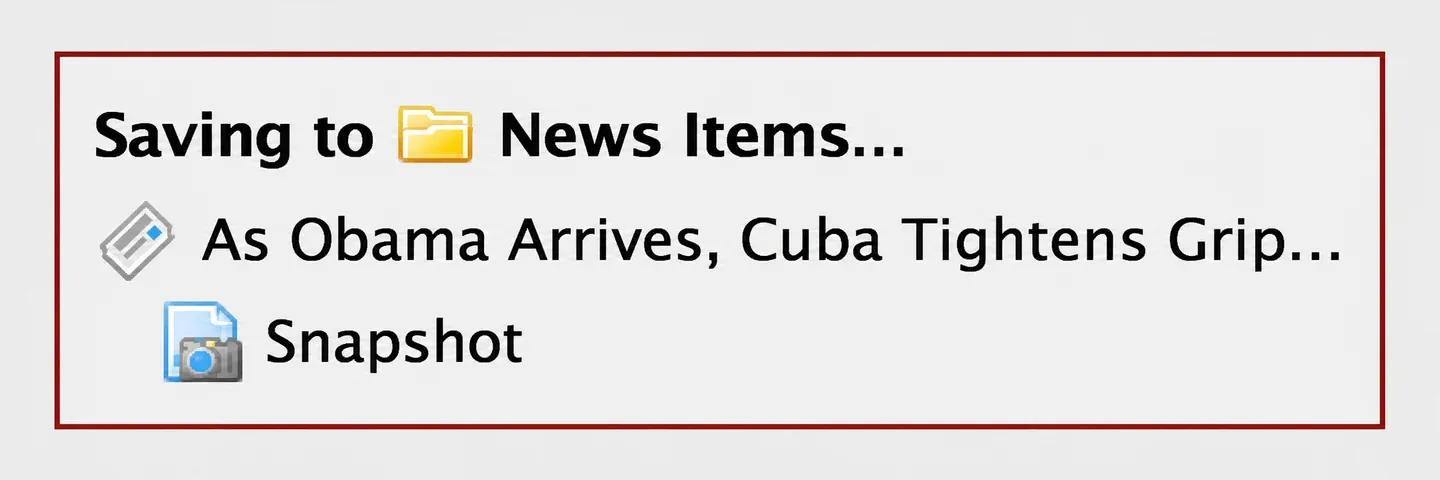
The popup above uses the older English example from Zotero's connector instructions: News Items is a collection and Snapshot is an attachment beneath the article. Appearance varies by browser and release. The useful check remains the same: the record and the saved copy are separate parts of the capture.
The Evergreen library's connector walkthrough describes the citation saving before its PDF or snapshot and warns that either part can fail. Its generic-page examples also show why a saved title needs inspection. I'd check the actual library entry rather than treating a disappearing popup as proof that everything you need was captured.
On supported search-results pages, a folder icon means Zotero found multiple items. Click it, select the records you want and confirm the selection. Open an individual publisher page when a result needs closer checking. For large database imports, Zotero recommends the database's batch export, such as RIS or BibTeX, instead of repeatedly saving large groups and triggering site limits.
A citation can save without its PDF
Zotero can save an accessible PDF linked from a supported source page and can look for an open-access copy. Neither action guarantees a file for every record. A subscription, institutional login or unavailable PDF can still affect what you receive. The connector doesn't grant access to content you aren't entitled to read.
When a PDF is missing, check whether you can open it from the source using your normal authorized access. Then inspect the record's attachments. If the source page saves only generic metadata, retry from the publication's abstract page before assuming the file is unavailable.
Saving a PDF directly from the browser is a different route. Zotero imports the file and attempts to retrieve its metadata. If that lookup fails, the standalone-attachment instructions explain how to create a parent record: right-click the PDF, choose Create Parent Item and enter an identifier such as a DOI or ISBN. Use Manual Entry when no suitable identifier or online record is available. You can also save the bibliographic record from the publisher and drag the attachment onto it.
Check the parent record before generating a citation. A PDF filename isn't a substitute for an author, title and publication date, and automatic metadata can still contain mistakes.
Decide whether you need a web snapshot
A generic webpage may show a gray webpage icon and save only a basic Web Page record with a title, URL and access date. That is a useful starting point, but it can need manual author or publication details. A gray icon on one unsupported page doesn't by itself mean the connector is broken.
For a saved copy of the page, use Zotero's Web Page with Snapshot route. Right-click the save button, or click and hold it in Safari, to choose the Web Page option with or without a snapshot. Automatic snapshot saving also depends on the desktop app's General setting for taking snapshots when creating webpage items.
In Zotero, double-clicking a Web Page item with a snapshot opens the saved copy; without one, it opens the original webpage. Open the snapshot and inspect the material you intended to preserve. If you want the live source instead, click the URL: label in the item's right-hand pane.
Check the symptom before resetting anything
| Symptom | Next check and action |
|---|---|
| No save button | Check that Zotero Connector is installed and enabled in this browser, then pin it if it's hidden. In Safari, check the bundled extension in Safari Settings. |
| A generic webpage record on one site | Reload the fully loaded page, try the publication's own record and inspect the translator name in the toolbar tooltip. A site-specific translator may be missing or broken. |
| Zotero desktop is open, but the popup tries zotero.org | Check Zotero Status in connector preferences. Save unfinished browser work before restarting the browser. If it still reports unavailable, use the desktop-connection diagnosis linked below. |
| The record exists but its PDF is missing | Check authorized access to the PDF, the source page and the attachment-saving settings for the destination you're using. |
| Saving fails across unrelated sites | Check connector, browser and Zotero updates, then the required website permissions. Isolate a conflicting extension only if the problem continues. |
The official desktop-connection diagnosis separates a browser problem from a local connection blocked by another program. Follow that branch when Zotero is open but unavailable. Don't start by deleting your library or moving its data directory.
For the website-permission check in Chrome or Edge, right-click the save button and inspect This Can Read and Change Site Data > On All Sites. Zotero documents this access as necessary for reliable saving. If your organization's policy permits it, enable the required access, reload the source and retry. If policy forbids it, ask your administrator about an approved capture route instead of silently widening access.
For site-specific failures, the saving troubleshooting guide asks for the failing URL, translator name, popup message and a Connector Debug ID. Review a log before submitting it because it can include visited URLs. Resetting translators is a later diagnostic step for unusual failures across sites, not routine maintenance.
Understand page access and the next destination
Zotero needs website access to identify bibliographic content and fetch metadata or attachments. Its explanation of connector permissions says the extension doesn't read your previous browsing history. Broad page access remains a meaningful permission: restrict where you use the connector according to your organization's rules.
Local saving doesn't mean every optional feature avoids server requests. The Zotero privacy policy distinguishes optional library and file syncing from local use, and describes failure reports that can include a page URL. With the desktop app closed, the connector requests site translators from Zotero; saving directly to zotero.org sends the saved material to that online destination. Review the General and Advanced preferences if those choices matter for private research.
For failure reports specifically, Zotero's automatic-request controls name Report broken site translators in the Advanced pane of both Zotero and the connector. Disabling that option stops those reports; it doesn't turn online saving or library syncing into a local-only workflow.
Institutional proxy detection can remember a proxy you already use and route matching links through it. You still need the institution's authorized access. Proxy redirection isn't available in Safari.
I'd choose Zotero Connector when the result needs to become a checked reference in a research library. Instapaper suits a reading queue; Unpaywall focuses on finding legal open-access copies. Zotero already uses Unpaywall data for open-access PDF retrieval, so a missing attachment isn't automatically a reason to add another extension. The productivity extension hub groups the neighboring saved-page workflows. Start with one source and verify both its citation fields and the file you'll read.
