

YouTube NonStop: handle Continue watching pauses
Identify lawfx's extension, handle the inactivity confirmation and separate it from autoplay stalls. Check normal pause behavior and restore the player safely.
Get extensionYouTube NonStop by lawfx handles YouTube's Video paused. Continue watching? interruption on desktop YouTube and YouTube Music. It runs automatically after installation; its popup doesn't contain an on/off switch or a sleep timer. I'd choose it for that specific interruption, then check that ordinary pause and background playback still behave the way you want.
Check the developer before installing
Use YouTube NonStop offered by lawfx on Chrome or YouTube NonStop by lawfx for Firefox. Both listings show version 0.9.2. The linked source project is lawfx/YoutubeNonStop.
Several similarly named extensions belong to other developers. Youtube Nonstop by khongoton and NonStop Youtube - Auto Continue Watching by Ritwik Chakraborty are separate products. The latter advertises a sleep timer and global toggle; those aren't controls in lawfx's 0.9.2 extension. Match the developer and listing before following instructions.
Opera's YouTube Still Here is another separate project, linked to pouriyajamshidi/still-here. Its version numbers and troubleshooting reports don't describe lawfx's extension. The steps here cover the linked desktop Chrome and Firefox editions.
The Chrome listing's update is from October 2023, and Firefox lists the same version. An available listing doesn't guarantee that a changing YouTube page will work in every mode. In particular, lawfx's store description marks full screen and the miniplayer as untested. I'd begin with a normal desktop tab before relying on a long background session.
Confirm which pause you're trying to remove
The target is the confirmation message below. YouTube's explanation of the Continue watching prompt says it helps protect watch history and avoid using internet data when you're no longer watching. You can continue manually with Yes.
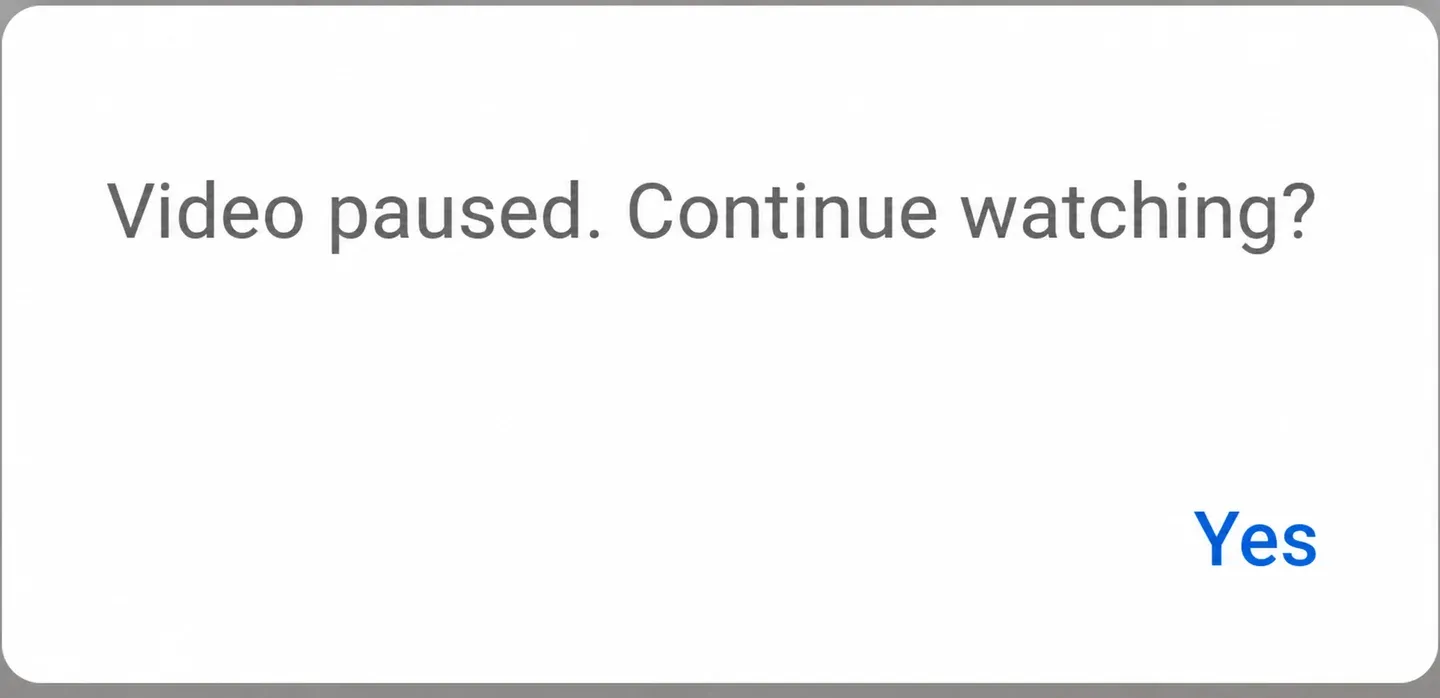
The extension counters the confirmation rather than guaranteeing it can never appear. Its published code also changes how the page handles pause requests and the media pause key. That makes checking deliberate pause behavior worthwhile; the tool does more than display a button beside the message.
Keep the tasks separate. YouTube's Autoplay setting chooses whether another related video starts after the current one ends. NonStop doesn't give you a sleep timer, an operating-system keep-awake setting, or access to unavailable videos. Don't use it as an ad blocker or assume it handles a content advisory, sign-in requirement or network error.
Install, reload YouTube and check your controls
- Open the verified lawfx listing in the desktop browser you'll use. In Chrome, use a regular browser profile: the store doesn't allow adding extensions in Incognito or Guest mode. Install it through that browser's store and read the site-access request.
- Open or reload the YouTube or YouTube Music tab. Keep your playback position before reloading an existing session.
- Start the video or playlist yourself. Leave YouTube's own Autoplay or loop setting as you intend to use it.
- Check that you can deliberately pause and resume, including with your keyboard's media key if you use one.
- Compare a normal foreground tab with your intended background-window setup. If the Continue watching interruption returns, record the exact message and the window state.
Lawfx's published source and browser links identify the supported page addresses as https://www.youtube.com/* and https://music.youtube.com/*. A native phone app or m.youtube.com isn't covered by those page matches. Reloading lets a newly loaded page receive the extension's script; it doesn't prove that every future pause will be handled.
If you click the extension icon, the 0.9.2 popup says Thank you for using YouTube NonStop! :). It has no status indicator or settings switches. Seeing that message confirms which popup you opened, not that the current video is protected from interruptions.
Use the symptom to choose the next check
| What happens | What to check |
|---|---|
| The Continue watching message stays open | Select Yes to continue the current session. Confirm lawfx 0.9.2 is enabled and allowed on the actual YouTube host. Keep your position, reload that tab once, then compare a normal foreground window with the failing mode. |
| Playback ends between videos with no message | Check the next video and your Autoplay or playlist setting. A queue that stalls without the confirmation isn't evidence that its auto-confirm action failed. |
| It works in the foreground but stops when minimized | Record that exact difference. Don't assume a working visible tab proves background support on your browser. |
| You can't pause normally, or media keys behave oddly | Disable YouTube NonStop, then reload the YouTube page before comparing again. Check one other playback-changing extension at a time; restore it if the comparison makes no difference. |
| The video buffers, becomes unavailable or stops when the computer sleeps | Investigate that player, connection or device state. Confirming an inactivity dialog doesn't resolve those conditions. |
There are useful distinctions in the report of autoplay stalling without a confirmation and the Firefox background-playback report. These are individual user reports with different conditions, not a measured failure rate. They support recording the actual symptom instead of applying one generic “keep playing” fix.
The Firefox listing includes older instructions for two advanced media-key preferences. Those concern media keys, not every playback stop. I'd first compare the behavior with NonStop disabled and the page reloaded, rather than change browser-wide preferences for a symptom that happens only with the extension active.
To stop using it, disable it in your browser's extensions manager and reload the affected YouTube tabs. The reload matters because its page script changes pause handling in the current document. Disabling future injection alone isn't a reliable way to restore an already modified player. Keep your position first; a normal reload starts a fresh page.
If the issue remains, report the browser version, lawfx extension version, YouTube versus YouTube Music, foreground/background/full-screen state, exact prompt and whether a disable-and-reload comparison changed the result. Avoid publishing private playlist links, account details or unrelated console contents.
Review the two-site access request
The published 0.9.2 manifest targets the two YouTube hosts above. Firefox's listing requests access to data on www.youtube.com and music.youtube.com. That permission lets the extension act on those pages; it doesn't mean it needs permission for every website.
The Chrome listing says the developer doesn't collect or use your data. The published extension contains local page-interaction and pause-handling code, without an account screen or a cloud settings service. That scope doesn't make YouTube itself private or prevent YouTube from recording ordinary account and viewing activity.
Use one tool for the pause behavior you need. If a broader YouTube customization extension already changes playback, check that feature before adding another handler. The browser video tools hub separates these viewing tasks. My stopping rule is simple: if deliberate pause becomes unreliable, disable NonStop and reload before trying another solution.
