

Vimium: open links with keys and keep site shortcuts working
Follow links with letter hints, give web apps their keys back and keep Vimium settings recoverable.
Get extensionPress f in Vimium to put letter labels beside links, then type a label to open its link. Use F when you want a new tab, and Esc to cancel. I'd start with those commands and scrolling, then add site exclusions before letting Vimium take over keys you already use in web apps.
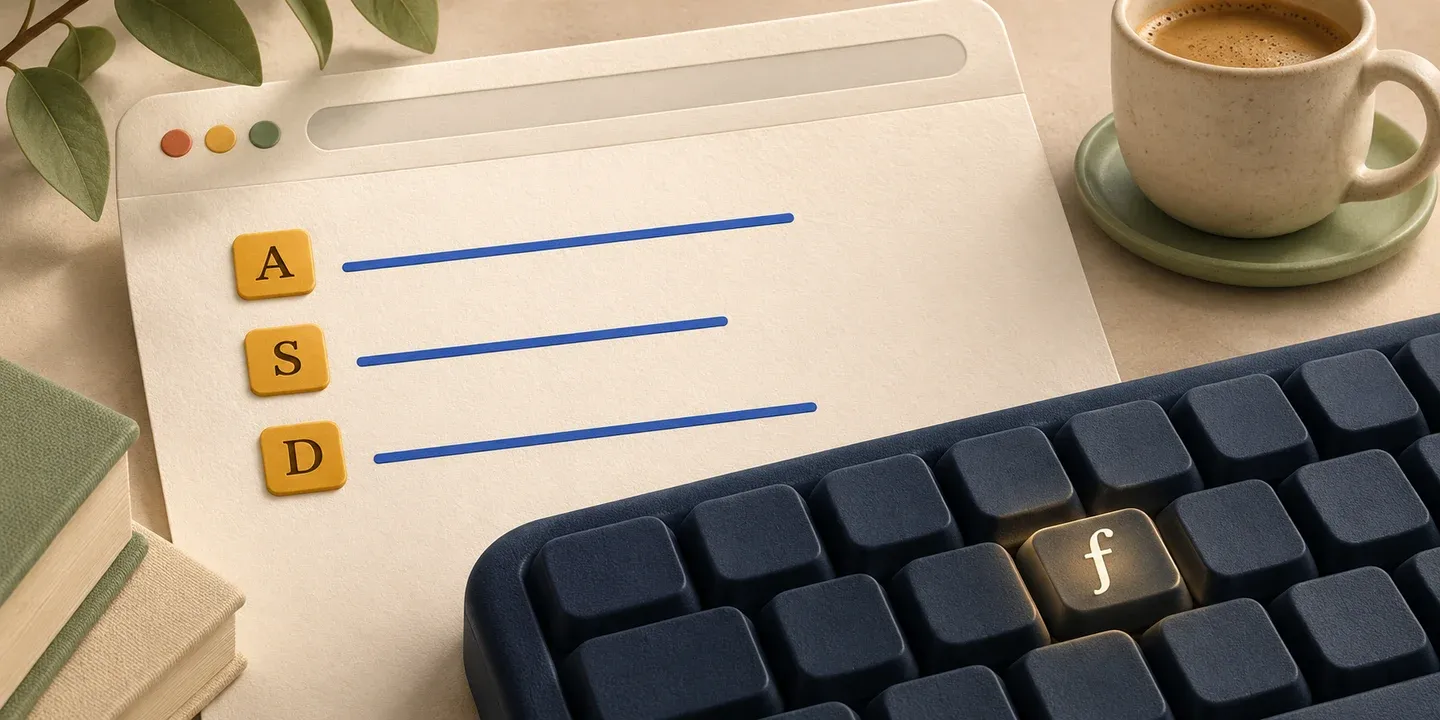
Open one link before learning the shortcut list
Use the original Vimium; its Chrome listing names Phil Crosby and Ilya Sukhar. Its official project links to the Chrome listing, Firefox listing and Edge listing. Vimium C is a separate product. The controls below follow Vimium 2.4.2 for Chrome and Firefox; the Edge store has its own release schedule. Chrome requires version 117 or later, while the Firefox listing specifies 112 or later.
Start on an ordinary public webpage, outside a text field. Browser settings, extension stores and the browser's built-in PDF viewer are poor places for a first attempt because Vimium can't run there.
- Press ? to check that Vimium's help opens, then press Esc to close it.
- Press f. Small letter labels should appear beside links and other supported clickable elements.
- Type the letters beside the link you want. A label displayed as SF is entered as lowercase sf; you don't need Shift for the displayed capitals.
- On another harmless link, use F instead, then type the label in lowercase again. This opens the destination in a new tab. Press Esc if you decide to stay where you are.

The link-hint controls also let you rotate overlapping labels with Space in the default alphabet mode. Holding Shift while entering a label reverses the current-tab versus new-tab choice, so keep label entry lowercase while learning. Don't guess at a covered label or keep typing after the destination has opened. Cancel with Esc and start again if you've lost your place.
Keep a small set of commands you can remember
You don't need to know Vim to use Vimium. Begin with page movement and links; add navigation commands when they replace a repeated action. In Vimium's default bindings, a capital letter means Shift plus that key.
| Task | Default keys | What to expect |
|---|---|---|
| Move down or up | j / k | Scroll the page; d / u move by half a page. |
| Reach the top or bottom | gg / G | Type g twice for the top, or Shift+g for the bottom. |
| Find text on the page | /, then Enter | Enter a query; n / N move through the next or previous matches. |
| Open an address, bookmark or history entry | o / O | Use Vimium's Vomnibar; uppercase O opens the choice in a new tab. |
| Find a tab that's already open | T | Search open tabs instead of opening another copy. |
| Copy the current address | yy | Copy the page URL to the clipboard. |
The Vomnibar is Vimium's page overlay. Your browser's address bar remains available with Ctrl+L on Windows or Linux and Cmd+L on Mac, including when Vimium isn't active.
Save unfinished work before experimenting with tab commands: x closes the current tab, and X restores a closed tab. Reopening a page doesn't make tab restoration a backup of unsaved forms or an application's running state. If accidental closing is your main concern, open Options from the help dialog, add unmap x under Custom key mappings, and save. The documented unmap syntax removes that binding without clearing the rest.
Give a web app its keys back
Typing in a normal editable field already passes letters to that field. Use gi to focus a page input when that's the next action you need. For a page's own shortcuts outside an input, press i: Vimium's insert mode passes keystrokes through until you press Esc.
This is useful for a video player or drawing app whose letters have their own meaning. A Vimium insert-mode discussion gives YouTube controls and AsciiFlow as examples. Insert mode is a temporary choice; a site you use every day is a better candidate for an exclusion rule.
Open Vimium's Options from the ? help dialog. Under Excluded URLs and keys, the columns are Patterns and Keys to exclude. A blank keys field disables Vimium for a matching address. A field containing jk passes those two keys to the site while keeping other Vimium bindings available.
- Choose Add rule and enter a pattern for the intended site. For example,
https?://www\.youtube\.com/*matches HTTP or HTTPS addresses on www.youtube.com. This is a regular-expression pattern with Vimium's added*wildcard behavior, rather than a plain domain name. - Leave Keys to exclude empty for full exclusion, or enter only the keys you want the site to receive. For YouTube,
jkis a partial-rule example; Vimium still handles its other bindings, including t. If you want the site to receive t too, usejkt. - Select Save changes and check that the button reads Saved. Return to the site and check both its intended shortcut and a Vimium command you expect to retain.
A matching full-exclusion rule takes priority over partial rules. Adding a second rule with jk won't turn Vimium back on if an existing matching row has an empty keys field. Check the whole matching rule set before changing mappings.
Gmail is excluded by default. That's a Vimium setting, not evidence that Gmail blocks all browser extensions. I'd keep the default if you rely on Gmail's keyboard controls. Removing or narrowing that row is a deliberate shortcut choice, not a necessary repair.
Global key remapping solves a different problem. It changes Vimium's bindings across sites, while an exclusion gives a particular site its keys back. Avoid remapping familiar browser combinations casually: the project's example map <c-d> scrollPageDown replaces Chrome's normal bookmark-dialog action.
When f does nothing, check focus before changing settings
First look at where you're typing. If letters appear in a search box or the browser address bar, they aren't being entered as Vimium commands. Leave the input, focus the page and try ?. Press Esc to leave Vimium's insert mode or cancel a partial command, then check the site's exclusion rules.
Next distinguish a page restriction from a shortcut conflict. Vimium's FAQ identifies browser-internal pages, stores and built-in PDF viewing as restricted surfaces. Test a normal webpage before considering a reinstall. In Firefox, if Vimium's popup asks for access to all websites, open about:addons > Vimium > three-dot menu > Manage > Permissions and inspect Access your data for all websites. Grant that broad access only if it fits your use. An exclusion rule can't substitute for a missing browser permission.
A link-specific failure needs a narrower check. Try f and F separately on the same ordinary page, then compare another site. A 2024 Google link-hint report described F failing in Firefox 122.0.1 with Vimium 2.0.6 while f worked; a contributor using Vimium 2.0.6 and Firefox 122 on Windows with a fresh profile couldn't reproduce it. That report doesn't establish a general failure in current Vimium. If the problem persists, include your browser, Vimium version, affected public URL and which command fails in a report, keeping private addresses out.
For a non-Latin keyboard, Ignore keyboard layout forces en-US QWERTY key positions. Enable it only if that's the behavior you want. For dense pages, Use the link's name and characters for link-hint filtering switches to filtering by visible link text and numbered hints. Keep Require Enter when filtering hints enabled while learning that mode so the remaining letters of a search don't become page commands.
Decide which extension should own the new-tab page
Vimium 2.4.2 can open its own usable new-tab page with t from a page where Vimium is active. In Options, New tab URL offers Vimium blank new tab page, Browser's default new tab page and a custom URL. An upgraded profile can retain the browser-default choice, so inspect this setting if t takes you somewhere unexpected.
Your browser's Ctrl+T or Cmd+T is a separate route. To replace all browser-created new tabs, the project offers the companion Vimium New Tab Page extension. It takes over the new-tab destination and works offline after setup. In Firefox, its instructions say to press Esc once to move focus from the address bar to the page.
I'd keep the native new-tab shortcut and start with Vimium's t command before adding that companion. If you already depend on Momentum or New Tab Override, decide which new-tab experience to keep; installing another override changes that choice. A companion isn't needed merely to follow links on ordinary websites.
Save your mappings before importing someone else's setup
In Options, use Backup and Restore > Download backup to save vimium-options.json. The backup implementation exports the settings shown in the form, with default values pruned. It saves configuration rather than your open tabs or page contents.
Save and verify your current settings first, then keep that known copy separate. Selecting a backup file under Restore applies it immediately and reports that settings have been restored; there isn't a separate Save changes confirmation to approve the import. Inspect the resulting mappings, exclusions and new-tab choice afterward. Don't assume a file containing only a few settings resets every other preference.
The configuration can reveal site patterns and custom search destinations. Review it before sharing. Vimium stores settings in the browser's storage.sync area, so browser sync is part of the privacy decision. A site exclusion changes keyboard behavior; it doesn't revoke the extension's website-access permission.
The Chrome manifest requests broad site access together with tabs, bookmarks, history, storage and sessions, among other permissions. Those capabilities support page controls and navigation through browser data. The developer's privacy policy says Vimium doesn't handle or transmit user data. That's a developer disclosure; searches still go to your chosen search destination, and browser sync has its own data handling. Choose whether the requested browser access fits your use before enabling it on sensitive pages.
Choose Vimium for a small, repeatable keyboard workflow
The useful pattern in published use reports is learning a few repeated actions. Jordan Gloor's How-To Geek account emphasizes scrolling, link labels and less reaching for the mouse. Pankil Shah's MakeUseOf account highlights the same habits and the need to manage conflicts and focus. These two Valnet publications describe individual workflows.
An independent 2020 Hacker News discussion reaches a similarly narrow recommendation: search, navigation and f can be enough without mastering every command. My choice follows that pattern. Vimium fits repeated browsing on ordinary pages; a keyboard-heavy web app deserves its own keys or an explicit exclusion.
Choose Tridactyl if your Firefox workflow centers on its command line and deeper configuration. Its optional native helper serves tasks such as external-editor and program integration. Choose Surfingkeys when writing JavaScript mappings is part of the goal. Start with one keyboard-navigation extension so overlapping handlers don't complicate learning.
For a first session, keep f, F, j/k and Esc in reach, then add one exclusion for a site whose controls you want to preserve. Use the productivity extensions hub when the next problem is organizing or saving your work rather than choosing more keyboard bindings.
