

Video Speed Controller: shortcuts, site rules and fixes
Set playback speed with the right shortcuts, keep site defaults predictable and recover controls without erasing your settings.
Get extensionVideo Speed Controller by igrigorik gives Chrome a movable speed display and keyboard controls for HTML5 video and audio. I'd choose it when you want the same playback shortcuts across websites: D speeds up, S slows down and R returns faster playback to normal. Set a site rule if you want a particular starting speed; use remembered speed when you want your last choice carried into new pages.
Changing playback doesn't create a faster video file. The extension controls media in the browser, so a downloadable edit is a separate job. It also can't promise that every site's player will accept the full speed range.
Pick the igrigorik extension
The official Chrome listing identifies igrigorik and version 0.11.2. Its extension ID is nffaoalbilbmmfgbnbgppjihopabppdk. Confirm the developer and ID before following these settings: several products use almost the same name.
To add this version, choose Add to Chrome on that listing, review Chrome's requested access and confirm if it matches your intended use. Then open the page whose media you want to control. If you already have the extension, check its version and saved settings rather than adding a similarly named alternative.
In particular, Super Video Speed Controller is a different extension with different shortcuts. Safari ports, Firefox listings and Android video browsers can also have different maintainers, permissions and controls. The instructions below cover the igrigorik Chrome build; installing it doesn't add controls to the native YouTube phone app.
The project is available under the repository's MIT license. Its developer says the extension doesn't collect personal information, browsing history, user activity or website content in the privacy policy. That statement is distinct from the access needed to modify a page: the current package injects its media controls into HTTP, HTTPS and permitted local-file pages, and stores settings using browser sync storage. I'd limit site access to the pages where you want those controls.
Change speed without opening a menu
Open a page with an HTML5 video, start playback and look for the speed indicator. Hover over it to expose rewind, slower, faster and advance controls; drag the display if it covers something you need. The number shows the playback rate, so the example 1.70 means 1.7 times normal speed.
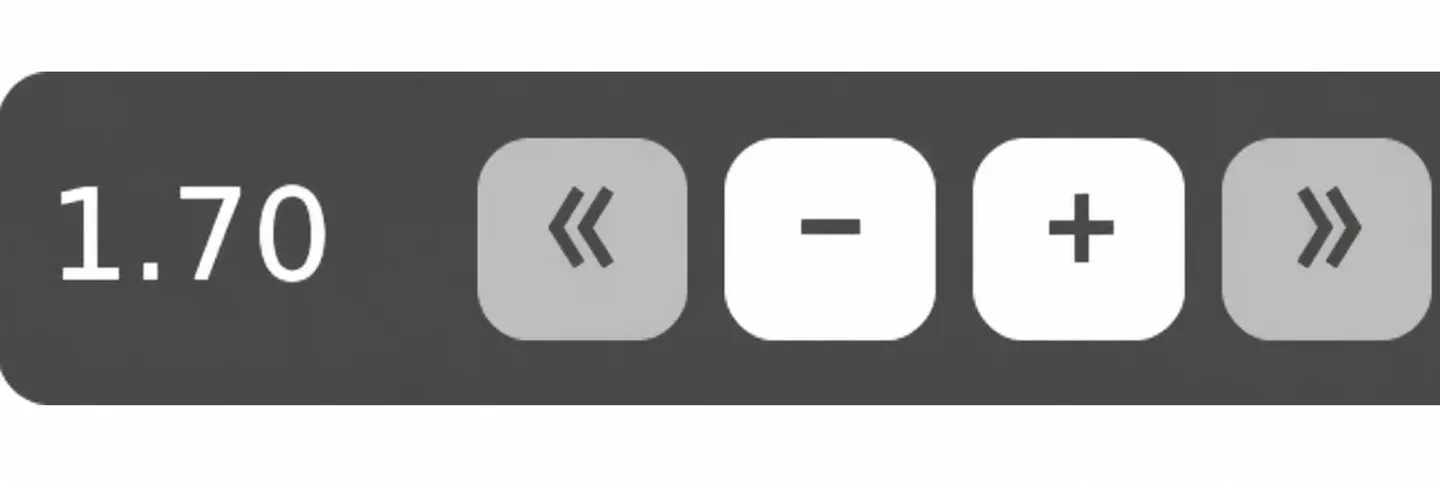
The default bindings in Chrome 0.11.2 are:
| Key | Action |
|---|---|
| D / S | Increase / decrease speed by 0.1×. |
| R | Switch to 1× from another rate. Pressing it again can restore the prior rate; it isn't a permanent speed lock. |
| Z / X | Rewind / advance by 10 seconds. |
| V | Show or hide the controller. |
| G | Toggle the preferred speed, initially 1.8×, with the previous or reset rate. |
| M / J | Set a playback marker / jump back to it. |
These bindings can be changed. If a key does something else, inspect your saved shortcuts before assuming the extension failed. To make normal speed stick during a session, press R once while playing faster and confirm 1.00; repeated presses can toggle back.
For an editable setup, open the extension's toolbar popup and choose the Settings gear. Under Settings → Shortcuts, change the key or increment, or use Add New for another action. Save the changes and refresh the media page, as the repository instructs. Try one revised binding and check the speed display before changing the rest.
Choose what happens on the next page
I'd start with a site rule for a course site and leave general remembered speed off. That keeps a fast lecture setting from becoming your starting point on unrelated pages.
- Open the extension's Settings and select Advanced → Site rules.
- Choose Add Site Rule, enter the domain in Pattern and enter a rate such as 1.5 in Speed. This is an example starting point, not a recommended rate for every video.
- Leave Disable unchecked, choose Save and reload a page on that site.
- Check the displayed rate. Change it while watching if the material needs a slower pace; a site's starting speed doesn't permanently enforce that rate.
For a general last-used starting rate, enable Settings → Remember playback speed instead, then save and reload. In the current 0.11.2 package, only the first matching site rule is considered. Its speed takes priority on a fresh page load; remembered speed is the fallback when that rule supplies no speed. With neither, the extension has no starting rate to impose, so the player's own choice can remain.
The bundled FAQ still says remembered speed takes precedence. Its wording conflicts with the current settings logic, which selects the site-rule speed first. The release notes for the playback overhaul also describe site speeds as overridable session defaults and speed authority as separate per tab. Use the current behavior above rather than deleting a rule to follow the older explanation.
A remembered value seeds a new or reloaded tab; it doesn't make every already-open tab adopt the latest speed. If an existing tab shows a different rate, compare it after a reload before treating that difference as a failed save. Where rules overlap, the first match matters, so remove an unintended broad rule or put the specific rule first.
Fix missing controls or conflicting keys
Separate a hidden display from a blocked shortcut and a player that rejects the speed. Resetting all preferences before making that distinction can erase a useful setup without changing the cause.
- No display on an ordinary web page. Confirm the extension is enabled, its popup power control is on and Chrome allows access to that site. Check Advanced → Site rules for a matching disabled rule. If Hide controller by default is enabled, use your display shortcut, initially V. Reload after changing access or rules.
- A local file or Incognito page has no controls. Open
chrome://extensions, find Video Speed Controller and open its details. Enable Allow access to file URLs for local media or Allow in Incognito for private windows only if you want that access. These are separate permissions, not two switches every user needs. - Audio has no controller. Check Settings → Audio support, save and reload the page. This setting is on by default, but a saved configuration can turn it off.
- Buttons work but keys don't, or two actions happen at once. Move focus out of a text field and inspect Shortcuts. Rebind the conflicting action or add a modifier such as Shift, Ctrl or Alt. I'd try that before enabling Exclusive keyboard shortcuts, which attempts to stop the website from handling the same keys.
- Typing breaks after enabling exclusive shortcuts. Turn that preference off, save and reload, then use a modified or unused binding. A Bilibili user report describes shortcut letters disappearing from comment input with exclusive mode enabled. It doesn't establish that every site's text fields behave that way.
- A rule doesn't affect an embedded player. Check the player host as well as the surrounding page. The extension resolves settings in individual frames. A report about YouTube embedded on looptube.io describes a YouTube rule affecting the player when the surrounding site's rule didn't. A YouTube-wide rule affects other matching YouTube players too; don't add it just to silence one embed without considering that scope.
The extension targets native HTML5 video and audio elements. A missing controller on another kind of player isn't evidence that your settings were erased. Some pages are excluded in the package, including Google Meet; broadening a site rule doesn't remove a manifest-level exclusion.
When the player refuses your speed
The listing's 0.07×–16× range describes the extension's configurable limits. It doesn't establish that a streaming service accepts 16×, keeps audio audible at every rate or plays its content successfully at either extreme. Choose a modest rate first and check both the displayed number and the actual playback.
Public reports show different failure modes. In a Twitch VOD discussion, users reported a 2× ceiling while other sites still accepted higher rates. Another report about repeated seek-bar clicks describes speed returning to 1× despite remembered speed being enabled. These are user observations without a specified extension build or controlled test setup, so they don't support a universal limit or a guarantee that one checkbox fixes both problems.
I'd first compare the same setting on another HTML5 page, then temporarily disable another speed-changing extension and reload the affected page. Change one thing at a time. If only one player rejects the rate, keep a usable speed there and report the site, browser version, extension version, chosen rate and action that triggers the reset. Reinstalling or pasting console workarounds is a poor first response to a site-specific limit.
Back up settings before import or reset
The Reset command beside Save restores extension preferences. It is separate from the R playback shortcut. Export your configuration before importing another file or resetting defaults: the current import routine clears stored settings before writing the replacement.
Open Settings and save any intended edits first; Export reads saved settings rather than preserving unsaved fields. Use the arrow beside Save to open More actions and choose Export. The download is videospeed-settings.json. Keep it somewhere you can find again; it contains configuration, not captured video.
To restore your own backup, choose Import from the same menu and select the JSON file. Look for Settings imported successfully, inspect the shortcuts and site rules, then reload the media page. File is not valid JSON means the contents couldn't be parsed; File does not look like a Video Speed Controller settings file means it failed the configuration check. Neither error calls for erasing your current setup first.
Keep one tool responsible for speed while diagnosing conflicts. Enhancer for YouTube's playback tools extend into quality and autoplay choices, but overlapping speed shortcuts and remembered rates make a reset harder to trace. Use the video extension hub to choose by the job you need, then return here for general HTML5 playback controls.
