

Unpaywall extension: find an open copy of a research paper
Find an open manuscript, check its version and distinguish a gray lock from a missing tab.
Get extensionUnpaywall finds a free, legal copy of a scholarly article while you're on its publisher page. A lookup sends the article's DOI to Unpaywall's API, which also receives your IP address; consider that before using it for sensitive research. Install the official Chrome or Firefox extension, open the article's page and click the green tab at the right edge when a copy is available. I'd use it to check for an open manuscript before paying for a paper, then compare the copy's title, authors and version with the article I need. It doesn't bypass newspaper subscriptions or guarantee a result for every paper.
Get the official Unpaywall extension
Start at the official Unpaywall browser extension page. It offers a free extension for Chrome and Firefox. In the Chrome Web Store listing, check that the publisher is unpaywall.org. The Firefox listing identifies the developer as Impactstory team; the project comes from the nonprofit OurResearch team.
In Chrome, choose Add to Chrome, review the permissions and choose Add extension if you accept them. Open the toolbar's Extensions menu and pin Unpaywall if you want its button visible. Google's installation and toolbar instructions explain both controls. In Firefox, use the official add-on listing and review the permission prompt before confirming.
These steps describe the desktop workflow. The Firefox listing also offers Firefox for Android, so check that listing for availability on your device rather than assuming that Chrome's phone installation route will work the same way.
The useful starting point is a scholarly article's individual publisher page, where its title, authors and DOI identify the work. A search-results list, a newspaper story and a local PDF aren't interchangeable with that page. Unpaywall's explanation of supported articles covers scholarly journal articles and pre-publication versions, and explicitly excludes newspaper paywalls such as The New York Times and The Washington Post.
Open the green tab, then check the paper
- Open the individual article on its publisher's website. Let the page finish loading.
- Look at the right edge for Unpaywall's green open-lock tab. Click it to open the available copy.
- Check the destination's title and authors against the publisher page. Look for a version label such as preprint, accepted manuscript or published article.
- If you land on a repository record, follow its full-text or download link. Open the document and confirm that it contains the passage, figure or supplementary material you need before closing the publisher page.
- Keep the publisher DOI and the copy's repository or publisher link with your notes. Use the version your assignment, journal or research task requires.
The green tab points to an open copy found through Unpaywall. Its legal-source policy describes university, government and scholarly-society repositories, along with content made open by publishers. An author manuscript can be useful even when its formatting differs from the published PDF; check the actual document rather than treating a green lock as a promise of an identical file.
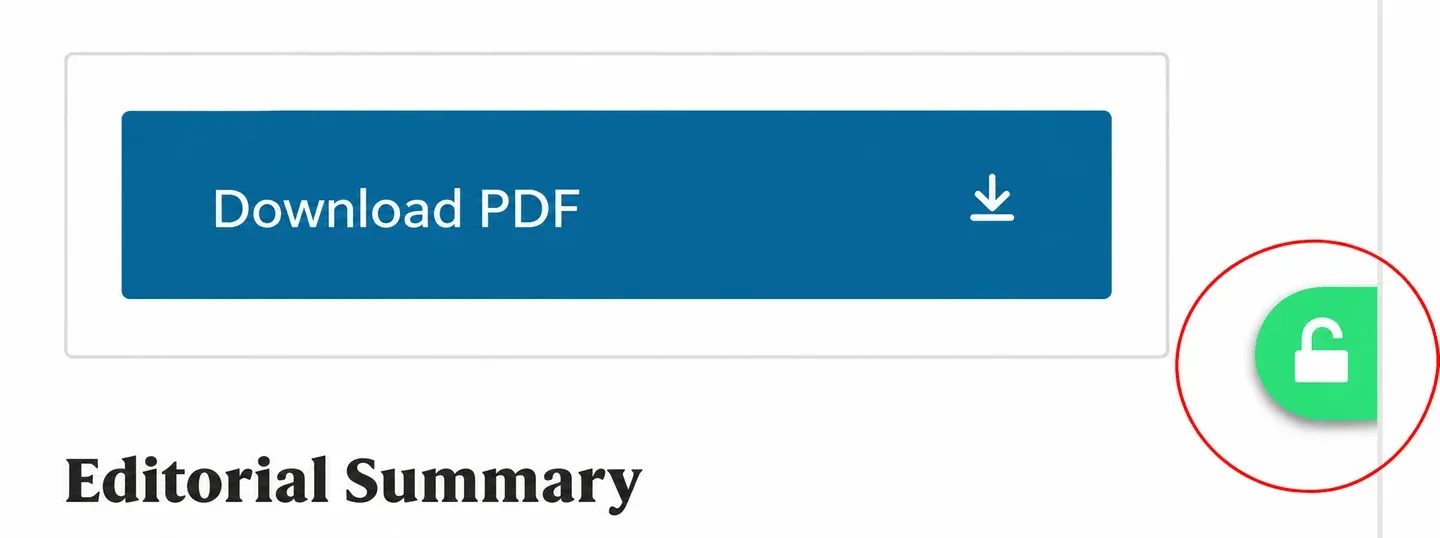
This older Nature page shows the two controls separately. The publisher's download button alone doesn't tell you whether Unpaywall has found an open alternative, and the green tab doesn't create institutional access to the publisher's own PDF.
Library guidance from the University at Buffalo and the University of Nebraska–Lincoln describes the same basic sequence: browse to an article, find the right-side tab and follow the green lock to an open version. Nebraska's distinction is especially useful when the lock is gray: the service may simply be unaware of an existing copy.
A gray lock and a missing tab need different checks
| What you see | What to do next |
|---|---|
| Green open lock | Follow it, then verify the paper and version at the destination. |
| Gray closed lock | No open copy was found through that lookup. Try your library's access or request route; don't conclude that no legal copy exists anywhere. |
| No Unpaywall tab | Check that the extension is enabled, has access to this site and is looking at an individual scholarly article page. If you've restricted it to run on selection, select its toolbar icon. |
| The link opens the wrong work or version | Compare the publisher DOI and destination metadata. Keep searching or ask your library if the document doesn't meet your task. |
DOI detection matters. The current OpenAlex explanation of Unpaywall says the extension reads a DOI from page metadata. If the site omits it or associates the wrong DOI with a page, a visible article title alone doesn't ensure the correct lookup. Return to the publisher's individual article page before treating a missing tab as an installation problem.
The underlying Unpaywall dataset covers Crossref-issued article DOIs, with exclusions; it isn't a universal lookup for every DOI registration agency. The same OpenAlex guidance notes that several DOIs can map to one work, including a preprint and its later journal article. That is another reason to inspect the retrieved document's version before quoting a result.
If the extension is enabled and permitted on the publisher site, reload the article and check again. For an unresolved problem, send Unpaywall support the publisher page URL, DOI, browser and the state you saw. Avoid repeatedly reinstalling the extension when only one article fails.
Choose automatic lookup or run it on selection
Automatic lookup is convenient when you move between publisher pages. It needs permission to inspect those pages: the Firefox listing requests Access your data for all websites. That permission is a browser capability, while the developer's privacy explanation describes which information the service says it sends.
For Chrome, I'd choose on-demand access if I only check papers occasionally. Open Extensions, find Unpaywall's menu and choose This can read and change site data, then the option to allow access when you select the extension. Google's current extension-permission instructions distinguish this from access on the current site or all sites. With access limited to selection, click Unpaywall's toolbar icon on the article page to let it run; don't expect automatic checks on every new page.
Respect a work or school browser's management policy. A blocked extension or restricted permission may need your administrator's approval rather than a different installer.
What the lookup sends
Unpaywall's plain-language data explanation says the extension looks for a DOI and sends that identifier to its API to retrieve an open-access location. The server also receives your IP address. The developer says it doesn't send your name, email address or other page content beyond the DOI, and uses local storage for settings.
The Chrome store's privacy disclosure lists Location and Website content. The FAQ describes individual request records in server logs for debugging and load analysis, names Papertrail as the logging vendor and says aggregated data may be shared or published. Read the privacy policy alongside those disclosures if your research subject is sensitive. Restricting site access changes when the extension can run; a lookup you choose to make still sends the DOI.
When to use your library or Zotero instead
When the lock is gray, check your library's normal full-text link, subscription login or article-request service. Unpaywall finds open copies; your institution may separately provide licensed access. Buffalo's Delivery+ advice applies to eligible UB users, so use your own library's equivalent rather than signing up for an unrelated institution's service.
If your goal is to collect citations and attach PDFs to a library, Zotero already uses Unpaywall data. Its PDF resolver documentation says it maintains its own mirror, so you don't need to configure an extra Unpaywall resolver. I'd add the separate browser extension for a visible open-copy prompt while browsing, rather than assume it is a required step for Zotero's PDF retrieval.
The browser prompt can still be worth checking. Unpaywall's explanation of extension and API differences says the extension also inspects the publisher page's source and can find an open copy that the API doesn't report. A shared data source doesn't guarantee that every tool will return the same result on a particular page.
Zotero Connector addresses the next task: save the reference record and verify the attachment in your chosen library. Unpaywall's green tab addresses finding the copy. Keep those decisions separate, and use the productivity extension hub to choose a capture or reading workflow after you've obtained the article.
