

Simple Translate: choose your text, engine and trigger
Choose how selected text reaches Google or DeepL, separate page translation from text translation and protect your API key when exporting settings.
Get extensionChoose Simple Translate if you want a selected passage translated beside the original text, with Google Translate or your own DeepL API key. I'd start with a public sentence and a manual trigger, then adjust the automatic behavior. Keep two boundaries in mind: its page-translation command opens Google Translate, and a floating button alone doesn't guarantee that selected text stays on your device until you click.
Choose the right extension and translation engine
This is Simple Translate by sienori, the browser extension whose developer homepage links to Chrome, Firefox and Edge. SimplyTranslate websites, the similarly named Salesforce service and Android translation apps are different products. For Chrome, use the Sienori Chrome Web Store listing; Firefox users can identify the same developer on its Mozilla add-on page.
The Firefox listing requests access to your data for all websites. Read the browser's access request and use only permissions consistent with your organization and the pages you intend to translate; a small popup doesn't imply narrow site access.
Open the extension's Settings. Under General > Translation engine, choose Google translate API for translation without registration, or DeepL API to use your own authentication key. In the DeepL branch, set DeepL API plan to the matching Free or Pro option and enter the key under Authentication key.
A DeepL account must have API access for this route. DeepL's API-key instructions place keys under Account > API Keys & Limits and explain how to copy a key. Check the subscription if that area has no key; paying for a different translation product isn't enough to establish API access. Keep the key private.
Set Target language to the language you want to read. Second language is a separate destination used by the optional automatic switch; it isn't a source-language selector. Recheck both after changing engines: the extension can remap a language value to an option supported by the new provider. Google translation is the simpler starting point when you don't need a DeepL account or key. DeepL API usage belongs to your DeepL plan, so check its allowance and charges before using automatic translation heavily.
Decide what happens when you select text
Before enabling automatic translation on work documents, check whether you're allowed to send their contents to the chosen service. The extension's privacy policy says it retrieves input or selected text and page URLs for Google requests, and uses the DeepL API when that engine is selected. The developer's statement that it doesn't access or collect those data doesn't mean the translation happens locally.
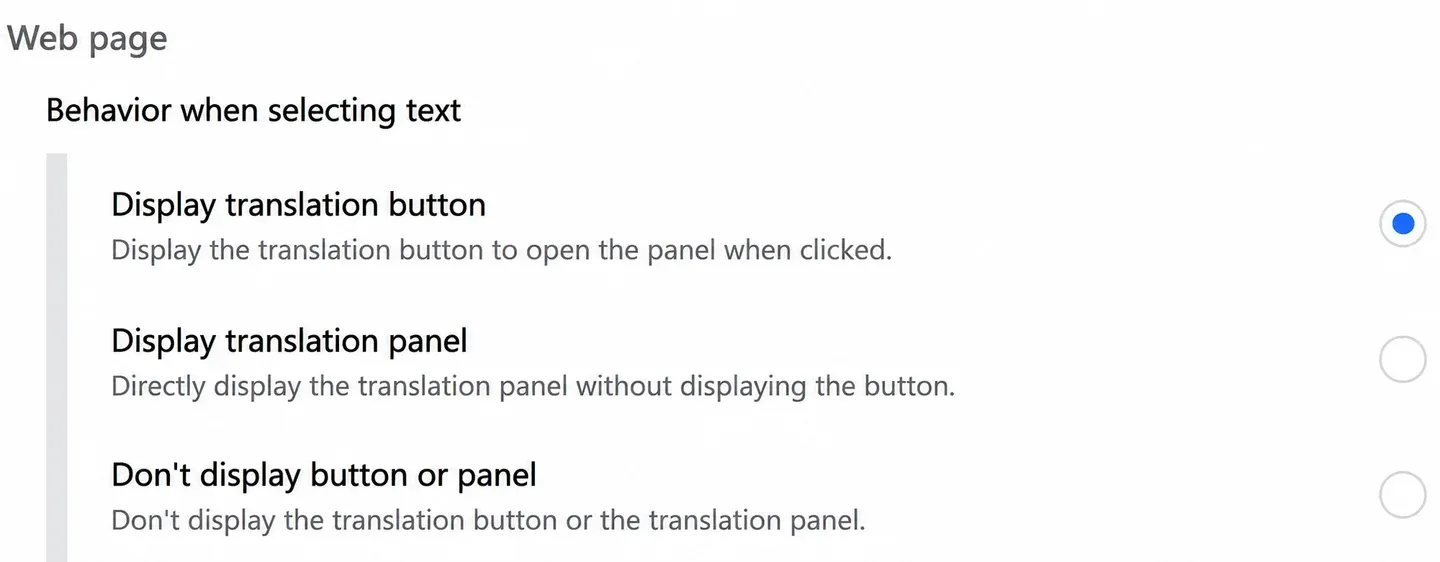
Under Web page > Behavior when selecting text, choose the trigger that fits your reading:
| Setting | What appears | When I'd choose it |
|---|---|---|
| Display translation button | A button opens the translation panel when clicked. | Occasional word or sentence lookups; check the language-detection option below too. |
| Display translation panel | The translation panel opens directly after selection. | Continuous reading of public text when most selections are intended for translation. |
| Don't display button or panel | Selection doesn't automatically show either control. | You mainly select text to copy it and prefer an explicit context-menu action. |
Do not display the button if translation is not required checks whether the selected text already matches your target language. There is a privacy consequence: in the developer's published selection-handling code, a browser language check can fall back to translating the first 100 characters before the button appears. That is a code-level behavior to account for when choosing settings, rather than a promise that nothing is sent before a click.
For deliberate translation, I'd turn that language-check option off and choose Don't display button or panel, then use Translate selected text from the context menu when needed. If the menu is missing, check Context menu > Display the context menu. Keep sensitive material out of the translation workflow even with a manual trigger unless the external service is approved for it.
You can also use Translate on modifier key pressed and select the modifier, or exclude text fields, code tags and listed sites. The URL list to disable translation supports * wildcards. Those controls reduce unwanted selection popups; they don't change the chosen service's data handling.
Read a selection or type into the toolbar popup
On a public page, select a sentence, then use the button or Translate selected text. Read the result next to the original. Confirm the destination language and compare names, numbers, negation and obligations before relying on the meaning. A fluent result can still change the point of a sentence.
For text you type or paste, open the extension's toolbar popup and enter it there. Translation happens as you type, so don't use the box as a scratchpad for material you haven't decided to send. Toolbar popup > Waiting time to translate controls the delay after character input; increasing it can reduce repeated requests while you're still composing.
Automatically switch to the second language has separate controls for Web page and Toolbar popup. For example, with English as the target and Japanese as the second language, enabling the switch lets English input go to Japanese. If a result unexpectedly changes direction, check the switch for the surface you're using. Turn it off there for a fixed destination.
The independent Tooltivity review of version 3.1.0 favors short lookups and customizable triggers, while reporting interruptions from service-limit errors. Its speed comments are qualitative; its product scores don't establish a translation time or an accuracy percentage. I'd choose this extension for control over the reading workflow and judge important wording against the original, rather than select an engine from a star rating.
Understand why page translation still opens Google
Translate this page and Translate selected link use a different route from selected-text translation. The developer's page and link command code builds a Google Translate website address containing the page or link URL. Choosing DeepL as the text engine doesn't change that route.
For Translate this page, use Page translation > Tab to display translation results: New tab keeps the source tab open; Current tab replaces its address with the translated website route. Translate selected link opens a new tab in the published command code regardless of that page preference. I'd keep page translation in a new tab when I need to compare the original. Avoid sending private or access-restricted URLs to a web translator without approval.
If your main task is translating a whole article, compare that workflow with Google Translate and Chrome's built-in page controls. A dedicated whole-page workflow belongs with Translate Web Pages; Simple Translate's main advantage here is control over selected or typed text.
Fix the missing control or failed request
Separate a missing button from an error inside a visible panel. The first points you toward triggers, exclusions and site access; the second calls for checking the selected engine and its request.
When page translation controls are unavailable because permission is missing, open the extension's Information page and look for Enable translation on web pages. Use its Enable button only if the requested access is appropriate. The developer added this permission-recovery control in version 3.0.0; it won't fix an invalid DeepL key or a service outage.
| Symptom | Check first | Next action and expected change |
|---|---|---|
| No button after selecting text | Selection behavior, the language check, modifier requirement and site exclusions. | Use a public sentence on an allowed site with the intended trigger. Check the browser's access permission for that site if controls remain absent. |
| DeepL authentication fails | Authentication key, active API subscription and the Free/Pro selection. | Correct the matching plan and key, then try one short public sentence. |
| Service usage limit reached | Whether requests are being repeated rapidly. | Pause requests and try later; increase the toolbar delay before resuming repeated typing. |
| Network error | Connectivity and whether the chosen service is reachable. | Restore the connection or wait for the service, then retry a short passage. |
| Page opens Google despite DeepL being selected | Whether you invoked the page or link command. | This route uses Google's website. Use selected-text translation to apply the configured text engine. |
DeepL's API error explanations distinguish a missing or incorrect key from too many requests and an exhausted character quota. Waiting helps with request throttling; it doesn't repair a wrong key or restore an exhausted allowance. Check usage and cost controls before deciding whether to change a limit or plan.
Check the installed extension version before following an old workaround. The Firefox release history records a DeepL translation fix in 3.0.1 and a Google availability fix in 3.1.0. Those are specific historical fixes, not evidence that either service is currently down. Use the browser's normal update route before considering a reset or reinstall.
Keep settings backups and API keys private
At the bottom of Settings, Export settings saves a JSON backup; Import Settings loads it again. Protect that file before sharing screenshots or support reports: the developer's settings export code exports the configured settings, including the DeepL authentication-key field defined in the settings schema. Keep the original backup private and remove the key from any copy you need to share.
Reset settings restores defaults, so preserve a private backup and your intended language, trigger and engine choices before using it. If a key has been exposed, DeepL lets you deactivate it and create a replacement; deactivation immediately stops requests using that key. Update any integrations that used it rather than continuing with a compromised credential.
Start with a public sentence, the intended engine and an explicit trigger. Once the result goes to the correct language, enable only the automatic behavior you need.
