

Read Aloud: choose a voice and listen to the right text
Start with the intended paragraph, choose its speech engine and use Reader Mode while keeping cloud processing and optional voice charges clear.
Get extensionRead Aloud is a useful choice for listening to a webpage or a selected passage while keeping control over the speech engine. I'd start with a short selection and an explicitly chosen voice: that separates a page-reading problem from a voice problem before you commit to a long article. Choose a confirmed local voice when the text needs to stay on your computer; free voices and cloud voices aren't interchangeable privacy choices.
Start with the passage you want to hear
Use Read Aloud: A Text to Speech Voice Reader from LSD Software. Several unrelated products use similar names. In particular, the separate readaloud.net service's MP3 and WAV export claims don't establish an audio-download feature in this extension.
The developer's browser download links lead to Chrome, Firefox and Edge editions. The Chrome listing identifies version 2.28.1; the Firefox edition from LSD Software identifies 1.84.1 and is also available for Firefox on Android. The steps below focus on desktop Chrome. Voice availability and assigned shortcuts can differ between browsers.
- Open a public article and select one paragraph. Avoid private messages or confidential documents until you've chosen an approved speech route.
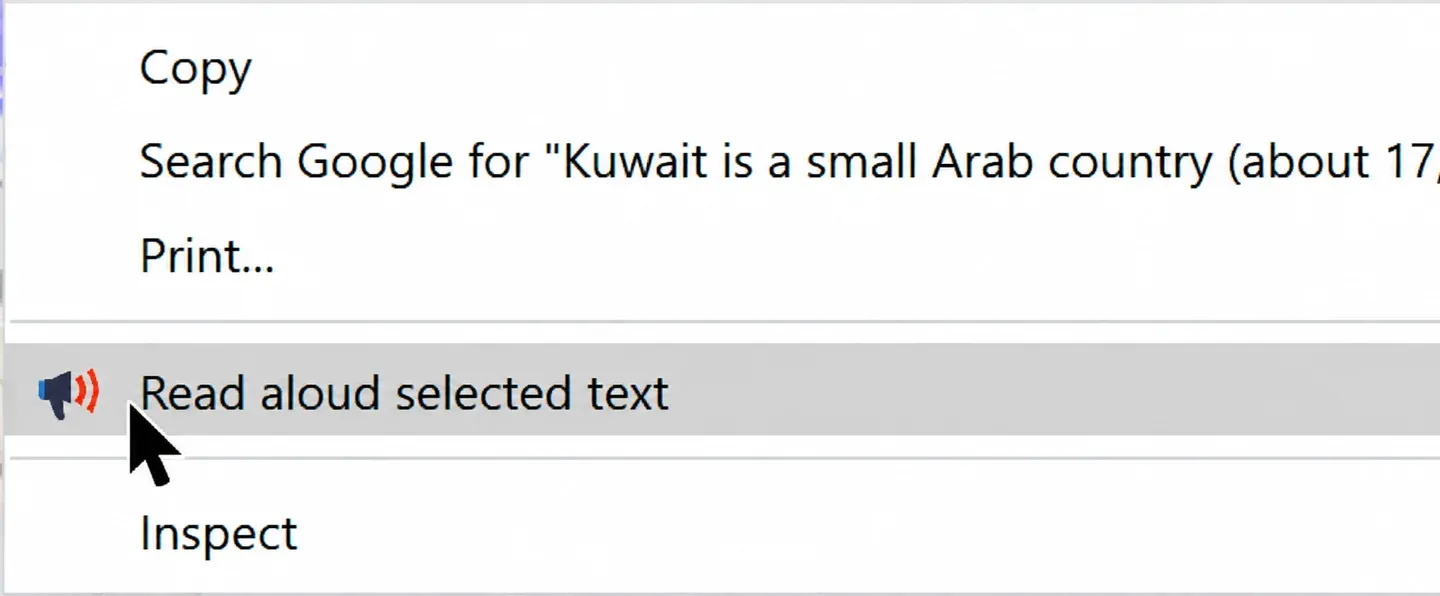
- Right-click the selection and choose Read aloud selected text. You can also click the extension icon while the text is selected.
- Check that playback starts with the selected words. If you wanted the whole article, stop, clear the selection and activate Read Aloud again.
- Use Pause for a break in listening. To reach the settings through the popup, stop playback, then click the Gear button. Right-clicking the extension icon also provides access to Options.
In Options, choose the voice and adjust Speed, Pitch and Volume where available. Use Test to check the selected voice, then return to your paragraph to check the actual reading. Raise the speed only after names, numbers and sentence boundaries remain understandable. A voice that sounds pleasant on a short sample may still be awkward for your subject's terminology.
Choose the voice route before sending the text
The Chrome edition combines browser-provided voices with cloud engines, including Google, Amazon, IBM, Microsoft and OpenAI options. Some cloud choices require a purchase or your own provider API key. Basic reading doesn't require a Read Aloud account; premium account voices and a separately billed provider account are different arrangements.
| Voice route | What to check first | My choice for it |
|---|---|---|
| Offline voice | The specific voice is available locally on this browser and computer; any initial voice download is complete. | Start here for reading that must remain on the device, subject to your organization's approval. |
| Standard or other browser voice | Whether that particular voice uses a remote service. A free price doesn't answer this. | Use public text until you've established the voice's processing route. |
| Read Aloud premium account voice | Sign-in, current allowance and purchase terms; the developer's cloud processing policy. | Consider it when its pronunciation justifies the cloud transfer and ongoing cost. |
| Custom provider voice | The provider's account, key, billing and data terms. Keep credentials private. | Choose it when you already have an approved provider rather than creating another speech account by default. |
The privacy wording deserves care. The developer's policy on premium synthesis says premium text is sent to its cloud server and may be cached temporarily with the synthesized audio. It also describes usage counters and anonymized service analytics. Its broad claim that standard voices stay local shouldn't be read as a guarantee for every free or browser-provided voice: the browser speech API distinguishes local and remote services, and the Chrome edition has separate Offline Voices and Standard Voices groups.
For confidential material, explicitly choose a known local voice rather than leaving the choice automatic. An offline voice doesn't make the underlying website offline, remove its own tracking or approve an extension for regulated documents. Browser site access and the selected voice's processing location are separate decisions.
The Chrome store disclosure lists personally identifiable information, authentication information and website content among the data categories handled. That isn't a claim that every page you visit is uploaded. In Firefox, the current listing includes optional access to all websites and browser activity during navigation, so review the actual permission prompt rather than relying on older wording that the extension never asks for broad access.
Review the provider's charges before enabling it. Don't paste a key into a webpage, a support report or the passage you're reading. If you already use a supported cloud provider, the custom-voice setup path starts in Options: open the Voice list, choose Enable Custom Voices, configure the relevant provider, then return to select its voice.
Enable Google Natural voices in Chrome
For desktop Chrome, I'd try a local Google Natural voice before paying for cloud narration. The developer's Natural voices instructions describe these as free, on-device voices that work offline after downloading. This integration is for Google Chrome on Windows, macOS and Linux. It isn't available in Firefox, Edge or Opera; the option is hidden on Chromebooks, which have their own built-in Google voices.
- Stop playback and open Options. In the Voice list, choose Enable Google Natural voices... near the bottom of Offline Voices.
- On the help page that opens, open Chrome's own Reading mode. The developer gives Alt+Shift+R for Windows/Linux and Option+Command+R for macOS, or the right-click action Open in reading mode.
- Wait for the language voices to download and for the help page to report that they're ready.
- Return to Read Aloud's Voice list and select a voice whose name ends in (Natural). Read your short passage again.
After restarting Chrome, open Chrome's Reading mode once to make those voices available again. The downloaded languages are retained. For another language, use the voice menu inside Chrome's Reading mode, choose Languages and enable the language you need. Read Aloud's own Reader Mode, described next, is a different control; opening that overlay alone isn't the activation step for Google's voices.
The same developer update offers an optional English-only local route through Install Pocket TTS voices... in Experimental AI Voices. It needs an initial download and runs on your hardware. If that route speaks slowly or leaves gaps, the developer recommends changing from its default 18M model to the faster 7M model on the Pocket TTS page. I'd keep the simpler available offline voice as the starting point, then try this route if its English voice suits your reading.
Follow the text in Reader Mode
You can keep the text in view without staying inside a small popup. In Options, set Text Highlighting → Show in reader mode, then open an article and activate Read Aloud. Its Reader Mode places the extracted reading text over the page, highlights the current sentence and keeps playback controls on a floating bar.
Click a paragraph to start there. The Aa control changes text size, serif or sans-serif type and dark mode. Closing the reader while playback continues reduces it to the control bar, letting you inspect the underlying page. Click the extension icon or the expand control to bring the text back. To restore the popup presentation, choose Text Highlighting → Show in popup.
A clean reading view can still contain the wrong extracted passage. Compare its opening with the source before listening away from the screen. For a navigation-heavy page, selecting the useful passage is often a better first move than asking the extractor to decide which text matters.
For a saved listening library that follows you onto a phone, ElevenReader's browser-to-mobile workflow explicitly offers article capture and library sync. That's a separate reason to choose a reader. Selecting a cloud voice in Read Aloud doesn't by itself establish that your articles or listening position are being saved across devices.
What the published assessments support
The practical case for Read Aloud is voice choice with a straightforward selected-text path. AVID Open Access's classroom assessment emphasizes highlighting and speed, volume and pitch controls. Its Chrome-only description is narrower than the current browser lineup, but the explanation of following visible text remains useful.
Sybill's comparison of speech extensions favors Read Aloud for engine flexibility and flags the settings burden for new users. Extension Reviewer's assessment of version 2.24.0 reaches a similar practical verdict while warning that voice quality varies and complicated layouts can confuse extraction. These are qualitative assessments. They support choosing by workflow and voice source; they don't supply comparable acoustic results that would establish one universally best-sounding voice.
My default is a short passage, an explicit local voice and visible highlighting. Move to a cloud engine when you've heard a useful improvement for your language and accepted the data route and cost. That order also makes a failure easier to isolate: you know which words were supplied and which voice was supposed to speak them.
Find out whether the page or the voice is failing
| What you notice | Check and action | What the result tells you |
|---|---|---|
| Menus or unrelated text are narrated | Stop, select one intended paragraph and use the selected-text context-menu action. | Correct selected speech points toward article extraction, rather than the voice itself. |
| The voice is silent or times out | Check browser and device volume, then use Test with another available local voice. Retry the same public paragraph. | A working second voice narrows the problem to the first voice or its service. It doesn't establish a universal outage. |
| Natural voices disappear after a restart | Open Chrome's own Reading mode once, then reopen the Read Aloud Voice list. | The downloaded voices should become available again without reinstalling the extension. |
| The icon works but a shortcut doesn't | Open Chrome's Extensions page and its Keyboard shortcuts section. Check the command and assigned key for Read Aloud. | A missing or conflicting assignment can be corrected without changing the speech settings. |
| Reading fails on one site | Review the extension's site access for that site. Compare a selected paragraph on an ordinary public article before granting broader access. | A working public article separates a site-specific restriction or layout from a general voice failure. |
The Chrome command definitions assign Alt+O to Play/Stop and Alt+P to Play/Pause by default. The official basic-usage guide describes Alt+O simply as Stop. Check the command shown in your own browser, especially if pressing a shortcut unexpectedly starts a new reading. The popup's Stop control is the clearer route before opening Gear.
The Chrome listing includes PDFs, Google Docs, Google Play Books and Kindle, plus EPUB through the separate EPUBReader extension. Those aren't identical input paths. For a PDF, first check whether its words can be selected and copied correctly; a scanned image needs a text layer before ordinary text narration can help. If a local PDF needs file-URL access, review that specific permission in Chrome's extension details rather than granting access to every website.
For Google Docs, check the add-on's identity and requested access before following a Read Aloud integration prompt. The developer's Google Docs integration explanation describes a separate Google Workspace add-on for document layouts the extension can't read directly. Its old menu pictures aren't a reason to copy a private document or approve another account connection automatically.
If the speech controls are enough but you also need page-wide font, spacing or focus-ruler assistance, consider Helperbird's broader reading tools. Keep the final check small: one intended paragraph, one chosen voice and the expected words at the start of playback.
