
ProWritingAid: use writing reports in Google Docs
Choose a report for the editing problem, keep your voice, and check Google Docs compatibility before changing browser settings.
Get extensionUse ProWritingAid's browser extension when you want to examine patterns in a draft, such as repetition or difficult paragraphs, alongside ordinary spelling and grammar suggestions. For Google Docs, start in Chrome with the document in Pages format. Before entering confidential writing, confirm that your organization permits this service to process it. I'd run one relevant report on a saved passage and review the proposed edits before chasing every highlighted issue.
Prepare the browser, document and account
The official ProWritingAid Chrome listing is offered by Orpheus Technology Limited. Follow the developer's store route, choose Add to Chrome and review its requested access before confirming. ProWritingAid also offers Firefox and Edge extensions; the walkthrough here uses Chrome.
An internet connection is required for the Web Editor and integrations, according to the current ProWritingAid requirements. A browser extension doesn't make the analysis local.
For Google Docs, ProWritingAid's Docs compatibility instructions recommend Chrome and say Pageless mode isn't supported. Google's page-setup instructions give the route: File → Page setup → Pages → OK. Check the document's layout after switching. Edge availability doesn't guarantee that the Google Docs integration works correctly there.
Open the writing app and look for the ProWritingAid icon. The current Chrome guide describes pink for potential improvements and green after changes. A green indicator isn't proof that the document is factually correct or ready to publish. If you have Premium or Premium Pro, sign in to that account to access its paid features on compatible websites.
Start with Summary, then investigate one pattern
Save your document before editing. Click the floating ProWritingAid icon, choose Reports, then Summary. The Summary Report instructions describe this route for integrations. The report opens in a new window and provides scores, areas meeting its goals and areas that may need work. The Web Editor uses a different route through its editing panel.
Choose a writing style or genre that fits the piece before interpreting the comparisons. The extension's toolbar settings include a Writing Style dropdown. Summary compares your work with published writing in the chosen genre. I'd use that comparison to locate a passage worth rereading, rather than make a character's dialogue sound like a different author just to move a marker into the green zone.
If you want to compare the analysis after editing, use Print at the top of Summary and choose Save as PDF in the print dialog. Keep that report alongside your saved draft; the report preserves the analysis and doesn't replace a backup of the editable document.
| What you notice | Report to inspect | Decision to make yourself |
|---|---|---|
| A passage feels difficult to read | Readability | Check the sentence and vocabulary in context; a grade doesn't judge the story's themes or audience fit. |
| Sentences feel padded | Sticky Sentences | Inspect the glue words before cutting anything needed for meaning or rhythm. |
| Vague or habitual words recur | Overused Words | Keep deliberate repetition and remove wording that adds little. |
| The same phrase appears close together | Echoes | Decide whether the repetition is accidental or part of the voice. |
The Readability Report evaluates paragraphs with readability formulas. Its scores can't establish whether themes, tone or word choices suit a particular age group, and the report doesn't rewrite paragraphs for you. Read the flagged passage aloud or ask an intended reader when the number conflicts with how the prose feels.
In the Sticky Sentences Report, hover over a flagged sentence to see its glue words. Try a manual edit first and reread the complete sentence. The Overused Words Report recommends how much overuse to reduce but doesn't supply direct replacements. Those are prompts for an editorial choice, not orders to delete every highlighted word.
Return to ordinary grammar suggestions after the targeted pass. Accept a correction only when it preserves the intended meaning, names and quantities. Reread any rewrite before replacing the original; preserve an earlier version when comparing a substantial change.
Keep test results and plan limits in context
In Bryan Collins's published ProWritingAid review, ProWritingAid Premium caught 14 of 15 seeded issues in a 250-word passage: eight mechanical errors and six of seven style or structural issues. This is one small, mixed grammar-and-style benchmark. It doesn't establish a current browser-extension accuracy percentage; the review doesn't identify the exact tested build.
For a trial passage, the developer's writing-report limits say Free users can run each report on 500 words up to twice per day. Premium subscriptions cover longer analysis and more report runs. Chapter Critique, Manuscript Analysis and Plagiarism Checks have separate limits, so don't assume a line-editing allowance includes every story or originality feature.
I'd judge the free trial by whether a report reveals an editing problem you can act on. A short excerpt can show how the controls work, but it can't show every repetition or pacing pattern across an entire manuscript. Check the specific plan and feature allowance before paying for longer work.
Separate Focus Mode from disabling the extension
The Chrome extension guide describes an eye icon that hides suggestions; clicking it again brings them back. In Google Docs, Focus Mode replaces the menu icon with a closed eye. Use it to reduce visual interruptions while drafting. Hiding suggestions isn't a documented promise to stop text processing.
To turn the extension off for a website or across sites, open ProWritingAid's settings from the Chrome toolbar. Check the separate website and all-websites switches. In Google Docs, the site control is labeled Enable ProWritingAid on docs.google.com. Its state can differ from the global Enable ProWritingAid on All Websites control, as the popup below shows.
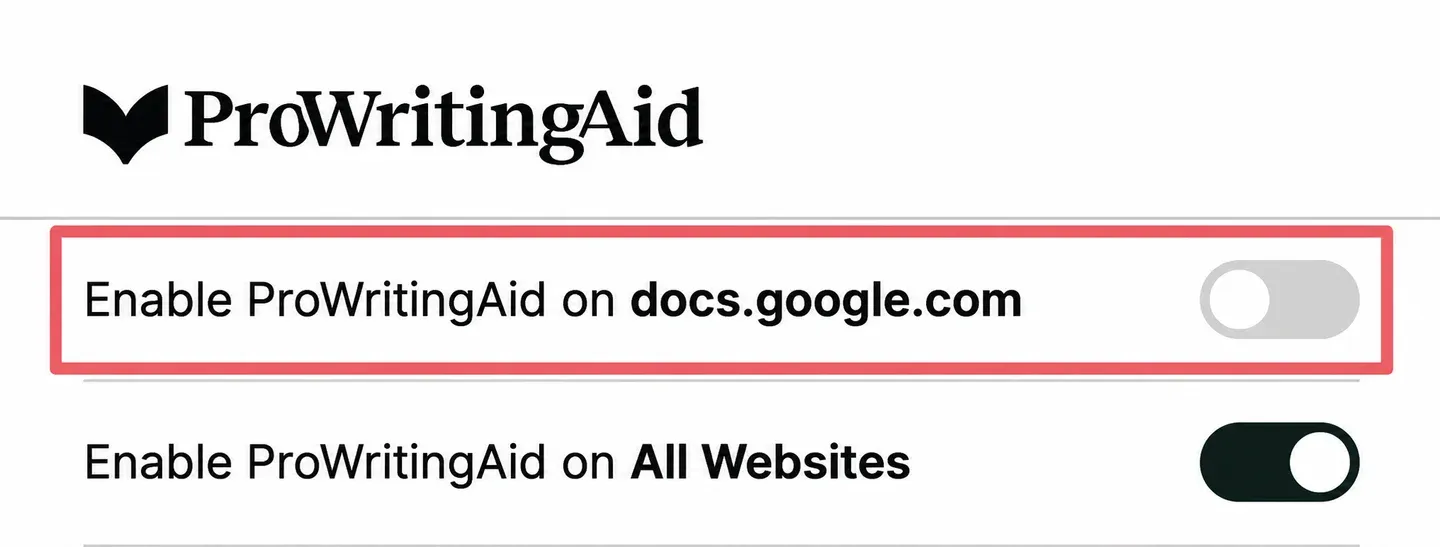
To restore a permanently disabled Docs site, return to its tab, open the toolbar popup and enable the named site switch. Click the closed eye icon too if Focus Mode is active. Check for the ProWritingAid menu and suggestions using non-sensitive text. If you only disabled the site temporarily, support says closing and reopening Google Docs makes ProWritingAid available again.
Know where the analyzed writing goes
ProWritingAid's data-safety explanation says the text under analysis is sent to its servers, kept while reports and suggestions are generated, then removed. It also says your writing isn't used to train its AI models or algorithms. These are the provider's stated practices; they don't mean the extension runs offline.
Documents you explicitly create and save in the Web Editor are an exception: they remain stored in its cloud service. The privacy policy separately describes account details and automatically collected usage and technical data. Don't read the store's short disclosure as a guarantee that no information leaves the browser, or confuse hiding underlines with choosing an approved place for confidential work.
Restore missing feedback without resetting everything
For Google Docs, check the Chrome profile and account, Pages format, Focus Mode and website enable switch first. Save your draft, then reopen the document if needed. A toolbar icon alone doesn't prove that every editor or page is compatible.
If suggestions are absent on another site, check the developer's supported-app guidance. The missing-extension troubleshooting page also explains how to find the installed version through Chrome's extension menu and Manage extension, then compare it with the store's Details section. The extension isn't designed to appear on nonwriting pages such as Google Search.
I wouldn't start by clearing all browsing data, allowing third-party cookies everywhere or reinstalling for one missing report. Record the browser, extension version, website, document mode and symptom, then use the support branch that matches it. For native Microsoft Word, the developer offers Desktop Everywhere; installing a browser extension alone doesn't add that separate desktop integration.
If your main task is reviewing corrections across everyday browser writing, compare Grammarly's suggestion review and separate site and training controls. Keep the report workflow here for examining a draft's patterns, and use the writing tools hub to choose the editor that fits your document and text-handling needs.
