
New Tab Override: choose Firefox's new-tab destination
Open the page you choose on a new Firefox tab, with clear rules for focus, containers and stored HTML.
Get extensionNew Tab Override makes Firefox open a website you choose whenever you create a new tab. I'd use it for an existing dashboard, search page or web notebook that already does the job you need. Start with one standard URL, then decide whether typing should stay in the address bar or move to the page.
Save one destination for ordinary new tabs
Choose New Tab Override by Sören Hentzschel on Mozilla Add-ons. This is the Firefox extension; the Chrome Web Store also has an identically named tool by Mustang, with different settings. The steps here use New Tab Override 19, which requires Firefox 140 or later.
- After adding the Firefox extension, open its settings with its toolbar button or Shift+F12. You can also enter newtab settings in the address bar.
- Under Option, select Custom URL.
- In Manage URL rules, set Rule type to Standard.
- Enter the destination in URL, including https://, then select Save rule. Confirm the address appears in Rules overview.
- Open a new tab outside any group-specific or container-specific rule. Confirm the intended website loads.
A page that requires a login can still ask you to sign in. New Tab Override chooses the address; it doesn't supply an account for the destination. Open that same address in an ordinary tab if you need to separate a website login problem from a new-tab setting.
The developer's URL rules support https://, http:// and moz-extension:// addresses. A missing protocol gets https:// added. Don't paste a file:// path into Custom URL; stored HTML uses a separate mode below.
For more than one destination, separate URLs with |. The extension chooses one at random for each new tab; it doesn't open every listed page. Keep a single URL while setting things up so the expected result is unambiguous.
Choose where typing starts
Leave Set focus to the web page instead of the address bar unchecked if you usually open a new tab to type a different address or search. Check it if interacting with the chosen page is your next action. This setting saves when changed; the URL rule itself needs Save rule.
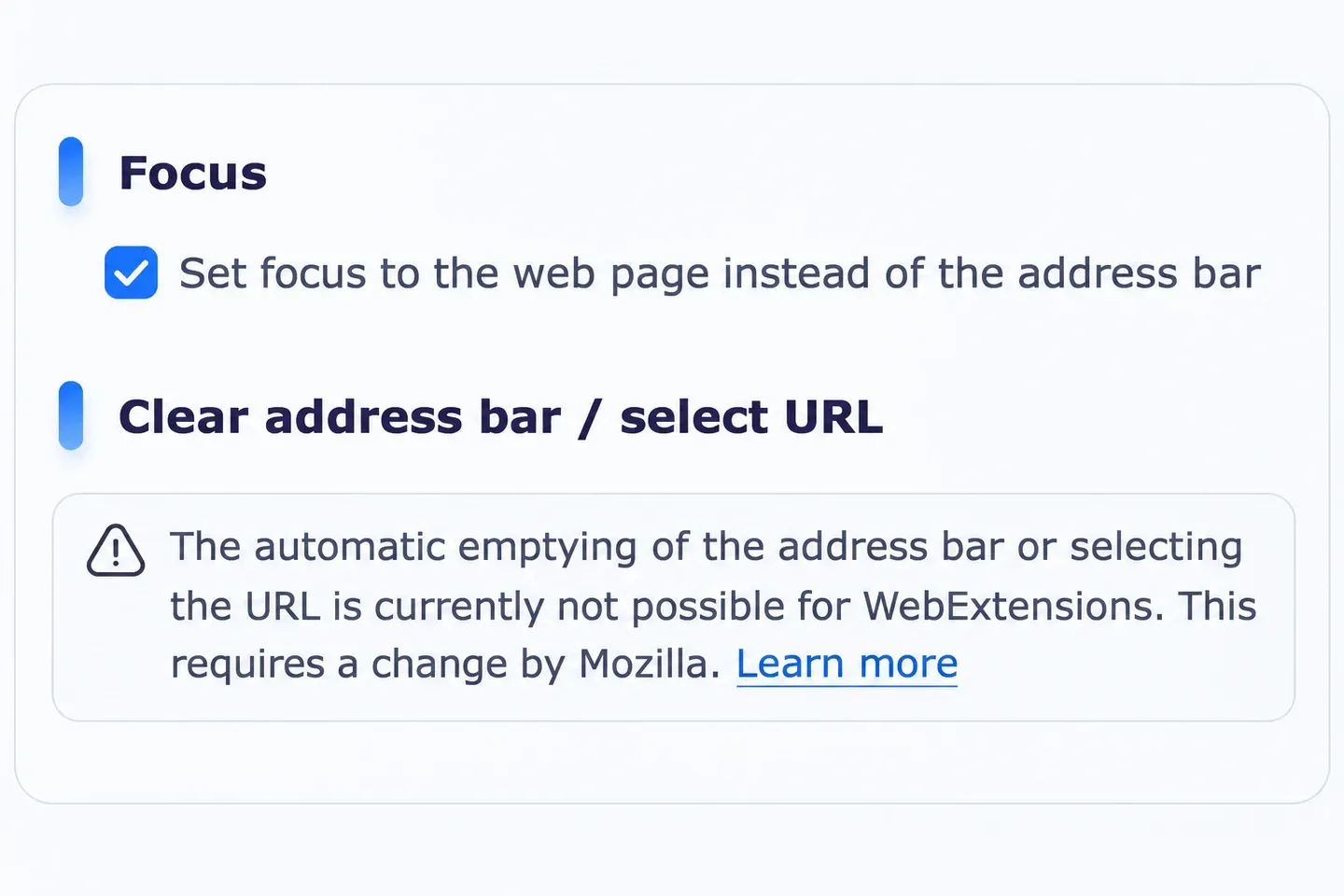
Page focus also doesn't promise that a particular search box inside the website receives the cursor. That depends on the destination page. Open another new tab after changing Focus and check where your first keystroke goes before settling on the option.
The settings explicitly say automatic address-bar clearing and URL selection aren't available to WebExtensions. Don't keep changing the destination to fix that limitation. If you only want a plain tab, Option → Background color is a separate built-in mode that keeps the address bar empty.
Tab Position controls placement separately: related tabs beside the current tab with other tabs at the end, all new tabs beside the current tab, or all at the end. Pick placement for your browsing habits; it doesn't change the destination URL.
Give a group or container its own URL
Version 19 adds per-group and per-container destinations. These rules apply with Option → Custom URL. They don't turn Local file or Background color into context-specific modes.
- Keep the Standard rule as your general destination.
- Under Manage URL rules → Rule type, choose Container or Tab group.
- For a container, select the relevant Firefox container. For a group, enter its exact Tab group name.
- Enter that context's URL and select Save rule.
- Check the saved rule in Rules overview, then open a new tab in the intended context and compare it with an ordinary new tab.
| Matching context | Destination used |
|---|---|
| A named tab group matches | The group URL, including when a container rule also matches |
| No group rule matches, but a container does | The container URL |
| Neither rule matches | The Standard URL |
The Standard URL can be empty when a context-specific rule exists. An unmatched new tab then stays on an empty internal page; there's no general website to fall back to. Keep a nonempty Standard rule if you want a predictable destination everywhere.
These are Firefox's native named tab groups. A label inside a separate grouping add-on isn't automatically a matching Firefox group. After renaming a native group, review its rule rather than assuming the old name follows it. Before removing an unwanted rule, keep a copy of any address you may want again. Then select its Remove control in the overview and confirm.
If settings have a Managed label, an enterprise policy can override local choices and make controls read-only. Local context rules can't override a policy-managed mode or default URL; an administrator can provide managed context rules instead. Contact the administrator for a policy change; reinstalling the extension isn't a way to override that policy.
Use a stored HTML page without expecting a live folder
Keep the original HTML file somewhere safe before replacing or deleting the stored copy. Local file mode reads a chosen HTML file into the extension's storage. It doesn't keep watching the original file on disk, so editing that original doesn't update the stored page until you select it again.
- Choose Option → Local file.
- Under Store local file, use the file chooser to select your trusted
.htmlor.htmfile. The chooser's button wording follows your browser's language. - Open a new tab and check the page's text, links and appearance. If the extension says no local file was stored, return to this setting and select the file.
The Local file explanation in the settings says linked images, CSS and JavaScript files must be accessible through the web. Neighboring files in the same disk folder aren't automatically available. A missing stylesheet is therefore a different problem from failing to store the HTML.
A Firefox 136 report about local new-tab pages describes missing local CSS and an address bar that stays visible. Check the HTML's linked resources separately from the Focus setting; changing Focus won't make neighboring disk files accessible.
If you already have a suitable local web server, its web address can be the Custom URL instead. Otherwise, use the stored-file route for a simple page and check each dependency. Don't assume this mode runs a whole local web application unchanged. Delete existing file removes the extension's stored copy after confirmation; preserve the original first.
Choose the mode and data flow you intend
Current home page uses Firefox's home page as the new-tab destination. Change that address through about:preferences#home. Only https:// or http:// home pages are supported, and when Firefox has several configured, the extension uses the first. Choose Custom URL if you want the new-tab destination to differ from Home.
New Tab Override is free. Its Mozilla listing explains its permissions: history access removes temporary internal new-tab entries, and recently closed-tab access removes the internal pages closed when page focus is enabled. Container-related access preserves context; tab access can focus an already-open settings tab. Version 19 also uses group access for its group rules.
The developer declares no required data collection in the Firefox package. That declaration doesn't make a chosen website local or private: opening your portal still contacts that portal and follows its login and data practices. The optional access to the developer's site is for Mozilla News (German), rather than a prerequisite for your Custom URL.
Settings and the stored HTML use local extension storage. Keep your own record of important URLs and the source HTML when moving to another browser profile or device; don't assume Firefox Sync carries this setup for you.
Fix the relevant branch before removing anything
If the wrong site opens, check the Standard rule, then matching group and container rules in that order of investigation. Remember that the group wins when both contexts match. An invalid URL needs a supported protocol; a file:// error needs Local file mode. A locked control needs its administrator.
With another tab-management extension, check your versions before treating an old report as a current incompatibility. In the historical Simple Tab Groups issue, the developer marked the reported problem fixed in New Tab Override 18. Version 19's release notes also address group and container handling with page focus. If your problem remains, record the Firefox and extension versions, the rule that matches and whether Focus is checked for a useful support report.
Before disabling or removing the extension, copy your destination rules and preserve the original HTML. Disable it temporarily in Firefox's add-ons manager if you want to compare new-tab tools; avoid deleting its data as a first troubleshooting step.
My choice is New Tab Override when the page I want already exists at an address. Momentum suits a different task: a ready-made daily-goal and task dashboard. Begin here with one Standard URL and verify an ordinary new tab, then add only the context rules you need. The productivity extension hub covers other ways to organize browser work.
