

Mate Translate: save vocabulary and sync your Phrasebook
Keep useful translations in language-pair lists, verify cross-device sync and distinguish browser features from Mate's Mac and iPhone apps.
Get extensionMate Translate fits a reading habit where you translate a word, keep it in a Phrasebook list and return to it on another device. I'd choose it for that vocabulary workflow when Mate's remote processing is acceptable and the paid sync features earn their place. For confidential pages or a completely local translator, I'd choose a different route.
Choose the browser edition before comparing features
The Chrome extension from Gikken UG combines selected-text translation, a toolbar translator, full-page translation and a personal Phrasebook. Free installation includes in-app purchases; it doesn't promise free synchronization or unrestricted access to every learning feature.
Start from the store for your browser. Mate for Firefox and Mate for Opera list version 10.1.17 from 2022, while Chrome lists 12.1.0. The Firefox listing uses Gikken UG; Opera uses Twopeople Software. An older version number isn't proof that a feature is broken, but the Chrome controls below shouldn't be assumed to match those editions.
Apple apps have separate conditions. Mate for iPhone and iPad requires a subscription and advertises downloadable offline language packs. The Mac app requires Mate Pro for translation after its trial. Camera translation, Apple's system translation menu and those offline packs aren't promises about the Chrome extension. Store language counts also differ between summaries, descriptions and platforms; confirm your particular language pair before paying.
Decide whether these pages belong in a cloud translator
Mate needs access to page content to put translations beside the text. Its Firefox permissions include access to data on all websites. Granting that permission deserves a separate decision from liking the popup.
The developer's policy supplied to Mozilla describes anonymous usage analytics and says a Mate Account synchronizes translation history and Phrasebook with its servers. That is more specific than the Chrome store's declaration that the developer doesn't collect data. Saved vocabulary tied to an account isn't confined to one browser.
There's another boundary beyond account sync. The code distributed in Mate's Chrome 12.1.0 build contains a remote page-language detection path that sends the page address, referrer, a text sample, an installation identifier and a timestamp to a Mate server. The page-registration setting is enabled in the packaged defaults. These are code findings, rather than a measurement of traffic from your browser, and they're enough for me to keep Mate away from private dashboards, patient records and confidential drafts. Turning off history sync doesn't establish that page processing stays local.
For ordinary public reading, restrict site access to the sites where you need Mate. If your requirement is translation entirely on your device, consider the native Firefox translation route discussed in the Translate Web Pages guide. A remote translation extension and an on-device browser feature make different privacy promises.
Translate a selection, then save the useful part
Check any upgrade prompt before building a collection. The Chrome build includes Pro restrictions on learning features as well as sync and export; a free store download doesn't settle which controls your entitlement permits. Confirm that your language pair translates and that you can open the list you intend to keep.
- Install the matching store edition, review its requested permissions and open an ordinary public page with selectable text. Reload a page that was already open when the extension was installed or updated.
- Open Mate from the toolbar and choose your source and target languages. For a short word with several possible meanings, set the source explicitly rather than relying on detection.
- Select a word or phrase. In Settings, open Selected text and use Show translation button when you select text to control that button. Use that button, your configured selection shortcut, or the toolbar input to get a translation.
- Read the complete phrase around the word. A dictionary entry can show several senses; the first synonym isn't automatically the right translation for the sentence.
- Click Add to word list beside the translation. Pick a word list with the matching source and target languages, or choose New word list. Open Phrasebook and history and check that the word appears in the intended list.
This popup has the earlier three-dot layout. In Chrome 12.1.0, use Add to word list beside the result.
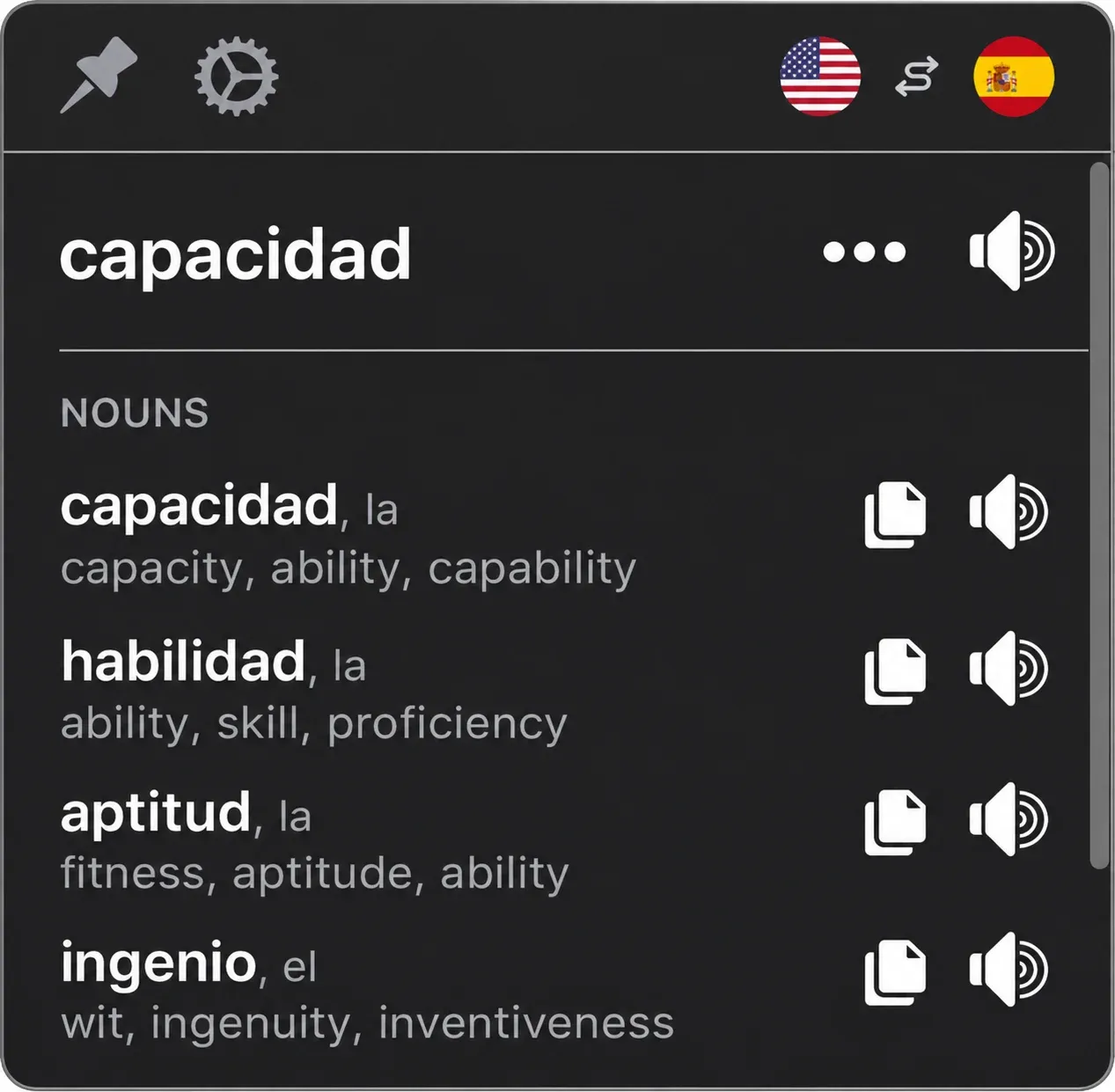
The language pair belongs to the list. English-to-Spanish vocabulary and Spanish-to-English vocabulary need different lists even when they're about the same trip. I'd name a list for both its topic and direction, such as “Travel: English to Spanish,” so a later review doesn't depend on remembering which way you translated.
You can also build a list directly. Open Phrasebook and history from the toolbar popup, then choose New word list. Enter a name, choose the fixed language pair and press Save. Inside the list, type into Add a word or a phrase and use Add. Adding a new translated phrase needs an internet connection; reopening saved vocabulary offline is a different operation.
For reading a whole article, use the page context menu's Translate this page to… action; the translated view has a control to return to the original. Keep important wording available in the original. If saving vocabulary isn't part of your task, Simple Translate's selection workflow is a more focused comparison than paying for an account-based learning routine you won't use.
Check Pro, the account and the sync switch separately
Chrome's current controls put synchronization and CSV export behind Mate Pro. In Settings, open Pro & account, sign into the Mate Account that holds your entitlement, and enable History and phrasebook sync. Use Sync now for a deliberate synchronization request. A paid purchase, a signed-in account and an enabled sync switch are three separate things to check.
Sign into the same Mate Account on the other supported device. Save one non-sensitive example phrase, synchronize, then look for that exact phrase in the same language-pair list on the second device. Chrome's own Google Account sync isn't a substitute for Mate's account synchronization.
If Pro isn't recognized, verify the purchase account before paying again. The extension's sign-in instructions distinguish people who paid but didn't finish creating their Mate Account; those users need to finish the signup link sent after checkout. Current subscription controls also coexist with legacy Pro handling, so an old “pay once” description doesn't establish the terms of a new purchase.
For a separate copy, open a word list and choose Export to download just that list as CSV. To keep all saved words together, select Saved words and choose Export; that file includes a word-list column. Both routes use mate-phrasebook.csv, so give separate downloads distinct names. History has its own CSV export. These exports need Pro. Check that each downloaded file contains the expected phrases and translations before deleting anything. A spreadsheet copy is useful for moving vocabulary elsewhere, but it isn't proof that Mate can import the file and restore its whole account state.
Keep those exports private: they can reveal the text you translated. Deleting a word, a list or a history item prompts an irreversible-action warning. I'd export and confirm the second-device copy before any cleanup, and keep the original browser profile until the move is complete.
What the published reviews support
The useful agreement is about the reading workflow. Nubia's cross-platform review reports useful everyday translations and values organized Phrasebook lists. Tooltivity's review describes a responsive selection popup, but also reports full-page translation hanging, wrong target languages and conflicts with Cloudflare checks.
Those are qualitative observations, with no shared sentence set, accuracy rubric or timing method to combine. Tooltivity's November security pass examined version 11.2.0 and explicitly retained its earlier translation assessments; Chrome has since moved to 12.1.0. I wouldn't turn the older failures into a claim that every current installation fails, or turn either site's overall score into a translation-accuracy result.
My choice is to verify a short public selection, a complete page and a saved-word sync before committing to a paid routine. If the selection works but page translation repeatedly stalls, keep those symptoms separate: a good dictionary popup doesn't establish dependable whole-page translation.
Fix the failing part without erasing your vocabulary
| What you see | Check first | Next action and result to look for |
|---|---|---|
| No selection button | An ordinary web page, selectable text, site access and Selected text → Show translation button when you select text. | Enable the selection control and reload the page. The button should appear beside a new selection; use the toolbar for text copied from a restricted browser page. |
| Wrong meaning or target language | The source and target pair in the translation, then the list's fixed pair. | Set the source explicitly and translate the phrase with its surrounding context. Save it in the matching list after the meaning is right. |
| Nothing saved on the other device | Same Mate Account, recognized Pro entitlement, sync enabled and network access. | Synchronize and look for one known phrase. “No items to synchronize” differs from “You need to be signed in.” Don't delete the only copy to troubleshoot. |
| PDF selection doesn't show the normal popup | Chrome's PDF selection route. | Select real text and use the context menu to translate it. A scanned image has no selectable words for that route. |
| A site keeps repeating its human-verification page | Whether the site loads when Mate is temporarily disabled. | Reload with Mate disabled. If that resolves it, leave Mate off for that site and report the browser and extension versions to support. |
| New phrases won't translate offline | Whether you're opening a saved entry or requesting a new translation. | Reconnect before adding new phrases or synchronizing. iPhone offline language packs don't supply a Chrome offline engine. |
I'd keep Mate when the Phrasebook becomes a useful part of reading and the account sync works for the devices you use. Start with one list and confirm its export before growing the collection. For broader writing and reading tools, use the writing extensions hub to choose the next task.
