

Loom for Chrome: record a video and share it with the right people
Choose the right capture source, finish your video, and check viewer access before sending its Loom link.
Get extensionUse Loom's Chrome extension when you want to record a browser explanation and send a hosted video link. Sign in to the intended account and workspace. Check the plan's recording and download limits, remove private information from the capture area and get participants' permission for meeting content before recording. Choose your capture source and devices, record, then check the video's access before sharing. I'd choose Current Tab for a walkthrough that needs the website's sound: the extension captures internal audio from that tab, while Full Screen and Window don't capture it.
Check the plan before a long take. Starter has a five-minute recording limit and doesn't let you download videos. If you need a local MP4, establish download access before recording.
Check your account, plan and browser first
Get Loom – Screen Recorder & Screen Capture from Atlassian through its official store listing. The installation instructions require signing up or logging in after adding the extension. If the icon is hidden, open Chrome's puzzle-piece menu and pin Loom for Chrome.
The Starter timer counts down from 5:00 and ends recording at zero. Its 25-video storage limit includes archived videos; at the limit you can't create another recording. Archiving doesn't free a slot. The specific storage guide says screenshots don't count toward this video limit.
I'd use Chrome for these steps. The browser support guide lists Chrome, Edge, Opera and Brave as places the extension can run, but limits official browser troubleshooting support to Chrome and Brave. Firefox and Safari can play Loom videos; that doesn't make them extension recording platforms.
Confirm you're in the intended account and workspace before making work material. If a video later seems missing, check that same account and workspace before changing or reinstalling the extension.
Choose what viewers need to see
Open the Loom icon and choose the capture area. The Chrome recording guide provides Full Screen, Window, Current Tab and Camera only. Turn the camera on if your face helps explain the task, or off for a screen-only video. Select the microphone and check the audio indicator before starting.
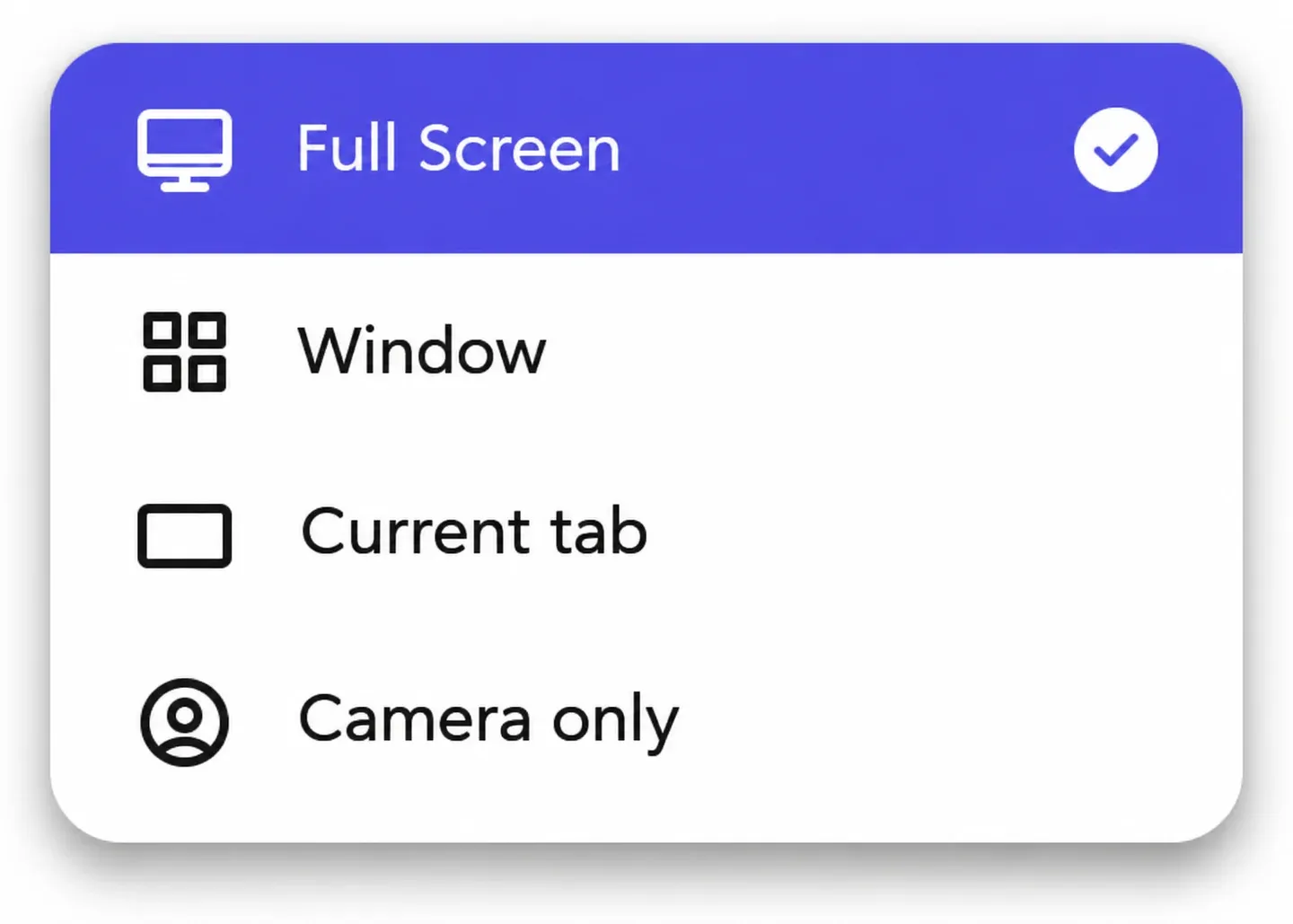
For a single web task I'd keep the source to that tab. Use a window when the explanation needs that application's visible content, and full screen when moving between applications is part of the demonstration. Remove private information and unrelated windows before starting.
The camera bubble has boundaries. It won't be captured on PDFs inside Chrome or while the extension records another application. If you need your camera bubble across applications, the desktop app is the supported alternative. Selecting a wider screen source alone doesn't remove that limitation.
Loom remembers your previous recording settings. Check the devices each time, especially after switching headsets. The More actions → Settings controls include countdown, auto lighting, recording controls, camera flip and recording time display.
Capture your voice and the tab's sound
Your microphone and internal audio are separate inputs. Keep the microphone enabled for narration, then use Current Tab for the website's sound. In Chrome's capture confirmation, enable the offered tab-audio sharing option before confirming the source.
The system-audio guide is specific: the Chrome extension records internal audio from one tab. It can't capture the sound from other apps such as Zoom or Microsoft Teams; that requires the desktop app. Full Screen and Window don't record the tab's audio either. A larger capture area won't solve missing computer sound.
For meeting content, get the participants' permission before recording. Record a short sample and listen for your voice and the site's audio separately before the full explanation. I'd use headphones when both are enabled, because speaker sound picked up again by the microphone can create echo.
Start, pause and finish the recording
- With the source and devices selected, choose Start Recording.
- If Chrome opens a screen-sharing prompt, confirm the intended screen, window or tab. Check tab audio here when you need it. Camera only doesn't need a screen source.
- Record the explanation. To pause, use Pause beside the camera-bubble menu, then resume when ready.
- When done, select the Loom extension icon again to finish. Review the video on the share page before sending it.
A pinned tab can appear during recording. Loom's Chrome recording guide explains that this is required by Chrome's Manifest V3 architecture: you can ignore it, and it goes away when recording ends.
The Loom team's Chrome walkthrough shows the capture confirmation and finishing through the extension icon. Pause and resume lets you take a break within the take; the separate restart arrow starts the recording again. Use the control that matches whether you want to continue the existing take.
Keep small text large enough for the viewer. The Chrome quality settings offer up to 720p on Starter and up to 1080p on eligible Education, Business, Business + AI and Enterprise plans. Choose quality through More actions → Settings → Video quality. Loom's desktop 4K option isn't a Chrome-extension setting, and the selected resolution doesn't guarantee readable text from a very large screen.
Check who can watch before sending the link
Loom saves recordings to its cloud library. A copied link is access to that hosted video, so choose its audience before pasting it into a message. I'd use Restricted for a named recipient when broader workspace access isn't needed.
| Access | Who can watch | Check before sending |
|---|---|---|
| Public | Anyone with the link, without a Loom login | The link can be forwarded. Workspace admins can disable public links. |
| Open to workspace | Signed-in workspace members | An external recipient may have to request access. |
| Restricted | The specific people added to the video | Add the intended email address and grant the needed access. |
These distinctions come from Loom's video privacy settings. Public videos can also be found through Atlassian search by workspace members. The guide says Loom videos aren't indexed by external search engines; a public link still allows anyone holding it to watch.
To add a person, select Share and enter their email or name, then grant view or edit access as appropriate. You can also paste the video URL into your message after checking its audience. Check access from the intended viewer's position rather than rely on playback while signed in as the creator.
For future videos, creators can choose a default access level in Personal Settings. That change affects new videos only. Review existing shared videos individually if their access needs to change.
Check download eligibility before relying on an MP4
Starter users can't download videos, and Creator Lite roles can't download on any plan. Other plans have role requirements: Business and Business + AI allow admins and creators; Education allows admins; Enterprise allows admins and members. Workspace policy can also disable downloads.
If you're eligible, open the video from your Library, use the actions menu above it and select Download. The file is MP4. A Polishing pixels message means it needs more processing time. Open the saved file before depending on it outside Loom.
Some files are excluded even with download access: videos with Variables and files over 20GB aren't downloadable through this route. Check those conditions before promising an offline copy.
Trims are retained in the downloaded MP4, but Loom's guide says closed captions, chapters, CTAs, and Filler Word + Silence removal aren't included. Review that file separately if the recipient depends on those features. A downloadable file and the hosted viewer have different capabilities.
To allow viewer downloads when your role permits it, open the video's Edit → Settings → Audience tab and turn on Downloads. Viewers also need the required signed-in account and download access; viewers on Starter can't download even when this switch is on. A public playback link alone doesn't provide download access.
When a local file without a paid Loom download role is the main requirement, Screenity's standalone recording and export route is worth considering before you start. Its local player provides MP4 and WebM downloads without a Screenity account.
Find the video and inspect it before another take
If the expected video isn't in your Library, Loom's missing-video checks start with another workspace or an account under a different email. Check Personal Settings for the account email and look through your workspaces. Reinstalling the extension doesn't resolve being in the wrong library.
For a take that needs editing, check access to those tools before planning a repair. Loom's trimming and clip-stitching tools require a paid plan. On an eligible plan, open Edit → Edit your video, drag the trim handles to remove an unwanted beginning or ending, then select Save Changes. Review the resulting video again.
Website access is broader than permission to use a microphone. Loom's Chrome permission explanation says its content scripts place recording controls on visited pages. The store also discloses account and activity-related data handling. Use an approved account for work content and inspect the actual recording before sharing it.
Send the link once the intended viewer can open the right video with the right access. If a standalone file is part of the handoff, check that downloaded copy too.
