
LanguageTool review
A practical LanguageTool review covering multilingual corrections, browser subscription changes, privacy and the final meaning check.
Get extensionLanguageTool is useful for reviewing spelling, grammar and style when you write in several languages or language varieties. I'd use it as a second reading pass, accepting corrections individually and checking that the meaning survives. Before relying on the browser extension, check its subscription or trial status and whether you're allowed to send that text to an external checking service.
Check browser access before adopting the workflow
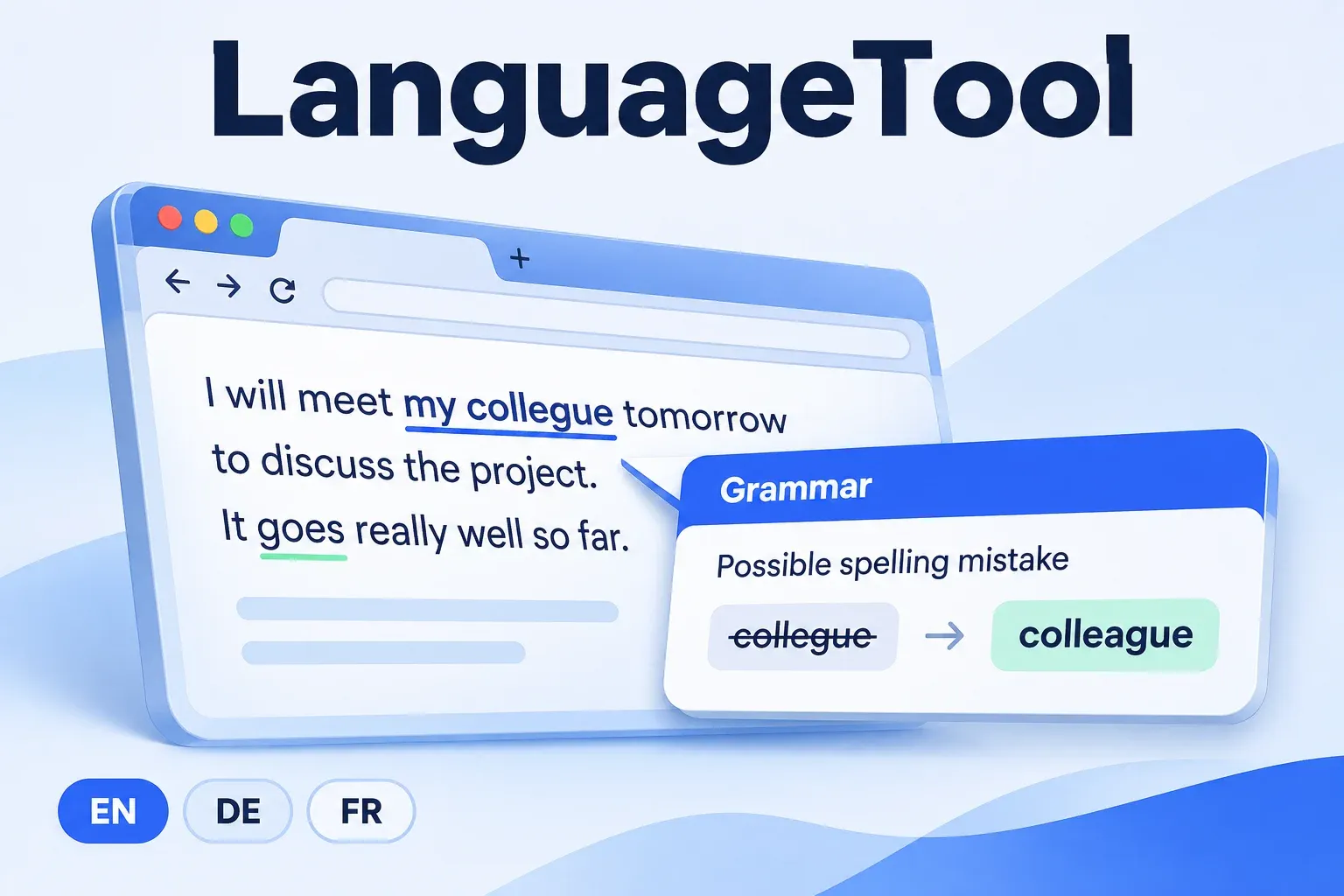
Use the store links on LanguageTool's official site for your browser. The checker supports many languages, with separate varieties such as US and British English and regional forms of German and Portuguese. Support for a language doesn't promise identical rule coverage across languages. The number of interface languages in a store listing is different from the languages the checker can analyze.
Don't assume that a free download means permanent free checking inside the browser. LanguageTool's Premium page lists “Add-on for your browser” among its “Only with Premium” benefits, while its Chrome download page still labels the add-on free with no sign-up required. Those public pages don't give a consistent account of browser access. Tooltivity's extension review describes checking ending after a trial, and Firefox reports for version 11.3.1 describe payment requirements. Check the entitlement in the edition you intend to use before relying on it.
Those reports are a material reason to inspect the actual entitlement shown in your installed edition before moving a writing workflow to it. Check the account, trial end, renewal interval and total charge. If permanent free browser checking is a requirement, don't adopt this workflow until the edition confirms that entitlement. A browser extension, the website editor and a separately hosted checker are different delivery routes; the existence of one free route doesn't establish the terms of another.
Review a short, ordinary paragraph first
If a page was open before you installed the extension, save any unfinished work there and reload it before testing the checker. Begin in a supported text field with non-sensitive text. Confirm the intended language and regional variety before interpreting suggestions. For example, choose the variety that fits whether your document uses “color” or “colour.” Otherwise a correct regional spelling or date convention can look like an error. For mixed-language work, review sections separately when detection selects the wrong language.
Wait for the checker to finish, then open one highlighted issue. Read both the explanation and its replacement. Apply it only if it fixes the sentence you meant to write. Re-read the surrounding sentence after the replacement; a locally plausible word can still be wrong in context.
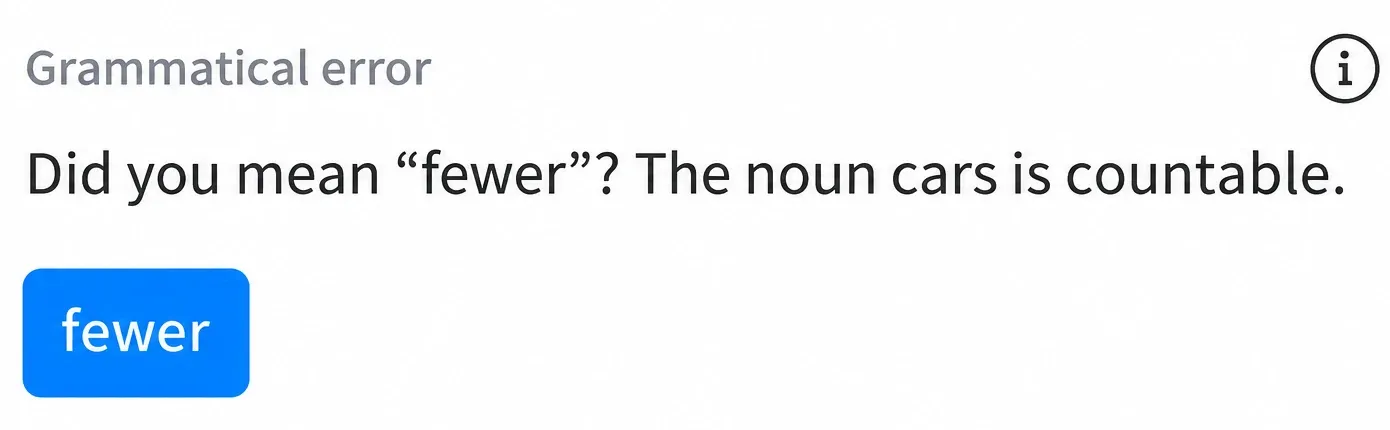
The official guide to grammar and style distinguishes spelling errors from additional stylistic advice. Its example corrections illustrate what the tool flags; they don't prove that every unmarked sentence is correct. Use the explanation to decide whether a suggestion addresses an error, a preference or an intentional choice.
I'd handle clear typos and agreement mistakes first, then punctuation, then optional wording. That order keeps a draft understandable while you consider tone. Avoid changing a technical term merely because the replacement sounds more familiar.
Keep terminology without teaching the checker a typo
LanguageTool offers a personal dictionary for legitimate names and terms. Add a word only after checking its spelling and intended use. If you add a misspelling just to silence an underline, you make that error harder to notice next time. A specialist word can be valid even when a general dictionary doesn't contain it.
A one-off decision to ignore a suggestion and a lasting dictionary entry serve different purposes. Keep project-specific spelling decisions consistent with the publication or organization you're writing for. A dictionary entry doesn't establish that every grammatical use of that word is correct.
When an accepted edit changes a name, number, negation or technical term, compare the whole sentence with the original. Keep a copy of important drafts before making many changes, especially in an editor where undo history is short or shared with collaborators.
Use Picky Mode for a second pass
Picky Mode adds suggestions about wordiness, repetition, long sentences, typography and expression. LanguageTool's guide places the browser add-on control in its settings and shows a separate toggle in the editor. The available checks also depend on the plan.
My default is an ordinary correction pass followed by a deliberate style pass. A message to a colleague can keep contractions, fragments and familiar phrasing that you'd change in a formal application. More underlines don't necessarily mean a worse draft, and removing all of them isn't a useful editing objective.
For academic or technical writing, preserve necessary qualifications. Changing “may reduce” to “reduces,” dropping “not,” or replacing a defined term can alter the claim even if the sentence becomes smoother. Check references, figures and terminology outside the grammar checker as well.
Paraphrasing needs a meaning check
The paraphrasing tool offers alternatives intended to change fluency, formality, simplicity or concision. Use it when you can explain what is wrong with a sentence and judge the replacement yourself. It isn't a factual verification step.
Before using an alternative, compare who did what, to whom, under which conditions. Check quantities, dates, causal language and certainty. A polished rewrite can overstate the original, soften a commitment or assign an action to the wrong person. Keep the original when the alternative weakens the point you intended.
Don't use paraphrasing to disguise copied text. Attribution and permission remain separate responsibilities. Likewise, grammar checking doesn't establish that a passage is original; the available primary product evidence doesn't justify treating this extension as a plagiarism report.
Text leaves the browser for default checking
The store description explains that default checking sends text to LanguageTool over an encrypted connection. Encryption in transit doesn't mean the text stays on your computer. Review workplace or client rules before using the service in a confidential document, support console or internal message.
The current Learneo privacy policy linked by LanguageTool covers information supplied through its services and extensions, with provisions for content, usage data, service providers and retention. It also gives a specific LanguageTool exception: inputs from individual and team users aren't used to train its language algorithms or models, by default and without an opt-out step.
That no-training commitment is narrower than saying no data is processed or retained anywhere. The site's browser-add-on marketing also says no text is stored, but that short statement isn't a substitute for reading the current policy and the terms for your particular feature. Team customers have a separate data-processing agreement that can take precedence where it conflicts.
For text that must remain within an approved environment, use an approved checking route or keep this extension out of that field. For a sensitive field, use the browser's approved local spelling features or your organization's approved editor instead of copying the passage into a public web checker. Restricting site access through browser extension controls can help limit where it runs. Account-free use doesn't turn a remote checker into an offline tool.
What published tests show
A published browser benchmark by GitHub user cannin tested LanguageTool extension 11.0.0 with the self-hosted open-source 6.6 server during the documented July 18–19, 2026 run. It used Chrome 150.0.7871.125, US English, native spellchecking disabled and one extension per isolated profile, with a 1440 × 1000 viewport. Its synthetic corpus contained 300 objective-error cases, 120 style-or-variant probes and 80 clean controls. The test used the local server rather than LanguageTool’s hosted or Premium service.
| July 2026 measure | Published result | Meaning |
|---|---|---|
| Objective-error cases flagged | 175/300 (58.3%) | A visible issue was detected in the case. |
| Exact visible correction | 153/300 (51.0%) | A single visible replacement produced the benchmark's expected sentence. |
| Clean controls flagged | 0/80 | No visible issue was detected in these controls. |
The benchmark's published results table supports those counts. Exact matching is narrower than judging every acceptable rewrite, and the 120 style probes are separate from the objective-error denominator. These results describe that self-hosted configuration. They don't establish the coverage of today's hosted service, Premium rules or other languages.
I would use this result as a reason to review suggestions individually and read the text again afterward. The benchmark detected 175 of its 300 objective-error cases; unmarked text still needs a second pass. Check names, numbers, negation and technical terms against the original. The published test does not establish how often the current hosted service would catch errors in your own writing.
Tooltivity's review adds a different kind of evidence: it finds multilingual checking useful, especially for German, and describes occasional delays with long text and page movement after accepting a suggestion. It also reports trial-expiry text appearing in a draft. Inspect the final field before sending. The Firefox reports of payment requirements for version 11.3.1 are a reason to verify continued access after a trial; they don't measure grammatical accuracy.
If checking stops or the page behaves badly
No suggestions at all: check the account and trial or subscription status, intended language, extension enablement and browser site access. Try a short non-sensitive sample in the LanguageTool editor. If that works while the original field doesn't, investigate the field integration before rewriting the text or changing your account.
Long text is slow: let a short section finish before adding more. Breaking a draft into meaningful sections also makes it easier to review corrections. Keep the original document intact while moving text between editors, and check for missing paragraphs when you copy back.
Two tools underline the same sentence: compare them one at a time, including the browser's built-in checker. Overlapping writing assistants can produce contradictory advice. Keep the combination that gives useful, reviewable corrections.
Unexpected changes appear: stop accepting suggestions, restore the affected passage and compare it with your saved copy. Read the completed text in its destination before sending or publishing. LanguageTool is most useful when it supports your judgment about meaning and tone, with a clear account of where the text is processed.
