

Instapaper extension: save an article you can read later
Save the open article, inspect its reading copy and organize what you'll read later.
Get extensionThe Instapaper extension sends the article you're reading to your Instapaper account, where you can open a cleaner reading copy later. Before saving confidential content, check your organization's rules for sending it to this service. Click its toolbar button, wait for Saved, then open the saved article and check that the text is complete. I'd choose it for a reading queue across devices, especially when a folder and a few tags are enough organization. A saved link alone doesn't prove that the whole article was captured.
Choose the official extension for your browser
Start with an Instapaper account and the official browser extension. The Chrome Web Store listing from Instant Paper, Inc. saves the current tab into that account. If you aren't signed in, the extension sends you through login or signup and then returns to the original page with the article saved.
Firefox users can use the official Instapaper Firefox add-on. Instapaper's browser saving instructions also confirm that the Chrome extension works in Microsoft Edge and other Chromium browsers. For Safari, follow the current installation guide: its extension comes bundled with the main Instapaper macOS app. Older instructions for a separate Instapaper Save app describe the previous installation route.
On a Mac, enable the extension under Safari Settings > Extensions after installing the main Instapaper app. If you're migrating from Instapaper Save, the Safari migration instructions distinguish the new rounded-corner icon from the old square icon. Enable the new extension and disable the old one so you use the intended capture tool.
The account connects your saved articles across devices. Mobile saving uses the Instapaper app and your phone's share sheet; it isn't the desktop toolbar interface described below. Basic reading and saving are available without the optional Premium subscription.
Save the open article, then inspect the reading copy
- Open the article you want to keep. If the source requires your subscription, sign in normally and open the full article you're authorized to read.
- Click the Instapaper button in your browser toolbar. Wait for the save banner to change from Saving to Saved.
- Use the folder control to file the article. After Saved appears, use the Tags control if you want labels that cross folders.
- Click the Instapaper logo on the banner to open the article in Instapaper.
- Check the title, opening paragraphs and end of the article. Compare any important quotation with the original before closing the source page.
The save-and-open workflow lets you check the result immediately. The banner confirms that the save action finished; inspecting the reader tells you whether it kept the content you need.
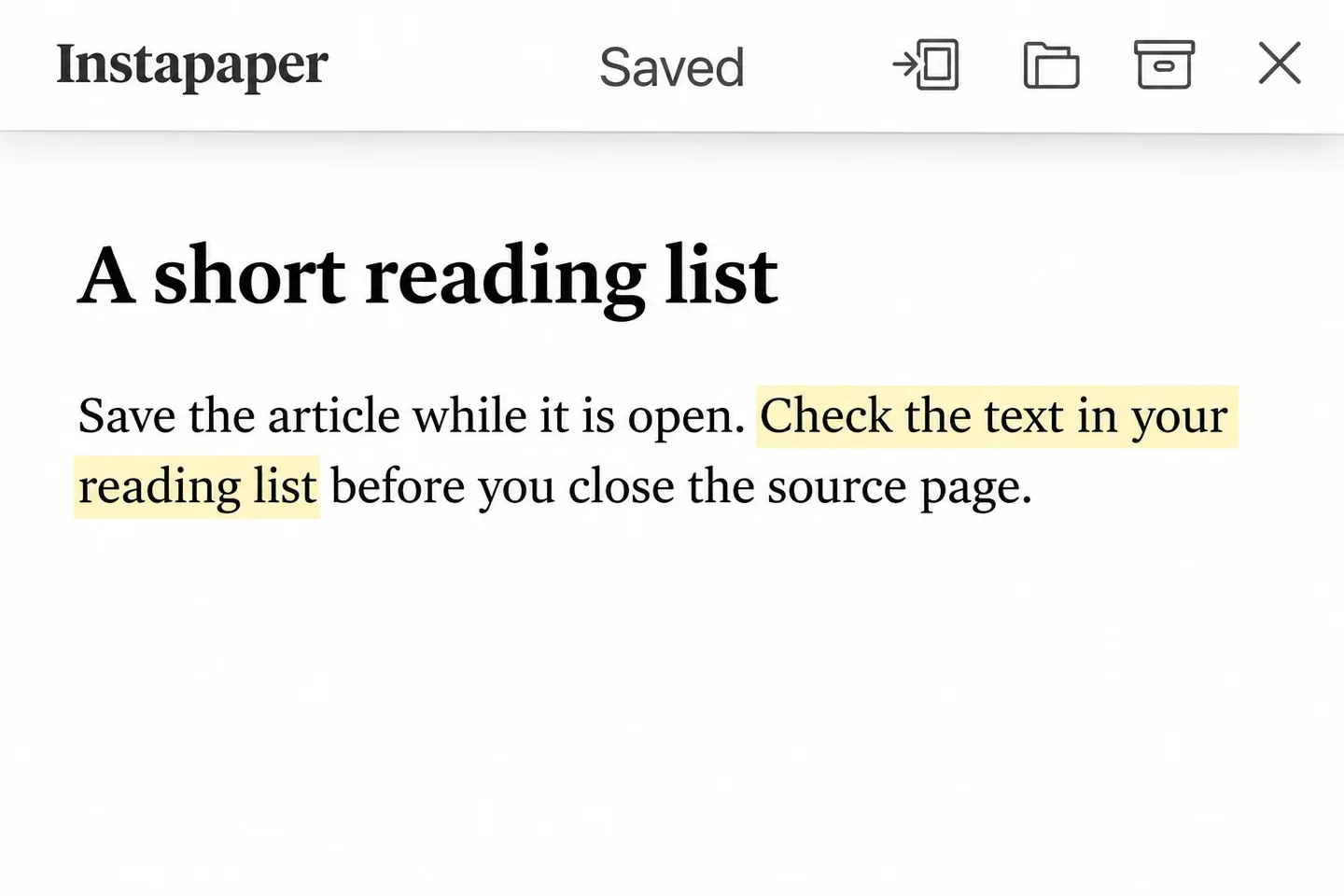
The banner above shows the save, folder and archive controls. For tags, follow the current tagging instructions after Saved appears; the Tags control isn't shown in this banner view. You can also add tags from the article's menu in Instapaper.
The Send to Kindle control has an extra requirement: the browser extension's Kindle feature needs Premium and a Kindle email address configured in Instapaper Settings. You don't need that option to save an article into the reading queue.
For a simple practice article, use a short passage such as “Check the text in your reading list before you close the source page.” Select the sentence before saving if you want it highlighted. Instapaper's browser highlighting instructions describe saving a selection and adding highlights or notes on the source page after saving. Those on-page highlights disappear on refresh; clicking the extension button brings them back.
Use URL saving with the right expectations
Without the extension, open your article list on Instapaper's website, click +, paste the source URL and click Add. This is a useful fallback for an ordinary public article. Check the resulting reader copy just as you would after a toolbar save.
The two routes can produce different results on subscription sites. Instapaper's paywall-content instructions say that browser extensions upload the full article to its servers for the reader. With a link-only save, Instapaper fetches the source itself and can retrieve only part of an article behind a paywall.
If the saved copy stops after a teaser, return to the source and confirm that the complete article is visible under your existing access. Save through the extension, then inspect the new reading copy. This preserves content you can already access; it doesn't grant a subscription or access to a restricted article.
Don't rely on the reading copy to preserve a page's exact design, comments or interactive elements. Keep the original link when those parts matter.
Give an article one folder and several useful tags
An article lives in one Instapaper folder at a time. I'd use a folder for the queue the article belongs to, such as Research, and tags for subjects that overlap. The tag system allows multiple tags across folders, Home and Archive.
To create a folder on the web, open the ... menu next to Folders, choose Add Folder, enter a name and click Add. For an existing article, use its folder control or its ... > Move to folder action. To add a tag later, choose ... > Tags, type the tag and click Create tag.
Keep research folders private unless you intend to share their contents. Making a folder public makes it visible to anyone with its link. That setting changes access to the collection, rather than merely changing how it appears in your own sidebar.
Separate finishing an article from preserving it permanently
Open an article from Home to read it. The reader's Aa control changes the theme, font, size, width and line height. When you've finished, Archive removes the article from Home while keeping it in Archive, as the reading and management guide explains.
| Action or feature | What it means |
|---|---|
| Save an article | Store article text in your account for later reading. Check that extraction kept the text you need. |
| Archive | Move a finished article out of Home. It remains in Archive. |
| Permanent Archive | Premium keeps the stored article copy readable even if the original changes or disappears. It applies automatically while your subscription is active. |
Permanent Archive is a subscription feature, so the ordinary Archive button isn't a lifetime-preservation promise. The Premium feature list also includes full-text search, PDF reading and unlimited notes. Check that list before paying for a particular feature.
Megan Ellis's week-long Instapaper account at XDA describes the benefit of a separate reading queue, folders and cross-device access. Her offline-reading example applies to saved articles; it doesn't work for videos, and comments can require opening the original page. That's a useful boundary when deciding what to save for a flight.
Before disconnecting, open the saved article in Instapaper on the device you'll use to read it and check that the text is available there. A completed desktop save doesn't by itself verify what has reached your phone. Keep a separate plan for any video or source-page discussion you need.
Check what leaves the page and what you can export
The Firefox listing's data disclosure says the add-on collects page URLs, HTML and selected text when you take a save action, and requests access to data on websites. The Chrome listing discloses website content. Instapaper is an account-based reading service. Broad site access alone doesn't establish that every page you visit is uploaded.
For reusable quotations, select text in Instapaper's reader and choose Highlight. Click a highlight and the Note icon to attach a note. The highlight and note export instructions offer plain text, Markdown and HTML through ... > View Notes and the share icon. Those are exports of highlights and notes; don't mistake them for a complete local Markdown copy of every saved article.
I'd keep Instapaper for articles I intend to read. Evernote Web Clipper suits a different job when the destination is a notebook with capture formats and filing choices. A local Markdown capture tool such as MarkDownload belongs to the file-saving workflow. The productivity extension hub helps you choose between those browser tasks. For this reading queue, start with one article, open the saved text and confirm the result before adding a backlog.
