

ImprovedTube: layout, autoplay and settings recovery
Choose the YouTube controls you need, keep keyboard actions predictable and recover settings without assuming an import removes every newer preference.
Get extensionImprovedTube is a good fit when you want to change YouTube's layout and playback behavior from one extension. I'd start with two changes: collapse comments and hide related videos, then add player settings only where they solve a specific annoyance. Keep a settings export before experimenting; importing an older file doesn't automatically remove newer preferences.
Choose the current ImprovedTube for your browser
The official Improve YouTube listing from Code for Charity identifies the Chrome extension covered here, version 4.2081. The developer's website describes ImprovedTube as free. An older FAQ still discusses product keys and paid extras; I wouldn't use that page as a reason to buy an upgrade key for this setup.
Use these steps on the desktop YouTube website at www.youtube.com. The Chrome package's required site access is limited to that host. Although the store description also mentions Netflix, Twitch and other sites, that wording isn't a reliable promise that this build will customize them.
The project also has a Firefox listing and an Edge listing with their own builds. Its Safari distribution is listed for Mac. Choose the listing for your browser rather than assuming the Chrome version number, permissions and menus carry across.
For Chrome, use Add to Chrome on the official listing and review the permission prompt. If you can't find ImprovedTube in the toolbar, open Chrome's Extensions page, locate the extension and open its Options.
Clear space around the video
Open ImprovedTube from Chrome's Extensions menu, then choose Appearance in the extension. That category controls the YouTube page. The separate Appearance entry under the extension's Settings controls the extension menu itself.
- Open Appearance → Comments → Comments. Choose Collapsed if you want comments available on demand, or Hidden to hide the discussion.
- Return to Appearance, open Sidebar → Related videos, and choose Hidden to remove suggested videos beside the player.
- Save unfinished work on the page. Reload a regular YouTube watch page. Check the discussion area below the video and the related-video area separately.
- To undo either change, return its selector to Normal and reload the page.
Collapsed comments have a Show more control to reveal the discussion. Hidden comments are a page-display preference; they don't delete anyone's posts. I'd choose Collapsed for tutorials where corrections in the comments can be useful, and Hidden for a viewing session where I want the discussion out of sight.
There is a published hands-on observation behind this use case: Lifehacker's Brendan Hesse described removing related videos and hiding comments after installing Improve YouTube in 2021. That supports the practical layout use, but the article doesn't identify a build or operating system or measure performance. Its old claim of matching Chrome and Firefox capabilities shouldn't decide your current browser setup.
Separate the autoplay controls
Removing suggestions and stopping automatic playback are separate choices. In Player, ImprovedTube exposes both Force Autoplay Off and Up next autoplay. Their similar names can send you to the wrong switch.
- Force Autoplay Off: targets a watch-page video starting automatically before you deliberately interact. The current implementation has a separate branch for a watch URL containing a playlist.
- Up next autoplay: controls YouTube's player autoplay toggle, which governs automatically advancing to a suggested video.
To stop the next suggested video, turn Up next autoplay off and check that YouTube's own autoplay toggle is off after reloading. To stop an ordinary watch page starting immediately, enable Force Autoplay Off and open a fresh video page. For a URL containing a playlist, inspect the Playlist category's Autoplay setting as well. Don't diagnose playlist behavior from the ordinary-video switch alone.
These are the controls in the public code for the YouTube extension; they depend on YouTube's page and player controls. If a switch no longer has the expected effect after a site change, reverse that one setting before making unrelated changes.
Save one shortcut at a time
Open Shortcuts, then choose the action you want to change. For example, Next video has a default binding of Shift+N. Its dialog records your key combination; click Save to keep the binding or Cancel to leave the previous one in place. Reset in that dialog restores that action's default.
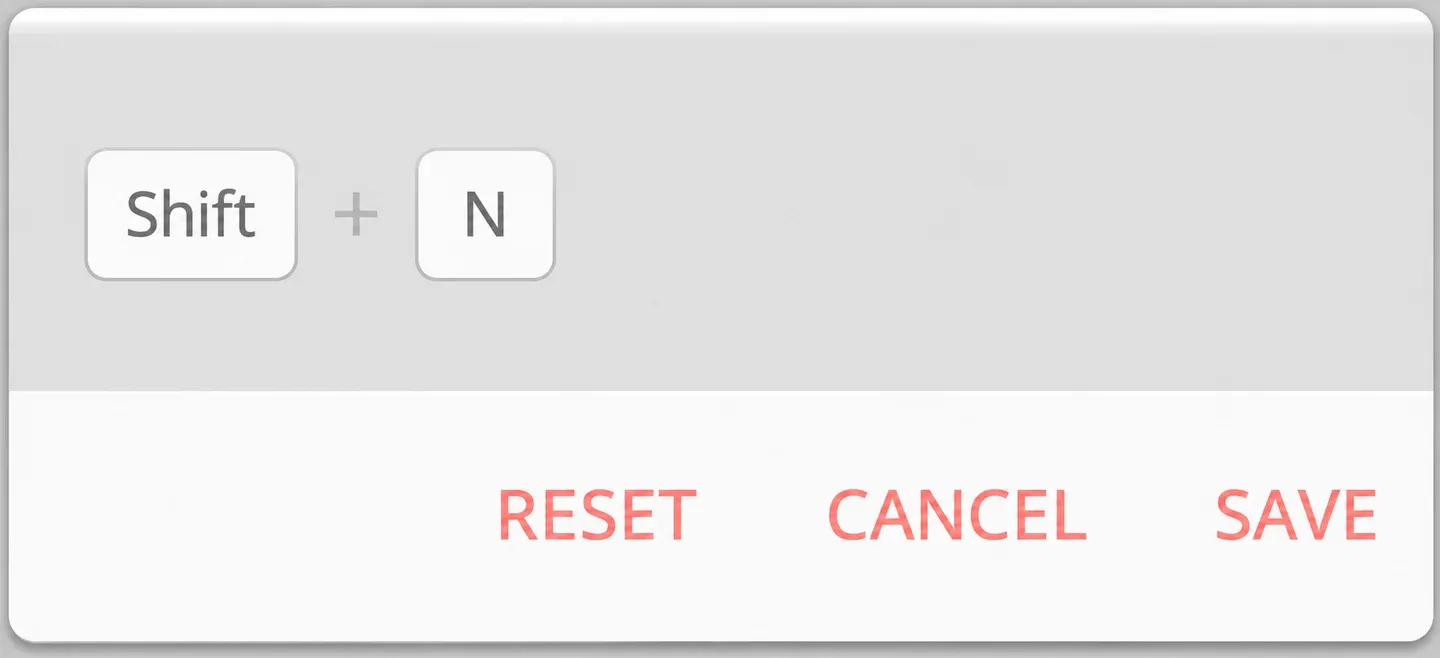
I'd give one tool responsibility for each keyboard action. If you also use Enhancer for YouTube or a general speed controller, turn off the overlapping binding in one of them before choosing a replacement. Check the new key on a video page, then in the search box: a playback command that interferes with typing is a reason to change or reset that binding.
Check optional data features before enabling them
You don't need watch-time statistics to hide comments. ImprovedTube's Analyzer has an Activate switch; the Chrome package saves channel/time counters to local extension storage only when that activation preference is true. I'd leave it off for a layout-only setup. Exported settings can include stored extension data, so keep your backup private.
The store declares no data collection, while the developer's privacy policy describes feature-use analytics, possible third-party video-metadata requests and information attached to support forms. That policy also contains old Plus references. Its wording doesn't establish which requests the current build makes, and it doesn't justify a blanket “never contacts servers” assurance.
One concrete optional connection is Player → Return YouTube Dislike. Enabling it requests access to the Return YouTube Dislike API; the implementation sends a video ID to that service to retrieve a count. The service describes its data as archived counts combined with extrapolated extension-user behavior. A returned count isn't direct access to a creator's private YouTube analytics. I'd keep one dislike-count tool enabled to avoid competing display changes.
Back up before resetting or importing
In ImprovedTube's header, open the three-dot menu → Settings → Backup & Reset. Start with Export settings, confirm the export, and check that an improvedtube-settings-….json file has been saved. If Chrome asks for download permission, approve it only if you want that export. A closed dialog alone doesn't prove you have a backup.
Import settings merges the file into existing preferences. Included keys overwrite their current values; keys absent from the file remain. An older backup may therefore leave a newer layout change active. Only import a settings file you trust, and export your current state first. After importing, review the preferences you intended to restore.
For a hidden comments section or an unwanted related-video change, return the relevant selector to Normal. For one bad shortcut, use that action's dialog Reset. Reset all shortcuts removes custom shortcut entries; Reset all settings clears local extension settings after confirmation. Reserve the full reset for a deliberate return to defaults, with your backup already saved. Delete YouTube cookies is a separate operation and isn't the first remedy for a layout preference.
The same screen's Sync (Browser Account) section has Push and Pull. Push replaces ImprovedTube's saved browser-account settings copy with the current settings; Pull applies that copy locally. Keep the exported file as your separate fallback before either action. After Pull, review the local preferences you intended to transfer.
If a problem survives reversing the relevant preference, temporarily disable other extensions that change the same YouTube area, reload, and compare the result. Restore them one at a time. For a narrower task, Unhook focuses on hiding YouTube distractions. Browse the video extensions hub for related tools. I'd keep ImprovedTube when the combination of layout, autoplay and shortcuts is useful, with only the controls I need changed.
