
Google Translate extension: a passage or a whole page?
Separate the Google Translate extension from Chrome's built-in translation, choose the right language and fix missing controls without resetting your browser.
Get extensionFor public, non-sensitive reading, use the Google Translate extension to translate a selected passage; use Chrome's built-in Translate control for an entire webpage. Google has removed full-page translation from the extension, so an old tutorial's TRANSLATE THIS PAGE button is the wrong thing to look for. I'd try Chrome's built-in translation first: it also offers selected-text translation, which may cover your needs without another extension.
Choose the control that matches what you want to read
The Google-published Chrome Web Store listing explicitly directs full-page translation to Chrome itself. Use this distinction before changing extension permissions or reinstalling anything:
| Your task | Where to start | What to check |
|---|---|---|
| Read a whole webpage | Chrome's address-bar Translate icon, or right-click the page and choose Translate to [Language]. | The chosen destination language; refresh the page if translation fails. |
| Translate a highlighted passage with Chrome | Right-click the selection and choose Translate selection to [Language]. | The selection and output language in the translation result. |
| Use the Google Translate extension's selection popup | Highlight or right-click a passage, then use its Translate icon. | Google as the publisher, extension access to that site and the resulting language. |
A change to Chrome's translation settings doesn't necessarily change the extension's options. Keep the browser's page-translation prompt and the extension's selection popup separate while troubleshooting.
Translate a word or passage with the extension
If you prefer the extension's popup, open the Google-published listing above and choose Add to Chrome. Review the access requested before confirming Add extension. Use a public, non-sensitive passage for the first translation.
- Highlight or right-click the text you want to understand, then use the extension's Translate icon.
- Read the translation and check that the source and destination languages match your task. A plausible-looking word in the wrong language still doesn't answer the question.
- For automatic selection popups, open the extension's options and choose whether translation should appear each time you highlight text. Leave this manual if you regularly select text to copy it.
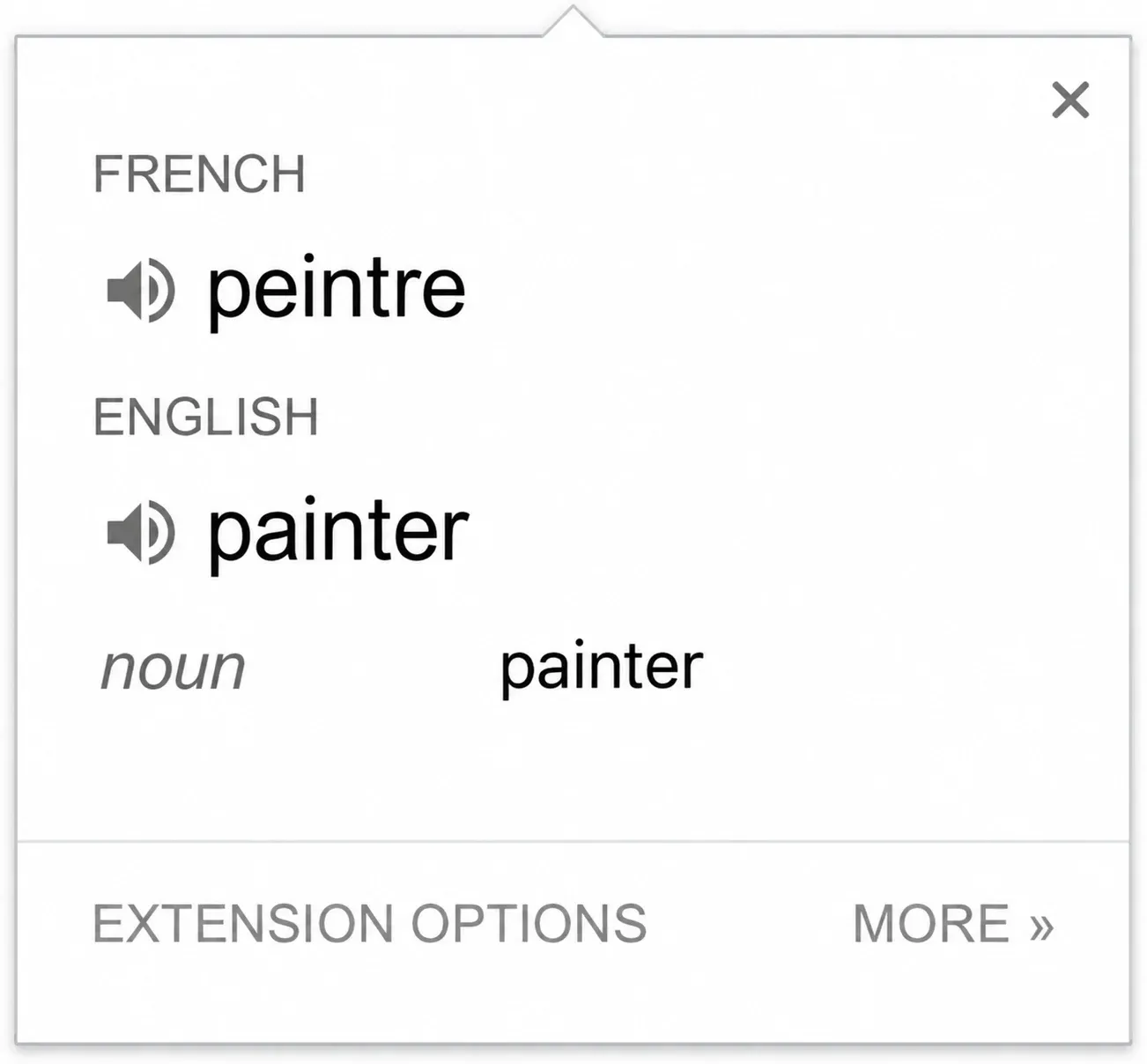
I'd use the popup for a sentence or unfamiliar term while keeping the surrounding page in its original language. For reading an entire article, move to Chrome's page control below; the extension no longer supplies that function.
Translate a page through Chrome
For private pages, check your organization's rules before sending content to a translation service. On a webpage in another language, select Translate on the right of Chrome's address bar and choose your preferred language. You can also right-click the page and choose Translate to [Language]. These are the desktop routes in Google's Chrome translation instructions.
If the page doesn't translate, refresh it and try again. Google's Chrome help also points to the Google Translate website's Websites option as a separate fallback.
To translate only part of a page without the extension, highlight the passage and right-click it. Choose Translate selection to [Language]. Use More > Choose another language and the dropdown to change the translation language. This route is useful when automatic page translation would change more text than you want to read.
Set the translation language without changing Chrome's menus
Open Chrome's More > Settings > Languages. Under Google Translate, enable Use Google Translate if you want Chrome to offer page translation. Set the destination under Translate into this language.
For automatic translation, add a source language to Automatically translate these languages. Remove it from that list when you want manual control again. If Chrome never offers translation for a particular language, check Never offer to translate these languages and remove that language from the list.
Those settings control translation. Changing the language of Chrome's menus is a separate operation: Windows has Display Google Chrome in this language, followed by a restart; on Mac and Linux, Chrome follows the computer's default system language. Don't restart or change your system language just to translate a webpage into English.
Check what you're sending before translating private text
The extension's store disclosure lists handling of Location, User activity and Website content. I'd keep confidential mail, personnel records and private customer material out of a casual translation workflow until the service is approved for that information. A popup inside your browser isn't a promise of offline processing or a special confidentiality agreement.
Google's privacy policy describes collection of content provided through its services and other information whose handling depends on the service and your settings. Signing out doesn't mean no information is collected. Don't infer a specific retention period or a no-training promise from the extension's name.
Incognito doesn't create that promise either. Google's explanation of Incognito's privacy limits says websites and services can still observe activity, and their data collection isn't changed by Incognito. Chrome separately controls whether an extension is allowed to run there.
Check meaning, even when the translation reads fluently
Two published studies show why I'd verify consequential wording rather than rely on a general accuracy claim. Their tasks and evaluators differ, so the results stay separate; neither is a benchmark of the current Chrome extension.
| Published assessment | Task and method | Reported result |
|---|---|---|
| Khoong and colleagues, 2019 | 100 emergency-department discharge-instruction sets containing 647 sentences, English to Spanish and Chinese; bilingual human back-translation, with two clinicians independently judging content accuracy and a third resolving disagreements. | 594/647 sentences retained accurate content in Spanish (92%); 522/647 in Chinese (81%). The percentages count sentences, not complete instruction sets. |
| Taira and colleagues, 2021 | 20 discharge phrases, evaluated by bilingual community volunteers; meaning-retention assessment. | Spanish 94/100 evaluations retained meaning (94%); Chinese 49/60 (81.7%). Across the study's language groups, reported rates ranged from 55% to 94%. |
The second study collected evaluations between March 2019 and February 2020. Different phrases, language groups and assessment methods prevent these percentages from establishing an improvement trend. Averaging them would also conceal the differences that matter to a reader choosing how much to trust a sentence.
For ordinary reading, compare names, numbers, dates, negation and obligations with the original. Keep the source available when you copy translated text elsewhere. For medication instructions, legal commitments or another decision where a mistranslation can cause harm, have a qualified person who understands both languages verify the meaning before acting. Fluency alone doesn't establish that an instruction survived translation.
Restore a missing popup or translation offer
For a missing Chrome page offer, first check Settings > Languages > Google Translate, including the enable switch and the never-offer list. Then right-click the page to try the explicit translation command. Refresh once if translation fails.
For a missing extension popup, open More > Extensions > Manage extensions. Check that Google Translate is enabled, then open Details and inspect the site's access. Google's extension-management instructions distinguish access on selection, on specific sites and on all sites. Grant only the scope you intend; a restricted site needs the appropriate access before the extension can work there. These choices apply within the extension's declared host permissions; they don't make every browser page accessible.
Return to the page and try a short, non-sensitive selection. If only automatic popups are missing, check the extension's selection options. A hidden toolbar icon is a separate issue: open the Extensions menu and pin Google Translate if that option is available. For a managed work or school browser, an administrator may restrict extensions; don't try to bypass that policy.
Firefox's To Google Translate listing belongs to Juan Escobar. An Edge marketplace search for “Google Translate” can also return products from independent developers; check the individual publisher before choosing one. Google's Android Translate app is another product, and its offline or camera features don't establish the browser extension's capabilities. Check the publisher and platform before applying a tutorial from either one.
If your next task is translating a reply and reviewing it before replacing the original field, compare DeepL's preview-and-replace workflow and paid page-translation controls.
