
Google Keep extension: capture and save the right note
Choose a link, quotation or image, create the note and check where it landed.
Get extensionGoogle Keep's official Chrome extension saves a page link, selected text or an image into a Keep note, with room for a title, extra text and labels. Check the receiving Google account before capturing work material or personal information, then open the capture panel, review its contents and click Create Note. Don't close the source on the assumption that opening the panel saved it: Google's current help says extension notes don't save automatically. I'd use Keep for a short extract with its source and choose a fuller clipper when I need a reading copy of the article.
Choose Google's capture extension
Use the Google Keep Chrome Extension published by Google. The listing names Google Ireland, Ltd. in its developer details. Similar names such as Full Screen Edit or Category Tabs refer to other extensions; they aren't extra capture modes in this one.
The steps here are for desktop Chrome, the browser covered by Google's extension instructions. For Firefox or Safari, open Keep on the web rather than assuming that a similarly named add-on is Google's capture extension.
Sign in with the Google account that should receive the notes. Open Keep on the web and check the account before sending it work material or personal information. A successful capture is useful only if you can find it in the intended account afterward.
The extension is free. Its destination is Google Keep, with notes synced across the web and mobile apps, rather than a local archive folder. Google's Android Keep app and iPhone and iPad Keep app are separate ways to work with those notes; their voice-recording and other app features aren't controls in the Chrome capture panel.
Choose the content before opening the panel
Google's extension instructions give different starting actions for a page, a selection and an image. Pick the one that matches the result you need.
| What you want | Where to start | Check before saving |
|---|---|---|
| A page reference | Open the page, then click the Keep button in Chrome's toolbar. | The linked page title and domain identify the source. Add a short explanation of why you're keeping it. |
| A quotation or passage | Select the text, right-click it and choose Save selection to Keep. | The selected words are present in the note, with enough context to understand them later. |
| An image | Right-click the image and choose Save image to Keep. | The intended image appears in the capture. Don't infer that the rest of the page was copied. |
| A thought without a page reference | Right-click the Keep extension button and choose New blank note. | The note contains your text rather than an unwanted page link. |
A page reference keeps a route back to the source. That isn't a promise to preserve the article's complete text, layout or interactive content. For material that must remain readable after the source changes, choose a tool with an explicit article or full-page capture format and inspect that saved copy.
Create the note, then check it in Keep
- Start the capture using the appropriate action above. Review the linked source and captured text or image in the panel.
- Use Add title to give the note a recognizable name. Add any context you'll need when you return to it.
- Click the tag-shaped label control beside the label chips to attach a useful label, such as the project the extract belongs to. Review any labels already shown.
- Click Create Note to submit the note.
- Open Google Keep in the receiving account. Check the note's content, label and source link before closing the original page.
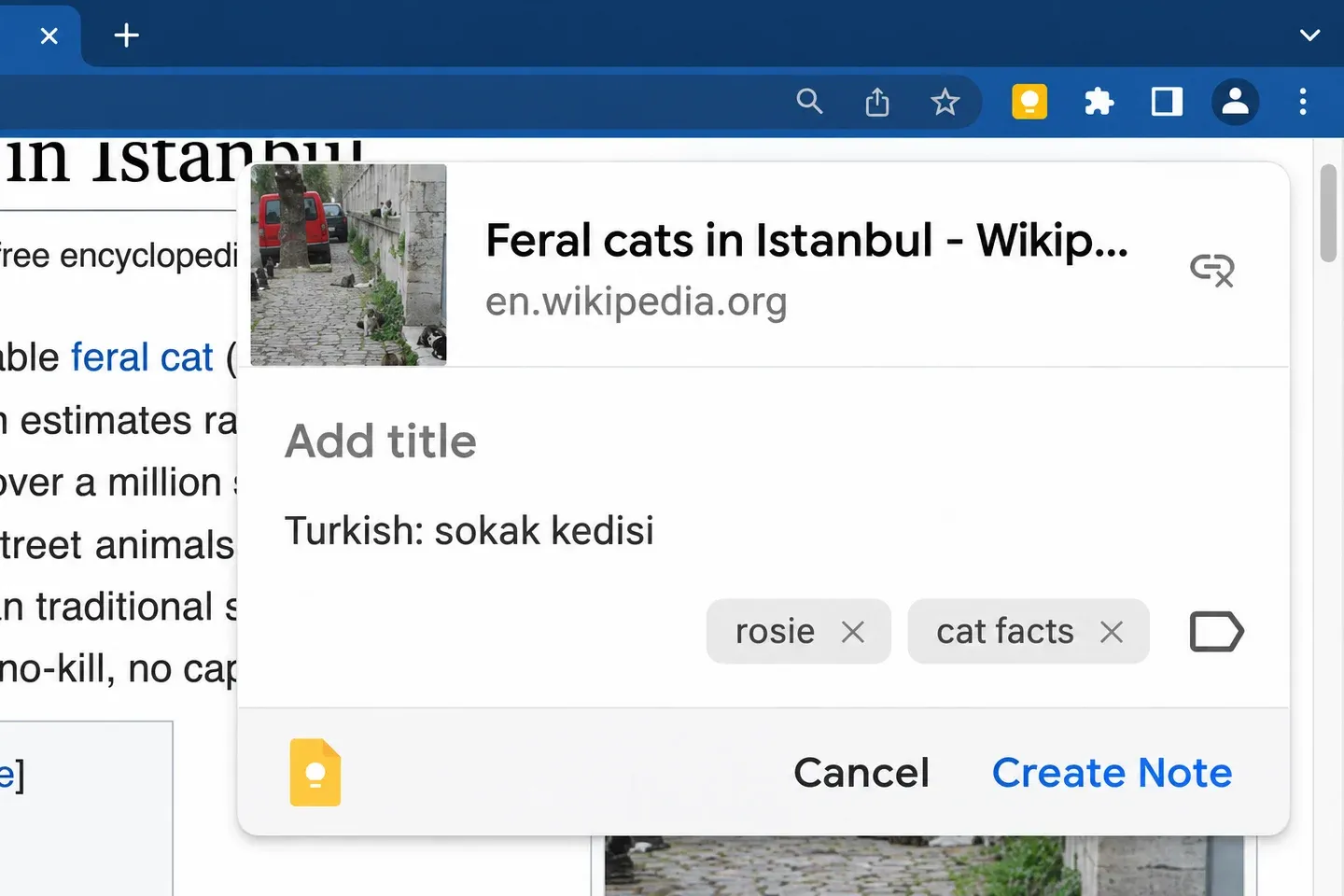
The store description still says “Automatically saves to Google Keep.” Follow the current help's explicit saving rule instead: notes created through the extension don't save automatically. Google's store images show the Create Note button, so merely opening the form isn't the finish line.
To change an existing note associated with a URL, open it in Google Keep on the web. Clicking the extension again isn't the documented route for reopening and editing that saved note. Search for the note before creating another copy of the same extract.
Check a missing note without resetting the extension
Start by separating an unsaved form from a note that went to a different account. Copy any text you've added to an unsaved form before closing it, signing out or changing accounts. Repeating the same capture several times makes the missing-note check harder.
- The panel opened, but no note appeared: confirm that you clicked Create Note. Keep the source text available and check Keep on the web before trying again.
- You're asked to sign in repeatedly: confirm that Keep itself opens in the intended account. If you use several Google accounts, compare the Keep account with the account used in Chrome before capturing sensitive material.
- You're offline: reconnect before creating the note. The extension includes an explicit “Notes cannot be saved while offline” error; the full Keep app's offline editing capability doesn't establish offline capture in this extension.
- One image won't save: check whether the image is accessible and whether the capture panel contains it. Keep also has a “Private image cannot be saved” error. Preserve a source link or your own text note if that image can't be captured.
The same-account check appears in a Google community response to a sign-in loop. It's a troubleshooting suggestion from a volunteer Product Expert, rather than a diagnosis for every login failure. If Keep works on the web while the extension stays stuck, use the web app to preserve the URL and text you need before pursuing the extension issue.
Keep capture access separate from editor add-ons
The Chrome listing's data disclosures cover personally identifiable information, authentication information, user activity and website content. Its package requests account-identity, tab, context-menu and scripting permissions, together with broad web host access. These are access and developer-disclosure categories, not proof that every page you visit is uploaded. They are a reason to check the publisher and receiving account before capturing confidential content.
Dan Price's MakeUseOf roundup of Keep extensions distinguishes Google's capture tool from separate extensions for full-screen editing, category tabs and other changes to the Keep website. That distinction is useful when choosing an add-on. Its older autosave instructions have been superseded by Google's current help.
I'd stay with Keep when the useful result is a quotation, image or link with a brief note and label. For a saved article organized into a notebook, Evernote Web Clipper offers a different capture-and-filing workflow. The productivity extension hub groups the other options for saving pages and organizing browser work.
