

Global Speed: set playback speed by tab or website
Choose shared speed, a pinned tab exception or a website rule. Follow a YouTube rule example, restore normal playback and back up global settings before reset.
Get extensionGlobal Speed by POLYWOCK lets you keep a default playback speed for video and audio, give one tab its own speed, or apply a speed automatically on a particular website. For a one-tab exception, click the pin inside Global Speed's popup before changing the speed. Unpinned tabs share a global setting, so changing one can change the others.
Choose a default, a tab exception or a website rule
I'd start with a modest shared speed, then pin any tab that needs different treatment. A spoken lecture at 1.50 and music at 1.00 are a useful example: pin the music tab first, then choose 1.00 there. You can keep changing the shared lecture speed without deliberately changing that pinned tab's settings.
| What you want | Control to use | What to watch |
|---|---|---|
| One default for ordinary browsing | Choose a speed in an unpinned tab. | Other unpinned tabs share that context. |
| A different speed for this tab | Click Global Speed's pin, then choose the speed. | The pin belongs to the extension popup. Browser tab pinning doesn't select this scope. |
| A speed whenever a website matches | Create a Speed rule with URL conditions. | Rules can override the tab or global value, including on pinned tabs. |
The extension's saved-state handling separates global settings, pinned-tab settings and URL-rule overrides. That explains why a speed can return after navigation even though you changed it manually: a matching rule may apply again.
Open the official extension and set a baseline
Use the POLYWOCK listings for Global Speed on Chrome, Global Speed on Edge or Global Speed on Firefox. The published version is 3.4.124. These steps cover desktop use; Firefox's listing also supports Android, but that doesn't make every mobile browser an equivalent installation target.
- Before installing, check the publisher and the requested access to websites in the official store. Global Speed requests broad access to HTTP and HTTPS pages. Install in a regular browser profile after reviewing that access; Chrome doesn't allow adding extensions from an Incognito or Guest window. Open a page with playable video or audio, then open Global Speed from your browser's extensions menu.
- Decide whether you're changing the shared default or only this tab. For a tab exception, turn on the pin inside the popup first.
- Choose a preset such as 1.25 or 1.50. The numeric field below the grid also lets you enter a speed.
- Play a short passage and check the audible pace. Open another unpinned media tab to check whether the shared setting is what you intended.
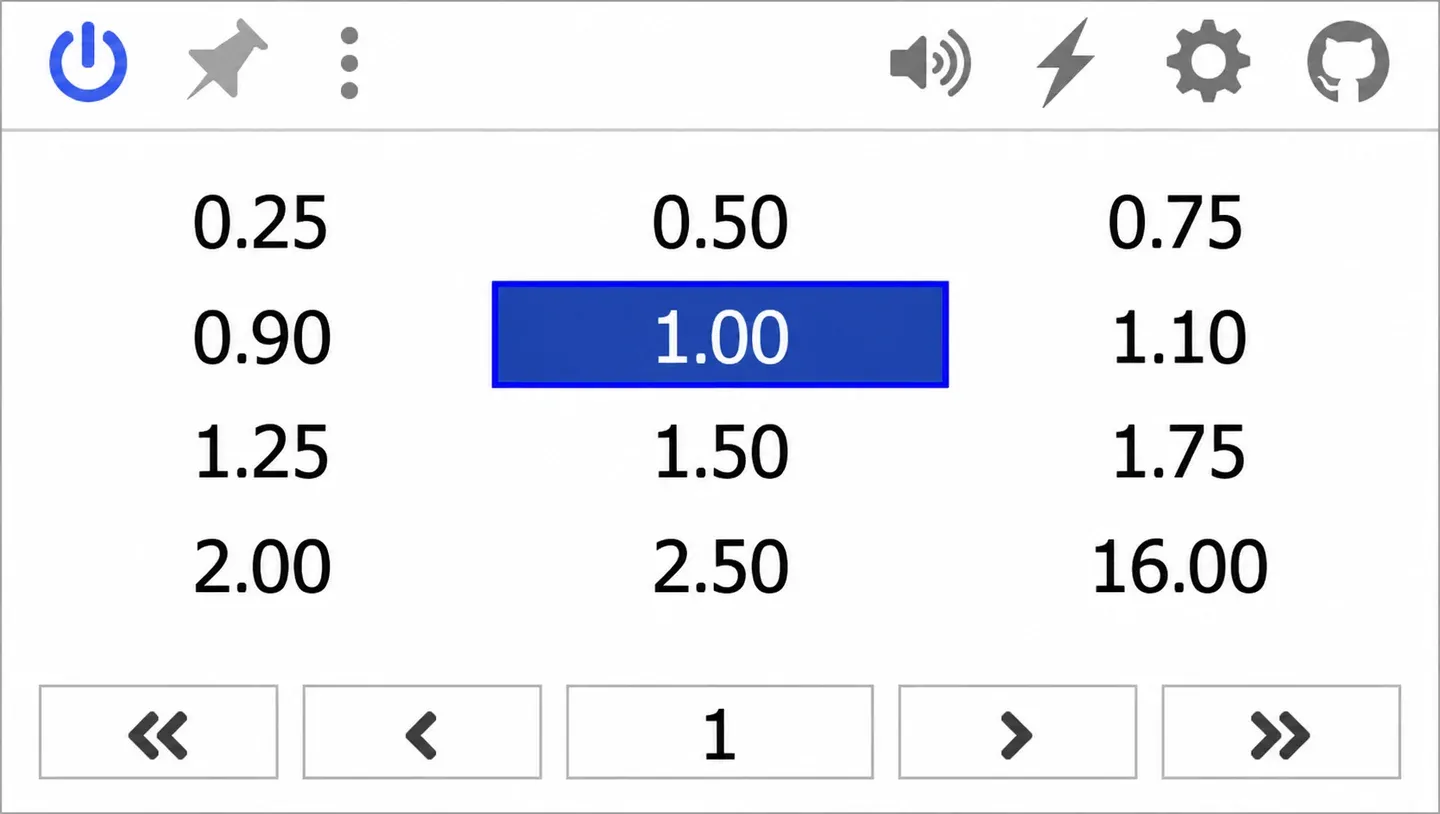
Selecting a speed preset also enables speed control. Use 1.00 to return to normal pace. The default grid includes 16.00, but that is an available setting, not a promise that every player will play smoothly at that rate. You can customize the default speed presets on the options page, so an already configured popup may show a different grid.
The developer lists audio effects as Chromium only in the feature description. You don't need volume boosting, pitch shifting or video filters to set playback speed. I'd leave those controls alone while establishing a baseline.
Set YouTube to 1.50 with a URL rule
A website rule is useful when you want the same choice again on future visits. Here is a simple example for desktop YouTube URLs beginning with https://www.youtube.com/. It doesn't cover YouTube Music or a different hostname.
- Click the popup's gear to open Settings, then find URL Rules and click Create.
- Leave the rule enabled and choose Speed as its type. Set its speed value to 1.50.
- Click the numeric conditions button in that row. Its tooltip is URL conditions; a new rule starts with zero conditions.
- Choose Allowlist, click Create inside the conditions dialog, select Starts with and enter
https://www.youtube.com/. - Close the conditions dialog, then visit a matching YouTube page and check the speed in the popup and the player's audible pace.
Changes are stored as you edit; there isn't a separate Save step in this rule editor. A rule with no active URL condition won't apply anywhere. The rule editor's controls distinguish the rule's enabled checkbox, URL conditions and action. A Turn off action turns off the extension's behavior on matching pages; it doesn't block the website or revoke browser site access.
Keep this first rule narrow. Avoid overlapping Speed rules until you have checked each one's match. When two matching Speed rules apply during the same navigation, the later entry in the list supplies the speed. Contains and Regex are also available, but a complete HTTPS prefix makes this example easier to inspect than a loose word such as youtube.
Find out why a speed changes back
Start with scope and rules before resetting anything. The popup can show URL rules have changed some values when an override is active. Its rule override can take priority over a pinned tab; pinning alone doesn't exempt a page from URL rules.
Another tab changes speed too. Check the pin inside the popup. Pin the tab that needs an exception before setting its speed. That exception uses its own settings instead of the shared global context.
A rule never applies. Check its enabled checkbox, action and active URL condition. Compare the address with the complete Starts with value. A matching navigation can then apply the configured speed.
Your manual speed changes after navigation. Inspect matching URL Rules and the rule's Strictness setting. You can choose when the rule should reapply or disable that rule.
The popup changes speed but a key doesn't. Check the shortcut's binding, page focus and website allowance before changing speed rules. This separates keyboard handling from a working media-speed control.
Strictness is in a rule's three-dot menu. Its default value 2 reapplies when the domain changes; 3 reapplies on each page load, and 4 on each URL change. If you specifically need a rule to reapply during navigation within a single-page site, 4 is the relevant choice. It will also override manual changes more eagerly, so I wouldn't enable it for every rule by default.
To check whether a rule is causing the unwanted return, turn off that rule's enabled checkbox and manually select 1.00 in the popup. Note your playback position before reloading or revisiting the page. If the speed now stays normal, correct the rule's match or reapplication setting before enabling it again. If it still changes, check other matching rules and active speed controllers before blaming the player.
For local keyboard shortcuts, the popup's three-dot menu can offer Allow shortcuts on followed by the current hostname. That allowance is separate from URL speed rules and browser permissions. Check it when clicking a preset works but pressing a key doesn't.
A Chrome shortcut-delay report involving new tabs has a developer response saying it may be fixed in 3.4.121 or later and asking for a retest. That isn't a confirmed failure of 3.4.124 or a confirmed fix on your machine. Check your installed version and whether the popup itself works before applying an old report's workaround.
Restore normal playback and prepare for a reset
For just one tab, pin it and select 1.00. To restore the shared default, first turn off the popup pin in the current tab, then select 1.00. That second action changes the shared setting used by other unpinned tabs. Inspect matching rules if the faster speed returns on the next visit.
If the page still behaves oddly, note your playback position, disable Global Speed in the browser's extension manager and reload the page. Check playback with that extension disabled before adding another speed controller. Keep only the controller you need active while diagnosing competing speed changes.
Before any full reset, open Settings > Help > Export and save the JSON file. Export saves global preferences, including URL rules, but omits individual pinned-tab settings. Record those tab choices separately so you can recreate them after a reset. The Reset control clears the extension's local storage and restores defaults. The export isn't a video download, playback-position backup or copy of your open tabs. Import changes global preferences too. Before importing, export the destination's current preferences; use only a settings file you trust.
Check access and privacy before broadening permissions
Global Speed requests broad access to HTTP and HTTPS pages, with file URL support in its manifest. If your browser has restricted its site access, check that permission on the media site. In Chrome, the settings links for local-file or incognito access open the browser's extension page; permission still needs to be granted there. A website Turn off rule doesn't remove those browser permissions.
The developer's privacy policy says it collects no personal information. It also discloses fetching public JSON to promote the developer's own side projects in the interface. The published Chrome code contains that conditional fetch, so a no-collection statement shouldn't be read as a promise of no network requests.
I'd keep the first setup to ordinary speed control on one site, with a pinned exception where needed. Once the scope is predictable, add a URL rule for the choice you want remembered. Other playback tasks belong in the video extensions hub; subtitle loading and YouTube layout changes need their own controls.
