

Evernote Web Clipper: choose a format and file the note
Choose the saved result, file it in the right notebook and check what the capture kept.
Get extensionEvernote Web Clipper saves web content as a note in the Evernote notebook you choose; before clipping sensitive content, check the receiving account and whether cloud storage fits that material. Use Article for the main story, Simplified article for a cleaner reading copy, or Screenshot when the appearance matters. Check the notebook, add tags or a remark, then select Save clip. I'd keep the original page open until the saved note contains the material and source URL you need.
Check the account and browser first
Get the extension through Evernote's Web Clipper page. The current quick-start guide lists Chrome, Safari and Firefox. The Chrome listing is published by Evernote Corporation; the Firefox listing is by Evernote. For Safari on Mac, use the Evernote Corporation App Store listing.
Sign in with the Evernote account that should receive the clips. Saving a clip to that account is cloud storage, so choose the receiving account with the content's sensitivity in mind before capturing it.
The extension is free to download, but the account's limits still apply. Evernote's plan comparison lists Free at 50 notes and one notebook. That's a note limit, not a fresh allowance of 50 clips every month.
Large captures also use account capacity. Evernote distinguishes a monthly upload limit from total storage: Free has 250 MB of monthly uploads and 1 GB of storage. Upload allowance resets monthly; storage doesn't. If saving stops, check which limit you've reached before changing the extension.
Choose what the saved note should contain
The clip-format instructions distinguish a text capture from a picture or bookmark. Format availability varies by browser, so choose among the options shown in your panel.
| What you need | Clip type | What to check |
|---|---|---|
| The main article | Article | The detected region includes the paragraphs and images you want. Use the + or − controls, or arrow keys, to adjust it. |
| A cleaner reading copy | Simplified article | The content you need survives removal of the page's formatting and layout. |
| The surrounding layout | Full page | This is a static copy, including navigation and other page elements. It isn't a live website. |
| A link to revisit | Bookmark | The URL, thumbnail and text snippet identify the source; the full article isn't the saved result. |
| A visual detail to mark up | Screenshot | The captured area is complete. Crop it or add text, shapes and callouts before saving. |
| Several separate page sections | Multi-Select, when available | Hover and click the sections to combine into one note. Review the selected content before saving. |
For a single passage or image, select it on the web page before opening Web Clipper. The Selection format saves the selected text or pictures. This is different from hoping that Article will detect precisely the passage you had in mind.
PDF exception: a PDF opened in the browser can be saved as an attachment to a new Evernote note, but Evernote's format instructions say PDF clipping is unavailable in Firefox because of browser restrictions. Don't use the Firefox store's broad PDF description as a promise that this mode will appear there.
File the clip before saving
- Open the source page and click the elephant button in your browser toolbar. Pin the extension if you want that button readily accessible.
- Choose a clip type and inspect the selected content. Change the title if the page's original title won't help you recognize the note.
- Check Save to and select the intended notebook. Add a tag and any notes or comments you need.
- Select Save clip. Open the resulting note in Evernote and check the destination, captured content and original source address before closing the source.
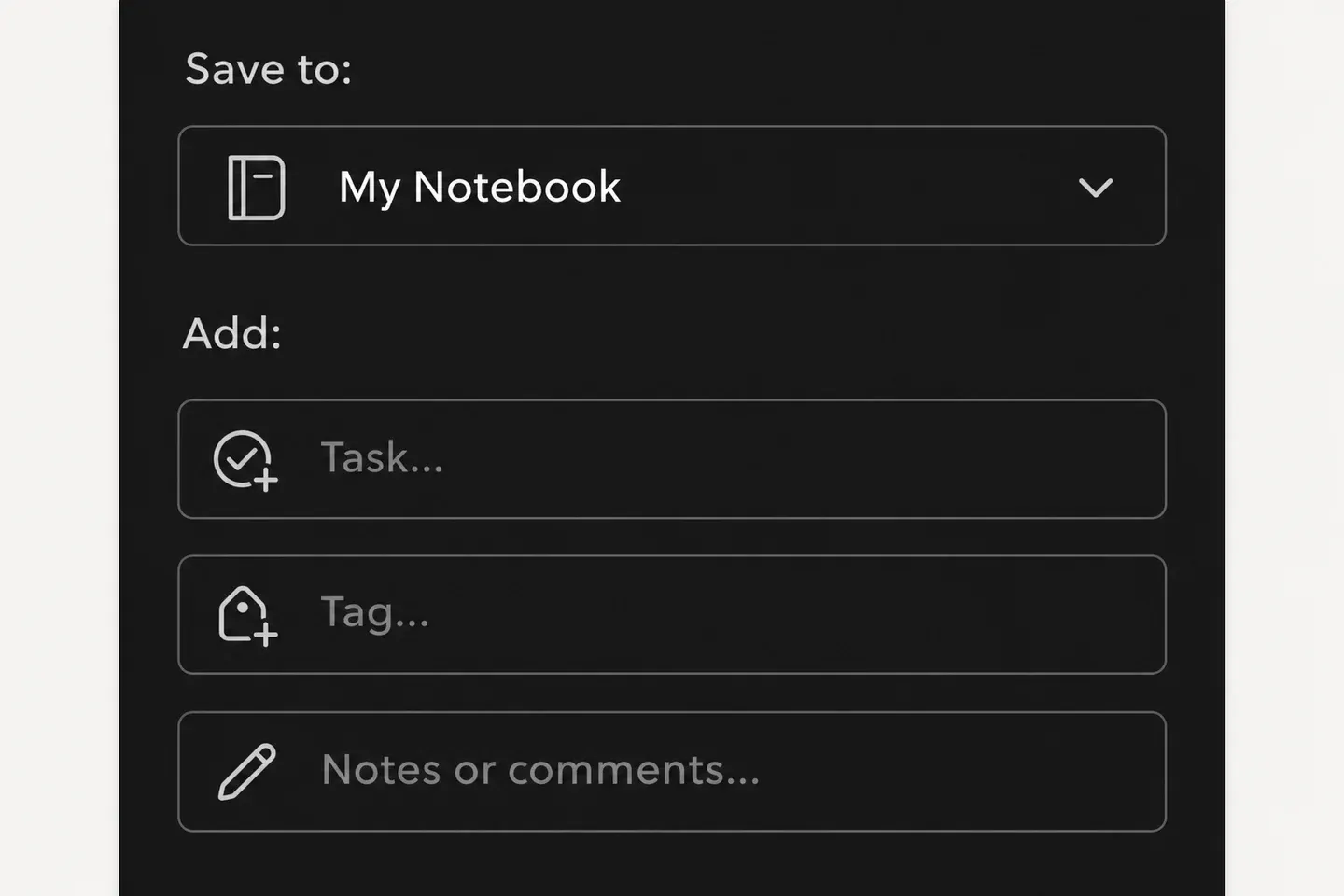
Don't accept a suggested notebook without checking it. Evernote's smart filing suggests a notebook or tags from similar earlier clips. That can save a choice, but it doesn't establish where this particular item belongs. I'd use one recognizable research inbox until the filing suggestions match the way I organize notes.
To change repeated defaults in Chrome, Safari or Firefox, open the clipper and select Settings at the bottom of its panel. The settings include the notebook destination, tag selection and default clip action. Choose a fixed notebook if that's a better starting point than a suggestion.
Bryan Clark's Laptop Mag walkthrough also separates the capture format from notebook, tags and remarks before saving. Its useful distinction is the result: a bookmark keeps a reference, while an article capture keeps content and a screenshot keeps a visual snapshot.
Change the capture when content is missing
A saved note can still omit an important image or section. Evernote's troubleshooting instructions identify complex page designs, interactive content and multimedia as possible causes of incomplete or altered captures. Start with the captured result rather than repeating the same save.
- The main article is incomplete: compare Article, Simplified article and Full page. For one essential passage, select the content manually before opening the clipper.
- The visual appearance is what matters: capture a screenshot and inspect its boundaries. A static image won't preserve a video's playback or an interactive control.
- No page saves: check that the extension is enabled and current, confirm the account's capacity, then try a different ordinary web page. A problem on one source calls for a different investigation from failure everywhere.
- The account or save flow seems stuck: sign out and back in. Review the browser's cookie and site-access settings against Evernote's troubleshooting instructions.
Keep any browser-setting change narrow. I'd try a site-specific allowance before loosening a browser-wide privacy setting, and restore a temporarily disabled blocker after checking the result. Clearing the browser cache is another documented step; don't confuse cache with deleting passwords, browsing history or other stored data.
Keep account storage and page access in view
The Firefox listing requests access to browser tabs, clipboard functions and data for all websites. It also declares authentication information, browsing activity, personally identifying information and website content as required data categories. Those disclosures describe access and handling categories; they don't measure how reliably a page will clip.
Evernote's privacy policy says Web Clipper records the source address of material you choose to save, and separately states that it doesn't track or create a record of browsing activity. Keep that developer statement separate from the browser's permission scope.
For phone or tablet capture, use the mobile sharing workflow rather than expecting the desktop extension panel. Evernote's troubleshooting guidance treats mobile clipping separately.
I'd choose Evernote Web Clipper when the notebook is already the destination and I want to choose a format, add tags or annotate a screenshot during capture. If the material belongs in a Notion database, its workspace-based clipping workflow is a separate choice. The productivity extension hub groups the other ways to save and organize pages.
