

DeepL extension: translate text before replacing it
Translate a passage, review the result, and distinguish Translator benefits from Write Pro before changing settings or sending private text.
Get extensionWith advanced mode enabled, select a public, non-sensitive passage, click DeepL's floating translation icon and choose the target language in the translation window. I'd start with that small selection before translating a whole page or replacing anything you've written. The free extension has character limits, full-page translation requires DeepL Pro, and a Write Pro subscription covers writing improvements rather than paid translation features.
Choose the official extension and check your plan
Use the Chrome listing published by DeepL, choose Add to Chrome and review the requested access before confirming. DeepL also provides extensions for Edge and Firefox. An app or extension with “DeepL” in its name can belong to another developer; Web Translator for DeepL on Apple's store is offered by Katsumi Kishikawa, a separate third-party developer.
If a tutorial asks you to load an unpacked extension and enter an API key, check the publisher again. That describes a different setup route used by third-party API extensions. Follow DeepL's store-and-account route for the official extension here.
Pin DeepL from your browser's Extensions menu if you want its toolbar icon visible. Open that icon and choose Log in to use your subscription. The browser-extension setup instructions explain the distinction between plans:
| Your plan | What to expect in the extension |
|---|---|
| Free | Limited characters for translation or writing improvement; no Pro full-page translation. |
| DeepL Pro | Paid translation functions, including full-page translation. This doesn't make Write a paid function. |
| DeepL Write Pro | Paid text-improvement functions. This doesn't provide the translation benefits of DeepL Pro. |
| A bundle covering both | Translation and writing-improvement benefits included in that bundle. |
Check the shield beside each function in the extension settings. DeepL says the shield marks functions covered by your plan, with their corresponding features and increased data protection. A shield beside Write doesn't establish the same coverage for Translator. I'd resolve that account mismatch before changing browser permissions or buying another subscription.
Translate a passage without changing the page
For public, non-sensitive text, the selected-text translation instructions give this route with the advanced mode window enabled:
- Highlight the passage on the webpage and click the floating translation icon.
- In the window that opens, check the detected source language and choose the target language from the dropdown on the right.
- Read the result alongside the original. Copy the translation if you need it elsewhere; you can also move the window by dragging it.
Keep advanced mode enabled if you want to inspect the result in a separate window. DeepL says disabling it changes the icon's behavior: the translation directly replaces the original text. That setting matters before you use the same control inside an editable field.
If the floating icon gets in the way, use the sidebar instead: open DeepL from the browser toolbar, choose the target language, copy the passage and paste it into the first text box. The browser shortcut documented by DeepL is Ctrl+Shift+Y on Windows or Shift+Command+Y on Mac; a customized shortcut can differ. The desktop app's double-copy shortcut belongs to a separate app.
Review a translated reply before replacing it
Use the free service only for non-sensitive writing; for private material, check the account and text-handling conditions below first. Save a copy of an important draft before changing its language. In an email, comment or other editable field, highlight the text, click the translation icon and choose the destination language in the advanced mode window. Review the result, then use Replace in field when you're ready to put it into the original field.
Keep this preview-and-replace route when you need to inspect the wording first. DeepL's writing instructions also describe shortcut activation that replaces the original text with its translation. Don't assume every way of starting translation pauses at the same preview.
Check names, dates, quantities, negation and who is being asked to do what. For example, a fluent reply still needs to preserve the difference between a proposed delivery date and a confirmed one. After replacement, reread the complete message in its destination field before sending it. Translation and sending are separate decisions.
DeepL Write serves another purpose: improving wording, style or tone. I'd finish the translation first, then decide whether the resulting text needs that additional edit. DeepL Pro also supports formal or informal translation for supported languages; that control doesn't apply to every language.
Translate a whole page with Pro
Sign in to DeepL Pro through the extension, open the webpage and choose a target language in the page-translation popup. Click Translate page. DeepL's instructions say the page translates as you scroll. Use Show original in the popup, or reload the page, to return to the original text.
For page-translation controls, open the toolbar icon, click the gear and select Full page translation. Choose the target language there and decide whether to show the popup. The controls below also include a separate option to close the side panel after translation; turning off the popup and closing the panel are different settings.
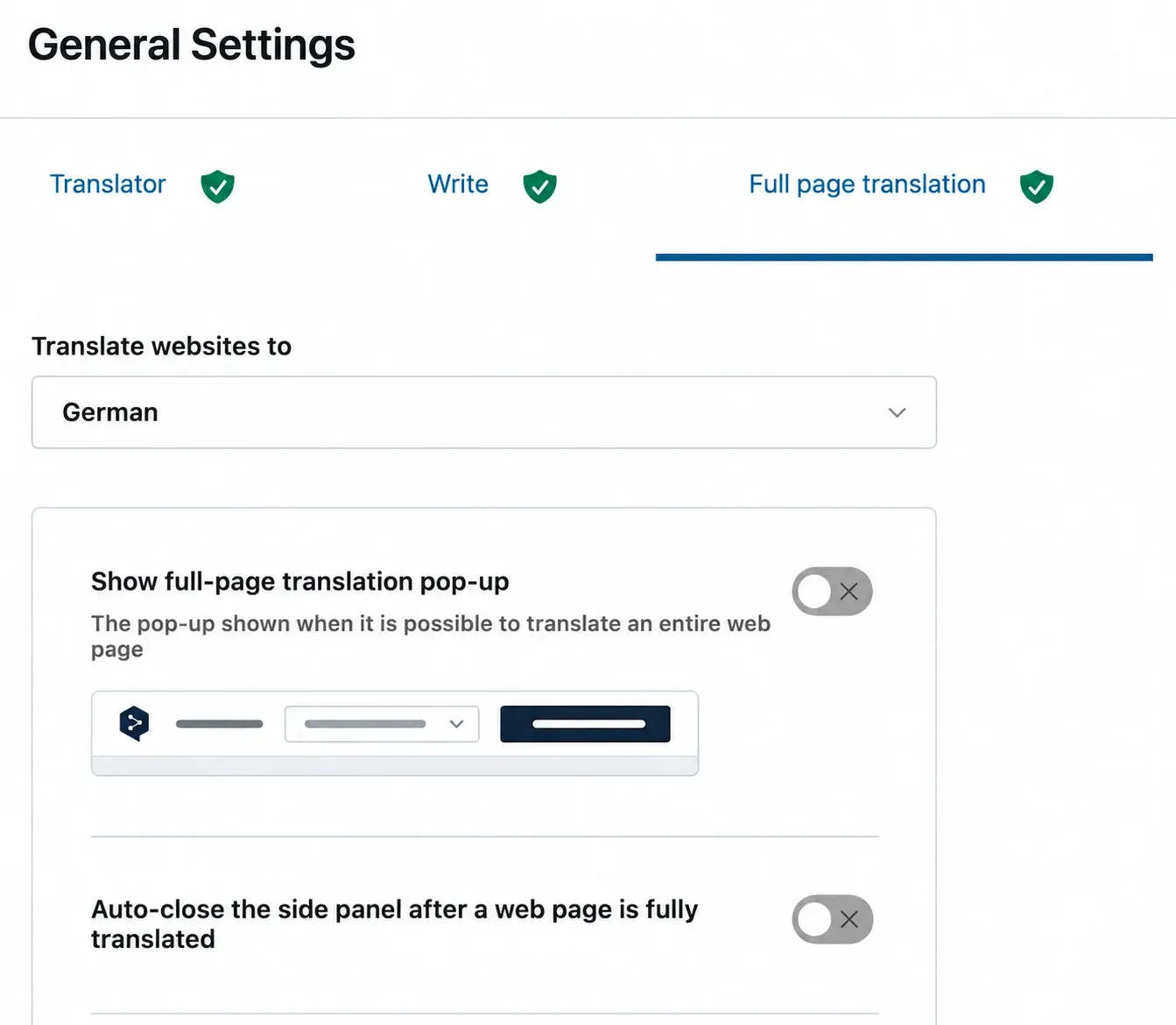
The extension settings instructions also describe exclusions for particular sites and automatic page translation. Start with manual page translation until you've checked the language and result. Automatic translation can make it less obvious that you're reading a translated version.
Check text handling before translating private material
DeepL's privacy policy for free and Pro text services says submitted content and translations or improvements from the free service are processed for a limited period to train and improve its systems. Its terms prohibit personal data in the free text service; the extension listing also warns against confidential material there. Don't paste a private conversation merely because the text box appears inside your browser.
For covered Pro text services, the policy describes temporary processing needed to produce and transmit the result, followed by deletion, and says the text isn't used to improve the service. The store description qualifies its Pro statement with an exception when you actively agree to content use. Keep any optional sharing choice separate from the basic subscription benefit.
A Pro plan doesn't remove your organization's approval requirements or the need for a lawful basis to process personal data. Account and usage information are also separate from the translated text. Check the shield for the function you're using, the account you've signed into and the applicable terms before sending sensitive material.
Judge meaning separately from writing corrections
In Tira Nur Fitria's 2023 analysis of an Indonesian abstract translated into English, Grammarly Premium flagged 10 writing issues in the DeepL output. The paper reports 25 for Google Translate in its abstract and conclusion, though one detailed paragraph says 26. These are writing-checker flags on one example, not a measurement of semantic accuracy or a ranking of current extensions.
I'd use that result as a reason to review the output, not as a percentage by which one translator is better. A grammar checker can help identify awkward English while still leaving the source meaning to be checked by someone who understands both languages. For a consequential message you can't verify, get that review before sending the translated text.
Restore a missing icon or page prompt
Open the DeepL toolbar icon, click the gear and check the relevant settings tab. In Translator, enable Show the DeepL floating icon if you previously hid it. For a missing page prompt, use Full page translation and enable Show full-page translation pop-up. If you excluded one website, delete its Never show… entry with the X beside it.
Return to that webpage and try a short, non-sensitive passage or reopen the page prompt. Check that the target language is correct and that the expected window appears. If the icon returns but full-page translation remains unavailable, verify your login and the Translator plan coverage before resetting the extension.
For another selected-text workflow, compare Google Translate's extension and Chrome's built-in page translation. The official Google Translate listing says full-page translation is now handled by Chrome itself, rather than its extension.
