
Dark Reader review
A practical Dark Reader review: per-site dark themes, rendering tradeoffs, troubleshooting and the cost of each browser edition.
Get extensionDark Reader gives websites a dark appearance when they don't offer one you like, with controls for brightness, contrast and individual sites. I'd use a site's own dark theme first, then enable Dark Reader where it fills a gap. For a browser full of changing web apps, start with a short list of sites: its theme engine does real work, and an exception is often more useful than forcing one setting everywhere.
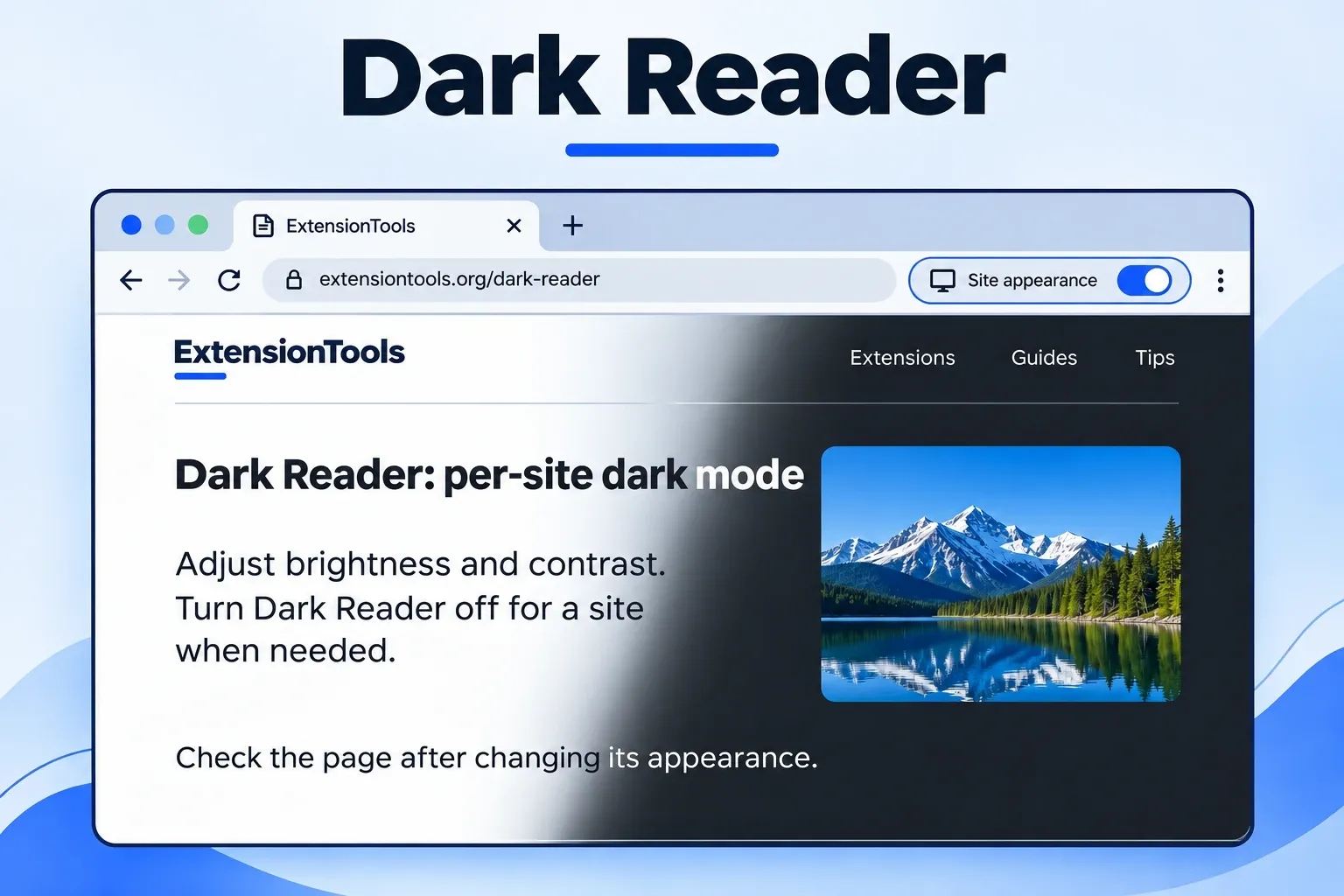
Start with one site and keep its off switch handy
Use the links on Dark Reader's official site to reach the Chrome, Firefox, Edge or Safari version. Check the publisher before installing; a similar name doesn't identify the same extension. Pin its icon to the toolbar so you can reach the settings while looking at the page you're changing.
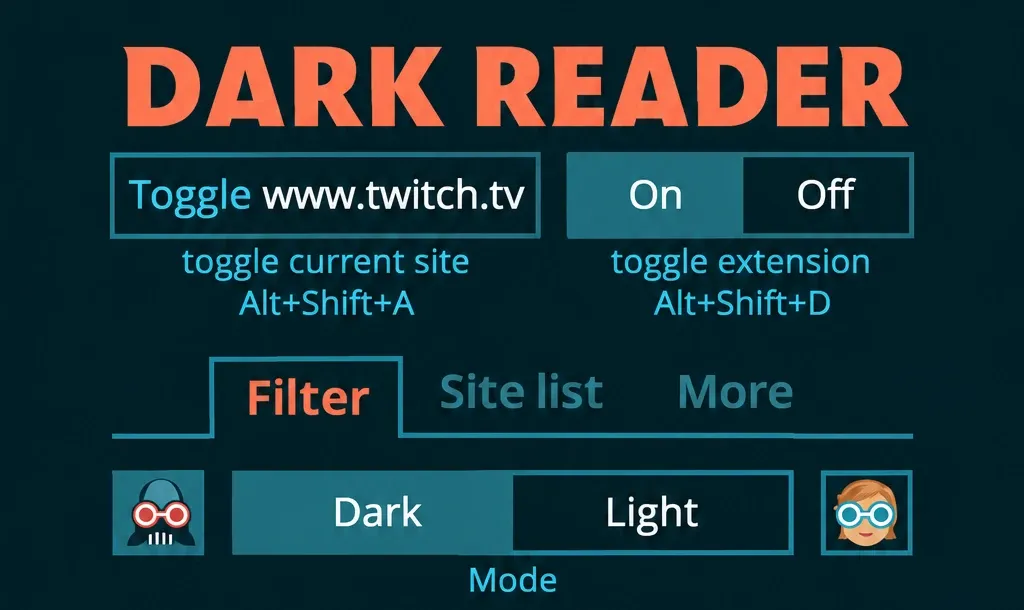
In the classic desktop popup, the On/Off control switches the whole extension. The button containing the current site's address toggles that site. If a page becomes unreadable, use the site control first so other pages can retain their settings.
Start on an ordinary article page. Switch Dark Reader on, inspect the text, links, images and any form controls, then toggle the site off to compare. Choose settings for legibility and your display rather than assuming that the darkest possible background is the best result. Keep the original view available when colors convey information, as in a chart or editing interface.
Before printing or saving a PDF from a restyled page, inspect the print preview. If the background or text colors are wrong, turn Dark Reader off for that site and check the preview again. Use the same comparison before relying on colors in a document-editing workflow.
Limit it to the sites that need it
The classic Site list controls have two opposite meanings:
- Invert listed only enables Dark Reader only for sites in the list.
- Not invert listed leaves the listed sites alone and applies Dark Reader elsewhere.
If you want a small set of reading sites, use the first approach and add those sites. If you generally want it everywhere, use the second and maintain exceptions. Check which mode is selected before adding an address; adding the same site can enable it or exclude it depending on that choice.
Dark Reader supports patterns for domains, subdomains and paths. Use the narrowest rule that matches your intention. A rule for one web app is easier to reason about than a broad pattern that changes several unrelated services.
The newer settings interface expresses this through the Settings button under the site's address and Enabled by default. Uncheck that option to work only on chosen sites. Its Detect dark theme setting can stop Dark Reader from interfering with a site's existing dark appearance. If detection misses a site, make an explicit exception.
Adjust the current site without changing every page
Brightness and contrast changes can help one page and make another harder to read. In the classic popup, click Only for before changing the filter settings to apply them just to the current website. The button becomes highlighted; clicking it again cancels the site-specific selection.
Make one adjustment at a time. Inspect a paragraph, a link, a disabled control and an image with a transparent background. If a logo disappears or chart colors become ambiguous, return that site to its original theme or try another rendering mode. Dark styling doesn't establish that a site meets accessibility requirements.
Font replacement and text-stroke settings are available in the classic More tab. I'd leave fonts alone until the page's basic contrast is right; changing several controls together makes it harder to identify which change helped.
Choose a rendering mode for the page
In the classic popup, open More to select a theme generation mode.
Dynamic analyzes stylesheets, background images and vector graphics to build a theme. The developer recommends it for visual results, while noting that it requires resources during initial loading. It's a reasonable starting point for a site whose original design you want to retain.
Filter applies CSS filters to the whole page and reverses selected parts. Its tradeoffs include GPU work, changes to text rendering and already-dark areas becoming light. Filter+ uses SVG filters to handle colors differently, but the official help warns that it works poorly in Firefox.
Static generates a basic stylesheet. Try it when a simpler transformation is acceptable, then check whether the controls and content remain readable. There isn't one mode that is best for every web app. Save your choice for that site rather than changing settings for the whole browser each time one page misbehaves.
If you need to write your own site-specific CSS instead of choosing a ready theme engine, Stylus addresses that different task. Dark Reader is the more direct option when the objective is a manageable dark appearance with a quick per-site switch.
What published results show
DebugBear's 2021 browser-performance test provides a concrete example of the cost on one demanding page. With Dark Reader installed, the Apple homepage required roughly 25 seconds of additional on-page CPU work analyzing and adjusting images. Its first content appeared after almost four seconds, compared with under one second without the extension. CPU work and time to first content are different measures; the figures shouldn't be added together.
The report used Chrome 91 on a Google Cloud n2-standard-2 instance, with Lighthouse's unthrottled observed metrics and the median of seven runs. It doesn't identify the Dark Reader build or provide a comparison of its theme modes. These are historical results for that page and setup, not a predicted delay in today's browser. I take them as a reason to use per-site controls and investigate a troublesome page, rather than assume that one engine is always faster.
Tooltivity's review favors the Dynamic engine's handling of existing website styles, but reports problems on heavy, changing pages. Its performance rating is an editorial assessment, rather than a reproducible loading-time or memory benchmark. I'd use that evidence to justify checking important web apps, not to promise a particular speed difference between modes.
The Firefox review record contains both a version 4.9.135 report praising the per-site off switch and a version 4.9.133 report of severe slowdowns and broken web apps. Another 4.9.135 user reports that dark-theme detection misses a particular Outlook site. The conditions differ, so these reports don't produce a meaningful average slowdown or a general failure rate.
Andrew Arrow's account of adapting Dark Reader logic for an embedded WebKit browser explains why a simple color inversion isn't equivalent: changing stylesheets, CSS variables and page updates require ongoing handling. His work concerns a separate WebKit port, with a different execution environment from the packaged Firefox and Chrome extensions. Together, the evidence supports a practical choice: keep Dynamic where it looks right, use exceptions where a site's own theme is better, and investigate performance on the page where it occurs.
Use automation after the manual settings work
Dark Reader's automation can follow specified active hours, sunrise and sunset for a location, or the system's dark-mode setting. Configure the trigger you intend to use, then check a page that is eligible under your site rules. Check the site rules as well as the selected automation trigger.
I'd first establish one readable manual configuration and then add automation. If the expected change doesn't happen, check the trigger, the current system appearance or time range, and whether the page is enabled. Changing the engine, schedule and site list at once creates several possible causes for the same symptom.
When a page stays white or looks wrong
Browser settings, extension stores and new-tab pages: some pages are outside the extension's reach. Use a dark browser theme for the browser's own interface and new-tab background. The help explains that the browser may show its theme background before a website loads, which also matters for a white flash during navigation.
An ordinary website stays white: check that the global control is On, the site's toggle is enabled and the list mode matches your intended rule. A greyed-out site button can mean the browser restricts script injection on that page. That is different from a brightness setting that is too high.
Text, images or controls look wrong: toggle Dark Reader off for that site to compare, then try a site-specific mode or leave an exception. If several appearance extensions are active, check their interaction before blaming the website. Keep a working setting rather than forcing a broken page dark.
A page becomes slow: compare the same page with Dark Reader enabled and disabled. If the difference follows the extension, narrow its site scope or try a simpler site-specific mode. Don't treat a different page's memory report as a measurement of your setup.
Incognito or local HTML files: Chrome requires the relevant extension permission, Allow in incognito or Allow access to file URLs. Enable only the access you intend to use. Those permissions don't give access to browser-protected settings and store pages.
Check permissions and the price for your browser
Changing a page's appearance requires access to its content and styles. The terms describe CSS and image requests used for analysis and warn that restyling can cause side effects. The privacy policy says the extension doesn't collect personal data or browsing history; settings use browser storage APIs. That is a specific privacy statement, not a claim that no network request ever occurs. The public website has its own visit and link statistics.
The current terms allow Chrome, Edge and Firefox use without an advance payment, while encouraging a user fee. Safari is a separate paid app: the US App Store lists it at US$1.99. Confirm the price shown for your account before buying. A Chrome/Firefox/Edge user fee doesn't buy Safari access.
Dark Reader Plus is a separate Edge offer for a special interface and additional features; its terms distinguish Android availability and desktop early access. Check the offer in your actual browser before paying. Don't assume the same interface, activation or purchase applies across every edition.
Keep a short site list, preserve a quick way back to the original appearance and check your most important reading and work pages. Dark Reader is useful when its controls let you choose a readable result; a site-specific exception is part of that setup.
