
Custom Cursor for Chrome: choose, resize and restore
Select a cursor-and-pointer pair, add website packs or your own images, and return to the default without confusing Chrome and Windows settings.
Get extensionCustom Cursor for Chrome changes the pointer on ordinary webpages with a selected cursor pack. Save unfinished work in your open tabs. Open its toolbar popup, click a pack, then reload any tabs that were already open when you installed it. I'd start with a simple arrow-and-hand pair: it's easier to judge the size and click position before choosing a more decorative design. Use Default Cursor when you want the ordinary pointer back.
The Chrome extension doesn't replace your system pointer throughout Windows. That requires the separate desktop app. For recoloring a page or changing its fonts, choose a tool from our website appearance tools.
Get the right Custom Cursor extension
Choose Custom Cursor for Chrome™ linked to custom-cursor.com, from BLife Team. The listing describes a free extension with no account required. Its current version is 4.1.5. Several extensions have nearly identical names, so check the linked website rather than relying on the title or icon alone.
For example, “Custom Cursors for Chrome” linked to cursorstore.com is a separate product. Sweezy Cursors is another. Their animation features, settings and privacy declarations don't establish what the BLife extension does.
Install through the Chrome Web Store and review Chrome's permission prompt before confirming. After installation, open an ordinary website and reload it. The developer explicitly excludes the Chrome Web Store and certain built-in Chrome pages from supported places to try the cursor. An unchanged pointer on those pages isn't evidence of a broken installation.
Choose a pack and set its size
- Click the extension's icon in Chrome's toolbar to open its popup. If it's hidden, open Chrome's Extensions menu and select it there; use Pin if you want the icon to stay in the toolbar.
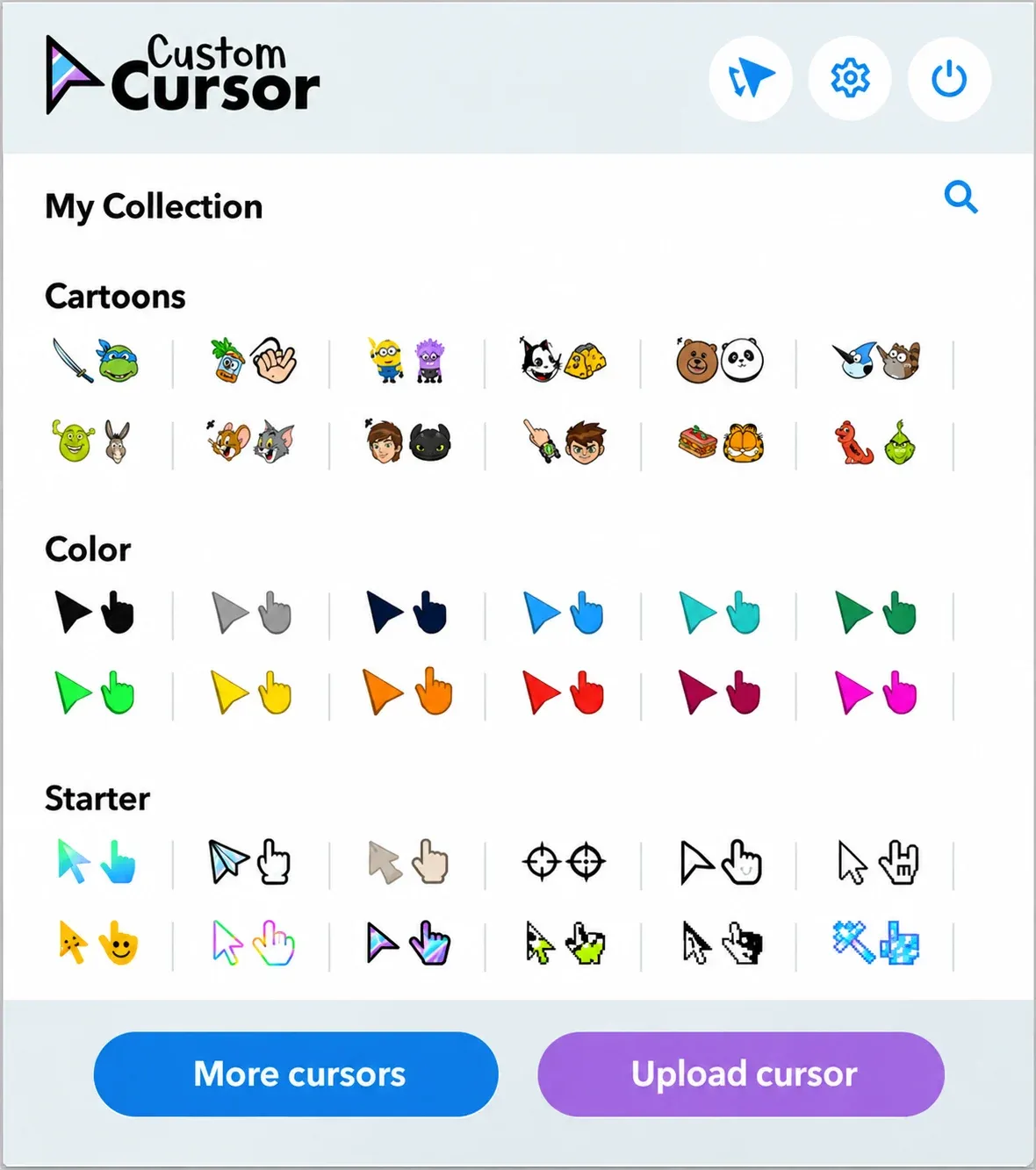
- Scroll through the collection and click the image of a cursor pack. The selected design applies immediately on supported pages.
- Use the Change Size control in the top bar to open the size slider. Adjust it, then return to the page.
- Move across plain page content and a link. Check both the normal cursor and the link pointer, then try a small button.
A pack normally pairs two images: a cursor and a matching pointer. That's why checking only the arrow can miss a problem with the hand shown over a link. Keep the size small enough that you can see the button or text you're trying to click. A bigger graphic isn't automatically easier to use.
The official selection and size instructions also explain the default control. If a large or unusually shaped pack makes clicking awkward, restore the default first and choose a simpler pair.
Add a website pack, then select it
More cursors opens the developer's catalog. You can preview a design there before adding it. In the catalog's download workflow, ADD adds an individual pack, while ADD ALL adds a collection.
Return to the extension popup after adding a pack and click it to use it. Collections added from the website appear at the bottom of the collection list, so scroll down if the new pack isn't among the built-in choices. Adding a design to your collection and selecting it as the active cursor are separate steps.
If you also have the Windows app, check which destination you're choosing on the website. A community reply about a missing pack distinguishes the main add action for the Chrome extension from the Windows-logo action for the desktop app. The same thread recommends reloading browser tabs. Those are useful checks before deleting collections or reinstalling anything.
Upload your images and check the click point
Keep your original image files somewhere you can find again before editing or deleting a custom pack. The official upload instructions recommend images no larger than 128 × 128 pixels and a transparent background, such as a PNG. That's a recommendation for this product, rather than a guarantee that every image format or dimension will work.
- Open the extension popup, click the gear icon to open its options, then select Upload cursor in the top navigation. The popup's separate Upload cursor button opens the website's Cursor Creator.
- Use the + controls on the upload page to add the cursor image and pointer image.
- Open My Collection in the popup and click the uploaded item to activate it.
- Check both ordinary page content and a link, then check the position where a small button responds to a click.
You can supply just one image. The upload help says only that element will be applied; the Creator instructions explain that the missing counterpart remains the system default. If the arrow changes but the hand doesn't, check whether you supplied both images before treating it as a fault.
For a design whose visible tip doesn't line up with the click, use the website's Custom Cursor Creator. Its preview lets you choose an active point separately for the cursor and pointer. Click the intended contact point; a purple aiming circle marks it. Name the pack so you can identify it later, then use ADD to keep it in My Collection.
The Creator also offers an immediate-set route without adding the pack. That route won't leave the pack editable after you leave the page. I'd add a design I intend to keep, rather than relying on that temporary editing opportunity.
Fix an unchanged or unexpected pointer
Start with the place you're checking. Open a normal website, select a built-in pack and reload the tab. Stay within the webpage while checking it; the extension's webpage cursor isn't a replacement for the pointer across Chrome's controls or other desktop applications.
If built-in packs work but your upload doesn't, return to My Collection and confirm that you activated the uploaded item. Check the two image slots and try a small transparent PNG. For an inaccurate click position, adjust the active point in Creator instead of repeatedly making the image bigger.
A cursor that keeps changing can be an intentional setting. In Settings → Manage Favorites, Rotate favorites can switch among favorite cursors by elapsed seconds or number of pages visited. Turn rotation off if you want the same selected pack to stay in use.
For a problem isolated to a particular website, check Chrome's Extensions → Manage extensions → Details for this extension. Chrome's site access controls can restrict an extension to chosen sites or require you to select it before it can act. Check whether the affected site is allowed; grant access only where you want the cursor to run.
Then compare the page with the default pointer. If the problem disappears with the extension disabled, leave it disabled while reporting the affected URL, Chrome version, extension version and selected pack to Custom Cursor support. Remove private page content from any image you send. Don't install an additional extension merely to force a cursor onto a protected Chrome page.
Read the privacy claims before keeping it
The Chrome listing says the developer won't collect or use your data. The linked BLife privacy policy is less clear: it describes log information for the website and extension, including IP addresses, browser details and timestamps, as well as website advertising and Google Analytics. Its closing section then describes a website-only scope. I wouldn't turn those overlapping statements into a promise of zero network activity or zero collection.
There is also a Koidex static-analysis report for version 3.3.5. It flags broad host access and code-execution permissions, while describing storage of cursor settings and remote collection retrieval. That is a historical automated assessment of a different version, not a safety verdict on 4.1.5. It doesn't establish that the extension is malicious, either.
Review the access Chrome shows for the installed extension and decide whether a decorative webpage change warrants it. For a larger pointer throughout the computer, I'd start with the operating system's own pointer settings. For page colors or fonts, choose a tool aimed at those changes; Stylebot's page styling controls serve that separate purpose.
Restore the default without deleting your packs
Open the popup and click Default Cursor, the power-shaped control in the top bar. Reload the affected tab if the old design remains. This is the documented way to stop using the custom pointer without going through collection cleanup.
To remove downloaded designs, use Settings to open the manage page. The pack management instructions distinguish DELETE beneath a collection from MANAGE, which opens that collection so you can delete one pack. Check which level you're removing before confirming; keep your original files for any custom designs you want to rebuild.
If you no longer want the extension, Chrome's extension management controls let you turn it off or remove it. Start with Default Cursor when you only want the normal pointer back. Delete packs or remove the extension when you want to clean up what you've added.
