

Awesome Screenshot: capture, record and choose where it saves
Separate the capture source from its destination, check free limits, and download a lasting copy before sharing or deleting.
Get extensionAwesome Screenshot combines still screenshots and screen recording, with a choice between a local file and a hosted share link. I'd use a screenshot for a page you need to mark up, and a recording when the order of actions matters. Before capturing anything private, check the save destination and automatic cloud saving: choosing Local isn't enough if cloud autosave is enabled.
Choose the output before the capture
A full-page screenshot preserves a page's appearance. A video shows movement, clicks and narration. Neither is a working copy of the website. The Chrome extension's capture and recording options cover full-page, selected and visible-area screenshots, plus desktop, tab and camera recording.
| Your task | Choose | Check before sending |
|---|---|---|
| Show one error or mark up a design | A selected-area or visible-part screenshot | Crop out unrelated account details. |
| Keep the layout of a long page | Full Page | Inspect the saved top, middle and bottom for missing content. |
| Explain a sequence or reproduce a bug | A tab, window or screen recording | Pick the smallest source that includes the steps, then check audio. |
| Attach a file without hosting it online | Local, followed by a completed download | Disable cloud autosave and open the downloaded file. |
| Let someone view the capture through a link | Cloud, then a generated shareable link | Review the content and access settings before distributing the link. |
Start from the developer's official browser-extension list rather than a similarly named download. The walkthrough below uses Chrome and Edge. Firefox and Safari have their own interfaces; the Mac desktop app is also a separate product, not a promise that every browser extension has the same controls.
Capture a screenshot and keep the file
Open the extension and check the destination first. The developer's screenshot-storage instructions distinguish Cloud from Local, but also warn that Enable Auto Save to Cloud sends locally selected screenshots to the chosen cloud folder. Turn that setting off if your intended destination is only your computer.
- Prepare the page. Close private overlays and remove anything you don't want included. Use a selected area when the surrounding page adds no useful context.
- Open the extension, choose Capture, then Full Page for a scrolling page. The browser-specific full-page instructions call the Firefox command Capture Entire Page and the Safari command Capture Full Page.
- Review the image and annotate only what helps the recipient. Check the captured content before uploading it, not after generating the link.
- For a local copy, complete the download before closing the result tab. Find the file in your download location and open it to confirm that the capture you need is there.
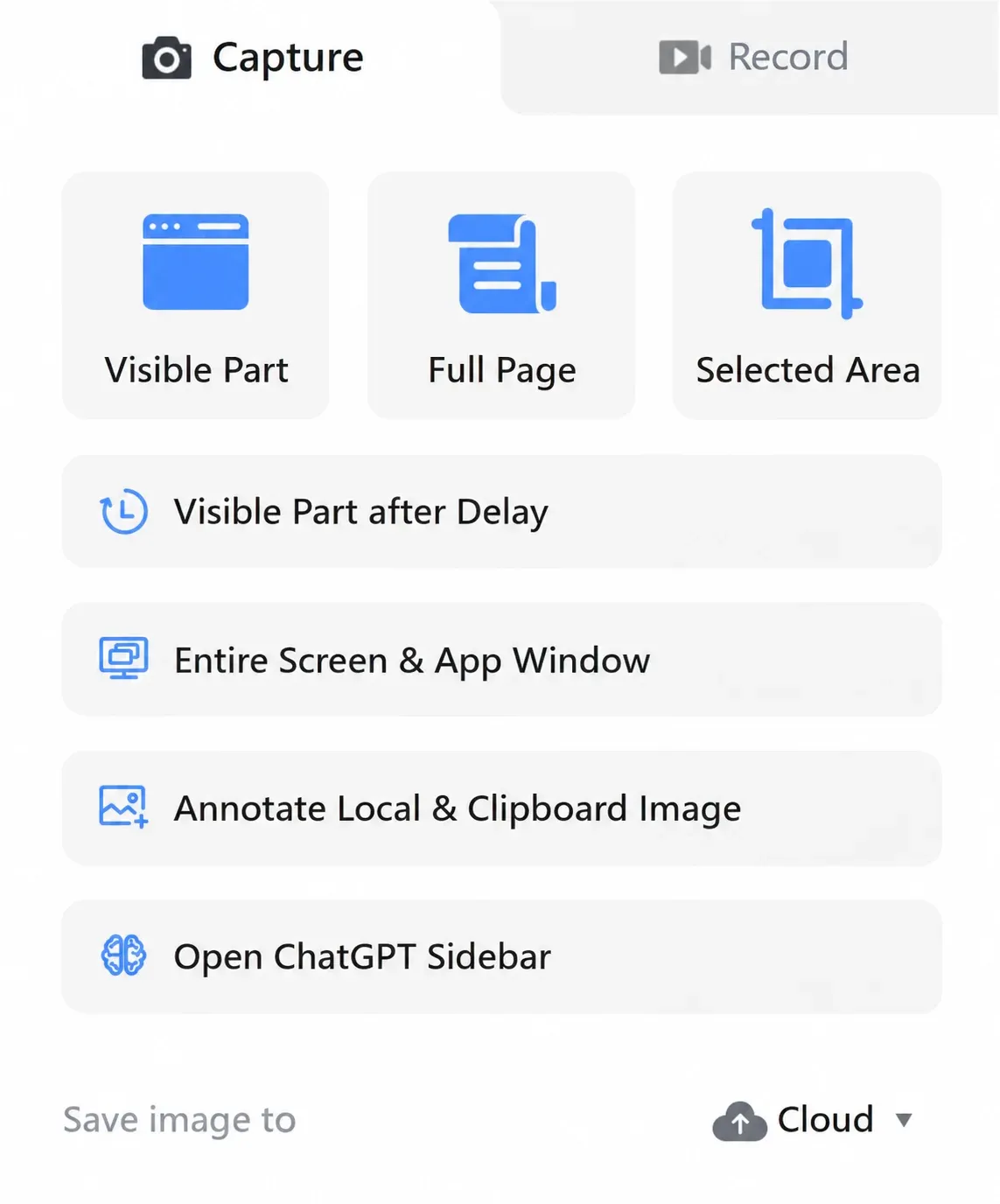
Local is a destination choice, not proof that a durable file has been saved. The storage guide warns that a local screenshot can be lost when its result tab closes unless it has been downloaded. For Chrome and Edge, Auto-download screenshots in Options can save that extra step. Enabling it prompts for permission to manage downloads.
The Chrome listing offers screenshots as PNG or JPG as well as PDF. I'd keep a PNG for a marked-up page when the recipient needs an image, and use PDF when the handoff calls for a document. Open the downloaded version to check small text and the capture boundaries.
If you need PDF, turn auto-download off first so the result page offers Download, Copy, PDF and Print. For a locally saved screenshot, click PDF; for a cloud screenshot, use More > Download as PDF, as shown in the PDF export instructions. A PDF of a screenshot should be inspected as a visual capture; don't assume that it preserves selectable page text or website behavior.
Record the right source, then download it
Make the destination decision before pressing Start Recording. In the Chrome and Edge local-recording workflow, choose Local from the dropdown above that button. After stopping, click Download. The temporary copy in My Local Recordings is browser storage, not a backup; the developer warns that cleanup, updates or browser errors can lose it and that those local recordings can't be retrieved from its server.
Decide whether the microphone and camera are needed before granting access. If either is enabled but recording fails to start, check the browser's access in the operating system's privacy settings. The developer's permission troubleshooting separates permissions for a browser extension from those for the desktop app. Grant access to the product you're using, rather than enabling both indiscriminately.
Choose a tab when the explanation stays in that tab. For an application window in Chrome or Edge, the documented route is Record > Desktop > Start Recording, then Window in the browser's sharing dialog and Share. The window-recording instructions identify a useful restriction: the separate camera window isn't included in Window mode. If you need your face in the recording, the developer directs you to Entire Screen, This Tab or Custom (This Tab).
To finish a Chrome or Edge recording, open the extension and click Stop. The developer's stop, pause and discard instructions also allow Stop sharing for Desktop/Screen mode. Use Stop when you want to keep the recording; Discard is a different action.
That local-recording procedure explicitly excludes Firefox and Safari. In Firefox, the developer's separate recording instructions require sign-in. They also explain that Firefox on macOS may use operating-system sharing controls: navigate to the target window, then choose Share this window, or use Share Entire Screen.
Check the entitlement in your Firefox build before relying on an MP4 download: its store description marks uploaded-video MP4 downloads as Premium. Don't assume that a feature listed for Chrome is available under the same conditions there.
For an ordinary narrated walkthrough, I'd start with MP4 because it is easier to hand off to common players. The developer recommends MP4 for bug reports and educational videos, but favors WebM for fast-moving content and warns of possible artifacts when recording that content directly to MP4. Open your final file and check the picture, narration and ending before deleting the temporary recording.
Read the free limits by destination
The word “free” covers several different limits. The current plan comparison lists local and cloud capture separately. The developer's explanation of recording and screenshot limits resolves what those numbers mean:
| Destination and plan | Limit | What matters in practice |
|---|---|---|
| Local screenshots, any plan | No screenshot-count limit | Complete the download; temporary browser storage is not your archive. |
| Local recordings, signed out or Free/Basic | 5 minutes per recording | A long local tutorial needs a different plan or workflow. |
| Cloud screenshots, Free | 100 stored screenshots | Deleting items frees space; this isn't a monthly allowance. |
| Cloud recordings, Free/Basic | 20 stored recordings, up to 6 hours each | Recording length and the ability to download that recording are separate. |
| Cloud recording download/edit, Free/Basic | Stay below 1 hour per recording | Pricing says “less than 1 hour”; don't plan a six-hour recording around a free export. |
The free cloud-video policy allows downloads from the first 20 recordings, subject to the one-hour limit. Support says “up to” one hour, while pricing says “less than” one hour; I'd keep a free export below that boundary. Support describes downloading and deleting recordings to remain within the storage quota. Keep the file before you remove its hosted copy. For longer exports or other paid features, check the current plan and billing interval before recording something you can't afford to lose.
Share the generated link, not the address bar
Cloud saving requires sign-in. For a screenshot in My items, open it and choose Generate Shareable Link, or use Copy shareable link from the thumbnail menu. A local screenshot must first be uploaded through Upload to get shareable link. These are distinct operations: an upload changes where the capture is stored.
The screenshot-sharing instructions explain why pasting the address bar can fail: that address is owner-only, while the complete shareable link includes a key=... parameter. Treat the generated link as access-bearing information. Send the complete link only to its intended recipients and check the recipient view before relying on it.
Local saving also doesn't mean the whole service collects no data. The privacy policy describes account information, usage data and optional integrations; Chrome's listing discloses handling website content. If the capture contains customer details or confidential work, I'd keep the downloaded file in the approved storage location and avoid creating a hosted link unless that sharing route is permitted.
The Firefox permission list includes access to data for all websites, browser tabs, clipboard input, and downloading files with access to download history. Review those permissions before adding it to a browser profile that handles sensitive work.
When Full Page is unavailable
On browser settings, extension-store pages and other restricted surfaces, Full Page and Selected Area may be dimmed. The developer's restricted-page guidance suggests Visible Part or Entire Screen & App Window, then cropping. That captures the visible window without granting full-page script access.
If Full Page is available but the output is incomplete, inspect the image before sharing it and report the affected page through the extension's Feedback route. Don't send a private URL or account content to support without permission.
For a static PDF workflow, FireShot is a useful neighboring choice; it doesn't replace the need to decide whether a still image explains the task. Use Awesome Screenshot when you need that still capture and a recording workflow in the same tool, then keep the smallest capture and the clearest handoff.
